> ## Documentation Index
> Fetch the complete documentation index at: https://docs.stably.ai/llms.txt
> Use this file to discover all available pages before exploring further.
# Environment Variables
> Store and manage reusable values across your tests with environment-specific configurations in Test Data.
## Introduction
Environment variables provide a centralized way to store values that can be shared across all tests in your project. They are managed through the **Test Data** section in your workspace and work across both the **Stably Web Editor** and the **Stably SDK**.
Environment variables live at the project level and are shared by every test in the workspace. For test-specific values, use [local variables](/platform-capabilities/variables#local-variables) instead.
***
## Adding Environment Variables
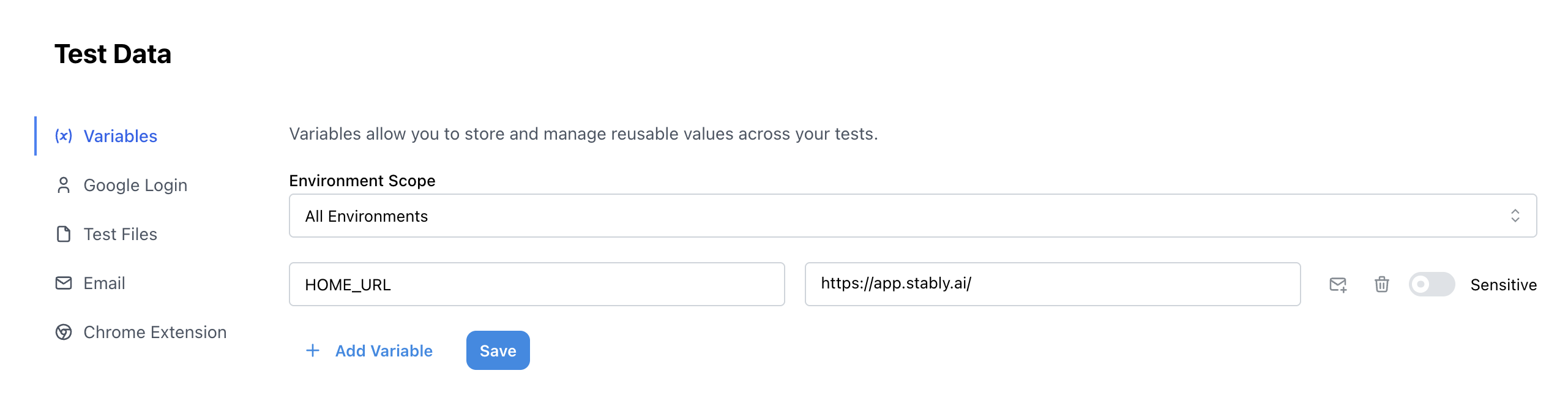
Go to **Test Data → Variables** in your workspace.
Click **+ Add Variable** to create a new environment variable.
Select which environment this variable belongs to (e.g., `staging`, `production`, or `All Environments`). Variables scoped to a specific environment are only available when tests run in that environment. If you're unsure, choose **All Environments** so every test can access it.
Use environment-scoped variables to store values like API keys, base URLs, and configuration that differ between staging and production.
Enter the variable name and value. JSON values are also supported — they will be accessible in your tests as parsed JSON objects.
Toggle **Sensitive** to encrypt and hide the value after creation.
This will prevent the value from being captured in Playwright traces.
Once a variable is marked as sensitive, you will not be able to view its current value or change it back to non-sensitive. You can still update the value by providing a new one.
Save the variable to make it available across all of your tests.
 ***
## Downloading Variables as `.env`
You can download all your environment variables as a `.env` file directly from the dashboard. This makes it easy to sync your variables to your local development environment for use with the **Stably SDK**.
Click the **Download .env** button in the Environment Variables section of the Test Data page:
***
## Downloading Variables as `.env`
You can download all your environment variables as a `.env` file directly from the dashboard. This makes it easy to sync your variables to your local development environment for use with the **Stably SDK**.
Click the **Download .env** button in the Environment Variables section of the Test Data page:
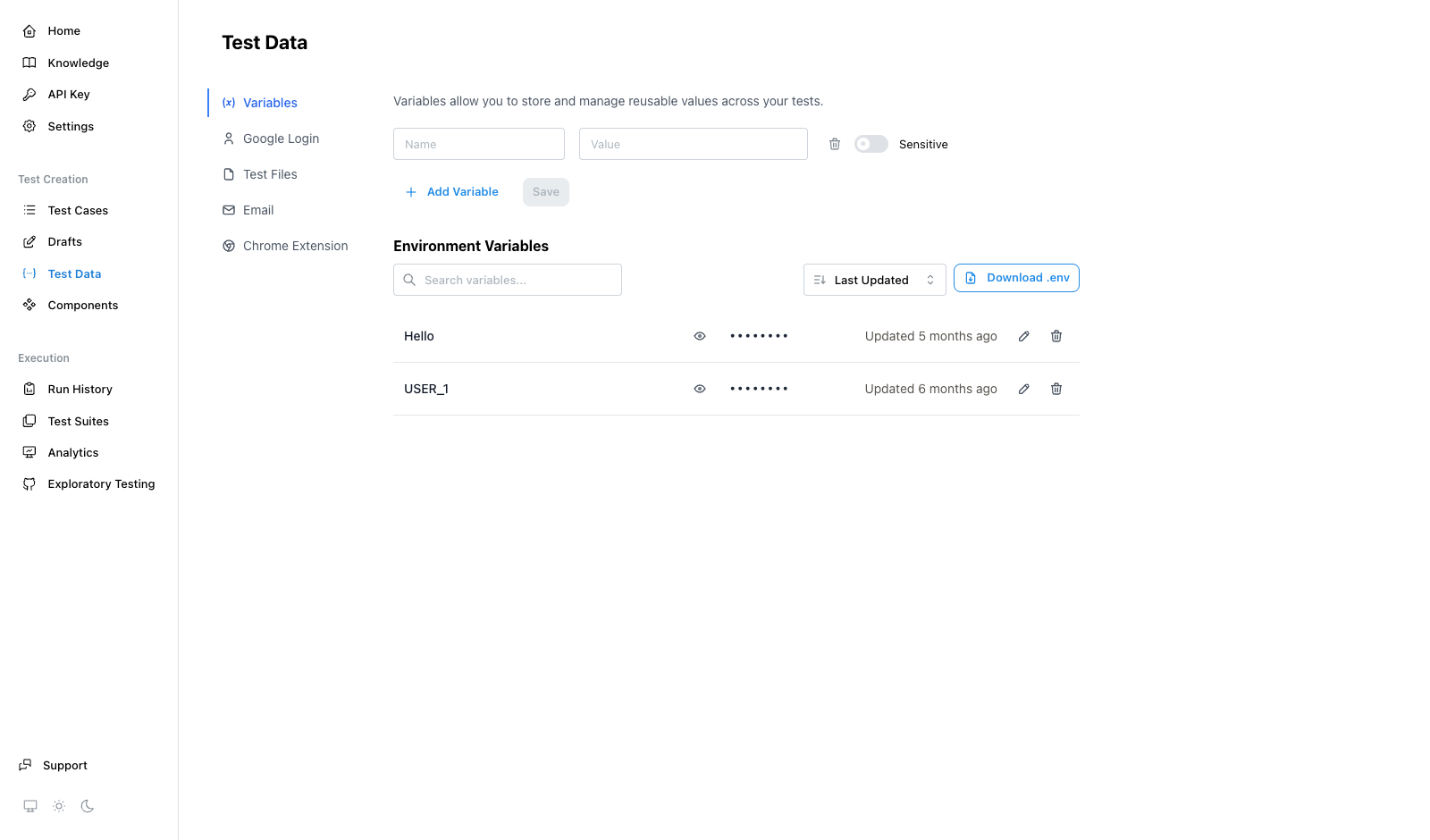 The downloaded file contains all your variables. Non-sensitive variables include their full values, while sensitive variables appear as empty placeholders with a comment (e.g., `# MY_SECRET - SENSITIVE (value not exported)`). Place the file in your project root for local test execution.
Sensitive variable values are **not** included in the download. You will need to fill them in manually in the `.env` file.
When you add or update variables in the dashboard, click **Download .env** again to keep your local file in sync.
***
## Using Environment Variables
Environment variables are accessed via `process.env.VARIABLE_NAME` in your test code. How they get loaded depends on whether you're using Stably on the web or locally.
Environment variables you configure in **Test Data** are **automatically injected** into the AI agent's environment. No additional setup is needed.
The AI agent will use `process.env.VARIABLE_NAME` in the generated test code:
```typescript theme={null}
import { test, expect } from '@stablyai/playwright-test';
test('login flow', async ({ page }) => {
await page.goto(process.env.BASE_URL!);
await page.fill('#username', process.env.TEST_USERNAME!);
await page.fill('#password', process.env.TEST_PASSWORD!);
});
```
You can also reference variables naturally in your AI instructions — the agent knows which environment variables are available and will match them to your intent:
* "Navigate to the base URL"
* "Log in with the test account credentials"
* "Use the API key to authenticate"
You don't need to specify the exact variable name in your instructions — the AI agent will pick the right one automatically.
The Stably CLI can load variables from a named **[Environment](/stably2/environments)** stored on Stably using the `--env` flag. This is the recommended approach — no local files to manage.
```bash theme={null}
# Load variables from your "Staging" environment
stably --env Staging test
# Works with all CLI commands
stably --env Production create "login test"
```
You can also load variables from a local `.env` file:
```bash theme={null}
stably test --env-file .env.staging
```
Or combine both:
```bash theme={null}
stably --env Production test --env-file .env
```
#### Variable Precedence
When using the CLI, variables can come from multiple sources. They are resolved in the following order (highest priority wins):
1. Stably internals (`STABLY_API_KEY`, `STABLY_PROJECT_ID`)
2. `--env` — remote environment from Stably
3. `--env-file` — local `.env` file(s)
4. `process.env` — system/shell environment
Once loaded, variables are available as `process.env.VARIABLE_NAME` in your tests:
```typescript theme={null}
import { test, expect } from '@stablyai/playwright-test';
test('login flow', async ({ page }) => {
await page.goto(process.env.BASE_URL!);
await page.fill('#username', process.env.TEST_USERNAME!);
await page.fill('#password', process.env.TEST_PASSWORD!);
});
```
You can also load environment variables manually using `dotenv` in your Playwright config. This works with any Playwright setup, including without the Stably CLI.
Go to **Environments** in the dashboard, open your environment, and click **Download .env**.
Move the downloaded `.env` file to your project root directory.
```bash theme={null}
npm install -D dotenv
```
Then add to the top of your `playwright.config.ts`:
```typescript theme={null}
import dotenv from 'dotenv';
import path from 'path';
dotenv.config({ path: path.resolve(__dirname, '.env') });
```
Once loaded, variables are available as `process.env.VARIABLE_NAME` in your tests:
```typescript theme={null}
import { test, expect } from '@stablyai/playwright-test';
test('login flow', async ({ page }) => {
await page.goto(process.env.BASE_URL!);
await page.fill('#username', process.env.TEST_USERNAME!);
await page.fill('#password', process.env.TEST_PASSWORD!);
});
```
***
## Editing and Deleting Variables
To **edit** a variable, click on it in the variables list to expand the edit form. You can update its name, value, and environment scope. For sensitive variables, you can provide a new value but cannot view the current one.
To **delete** a variable, click the delete icon next to it in the variables list.
***
## Best Practices
| ✔️ Do | ❌ Avoid |
| ------------------------------------------------------------------------- | ---------------------------------------------------- |
| Store secrets and API keys as **Sensitive** variables. | Hard-coding credentials directly in tests. |
| Use descriptive `UPPER_SNAKE_CASE` names (e.g., `API_KEY`, `BASE_URL`). | Abbreviations that will be hard to remember (`akp`). |
| Create environment-specific variables for different staging environments. | Using the same credentials across all environments. |
| Use environment variables for values shared across multiple tests. | Creating duplicate variables with the same value. |
**See also:** [Variables](/platform-capabilities/variables) for information about local variables and other variable types.
The downloaded file contains all your variables. Non-sensitive variables include their full values, while sensitive variables appear as empty placeholders with a comment (e.g., `# MY_SECRET - SENSITIVE (value not exported)`). Place the file in your project root for local test execution.
Sensitive variable values are **not** included in the download. You will need to fill them in manually in the `.env` file.
When you add or update variables in the dashboard, click **Download .env** again to keep your local file in sync.
***
## Using Environment Variables
Environment variables are accessed via `process.env.VARIABLE_NAME` in your test code. How they get loaded depends on whether you're using Stably on the web or locally.
Environment variables you configure in **Test Data** are **automatically injected** into the AI agent's environment. No additional setup is needed.
The AI agent will use `process.env.VARIABLE_NAME` in the generated test code:
```typescript theme={null}
import { test, expect } from '@stablyai/playwright-test';
test('login flow', async ({ page }) => {
await page.goto(process.env.BASE_URL!);
await page.fill('#username', process.env.TEST_USERNAME!);
await page.fill('#password', process.env.TEST_PASSWORD!);
});
```
You can also reference variables naturally in your AI instructions — the agent knows which environment variables are available and will match them to your intent:
* "Navigate to the base URL"
* "Log in with the test account credentials"
* "Use the API key to authenticate"
You don't need to specify the exact variable name in your instructions — the AI agent will pick the right one automatically.
The Stably CLI can load variables from a named **[Environment](/stably2/environments)** stored on Stably using the `--env` flag. This is the recommended approach — no local files to manage.
```bash theme={null}
# Load variables from your "Staging" environment
stably --env Staging test
# Works with all CLI commands
stably --env Production create "login test"
```
You can also load variables from a local `.env` file:
```bash theme={null}
stably test --env-file .env.staging
```
Or combine both:
```bash theme={null}
stably --env Production test --env-file .env
```
#### Variable Precedence
When using the CLI, variables can come from multiple sources. They are resolved in the following order (highest priority wins):
1. Stably internals (`STABLY_API_KEY`, `STABLY_PROJECT_ID`)
2. `--env` — remote environment from Stably
3. `--env-file` — local `.env` file(s)
4. `process.env` — system/shell environment
Once loaded, variables are available as `process.env.VARIABLE_NAME` in your tests:
```typescript theme={null}
import { test, expect } from '@stablyai/playwright-test';
test('login flow', async ({ page }) => {
await page.goto(process.env.BASE_URL!);
await page.fill('#username', process.env.TEST_USERNAME!);
await page.fill('#password', process.env.TEST_PASSWORD!);
});
```
You can also load environment variables manually using `dotenv` in your Playwright config. This works with any Playwright setup, including without the Stably CLI.
Go to **Environments** in the dashboard, open your environment, and click **Download .env**.
Move the downloaded `.env` file to your project root directory.
```bash theme={null}
npm install -D dotenv
```
Then add to the top of your `playwright.config.ts`:
```typescript theme={null}
import dotenv from 'dotenv';
import path from 'path';
dotenv.config({ path: path.resolve(__dirname, '.env') });
```
Once loaded, variables are available as `process.env.VARIABLE_NAME` in your tests:
```typescript theme={null}
import { test, expect } from '@stablyai/playwright-test';
test('login flow', async ({ page }) => {
await page.goto(process.env.BASE_URL!);
await page.fill('#username', process.env.TEST_USERNAME!);
await page.fill('#password', process.env.TEST_PASSWORD!);
});
```
***
## Editing and Deleting Variables
To **edit** a variable, click on it in the variables list to expand the edit form. You can update its name, value, and environment scope. For sensitive variables, you can provide a new value but cannot view the current one.
To **delete** a variable, click the delete icon next to it in the variables list.
***
## Best Practices
| ✔️ Do | ❌ Avoid |
| ------------------------------------------------------------------------- | ---------------------------------------------------- |
| Store secrets and API keys as **Sensitive** variables. | Hard-coding credentials directly in tests. |
| Use descriptive `UPPER_SNAKE_CASE` names (e.g., `API_KEY`, `BASE_URL`). | Abbreviations that will be hard to remember (`akp`). |
| Create environment-specific variables for different staging environments. | Using the same credentials across all environments. |
| Use environment variables for values shared across multiple tests. | Creating duplicate variables with the same value. |
**See also:** [Variables](/platform-capabilities/variables) for information about local variables and other variable types.