> ## Documentation Index
> Fetch the complete documentation index at: https://docs.stably.ai/llms.txt
> Use this file to discover all available pages before exploring further.
# Create tests
> Build no-code tests by recording flows, inserting actions from the library, and accelerating repetitive work with AI.
Stably’s AI-powered recorder helps you create Playwright-compatible tests without touching code. You can capture flows in real time, insert reusable actions from the library, or let the AI co-pilot generate multi-step sequences for you. Every step stays editable so you can refine locators, add assertions, and annotate intent before saving the test.
## Prerequisites
* Access to the Stably dashboard with the no-code editor enabled
* A start URL that is reachable from Stably’s cloud runners
## Start a new test
1. Open the dashboard and choose your project.
2. Click **Create test** in the no-code editor.
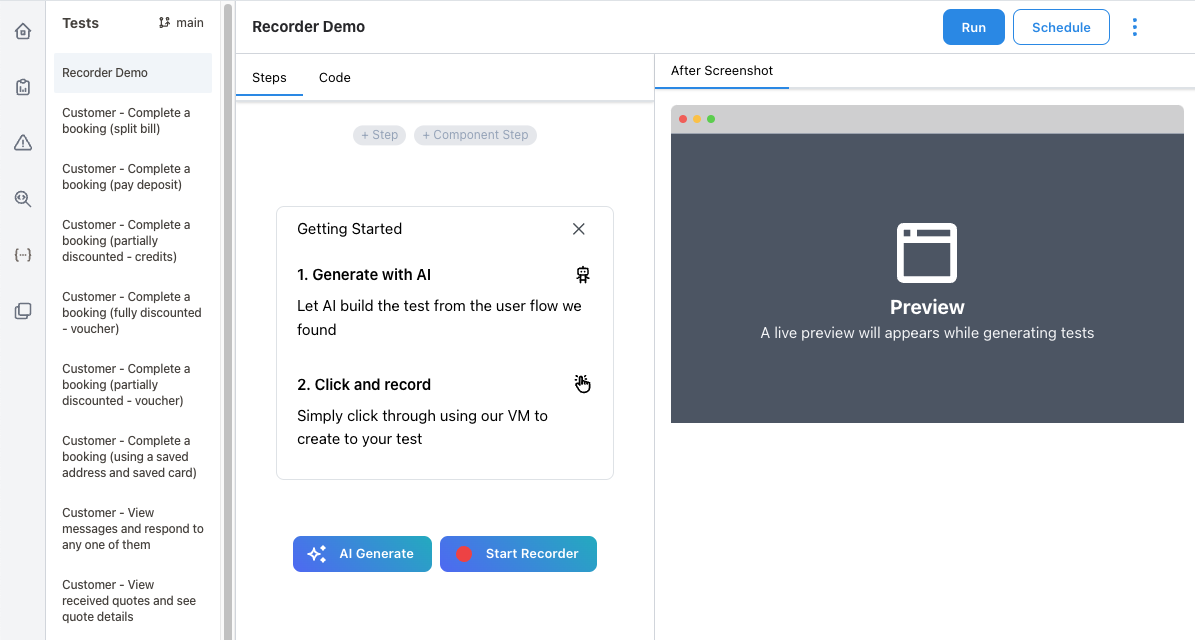
3. Enter the start URL and environment variables, then launch the cloud recorder.
4. Wait for the virtual browser to load—session controls appear on the left, and every recorded step is appended to the right-hand timeline.
 ## Capture actions while you explore
* **Interact normally**—navigate, click, type, and scroll while Stably records each action with resilient selectors.
* **Pause & resume** to stage data or wait for asynchronous work without creating noisy steps.
* **Edit as you go**: rename a step, tweak the locator, or update the step description directly in the timeline to preserve intent for future auto-heal.
* **Reorder or delete** steps with drag-and-drop so the flow mirrors your real user journey.
Give steps descriptive names (for example, “Submit onboarding form”) so AI auto-heal can reason about intent when your UI changes.
## Insert actions from the library
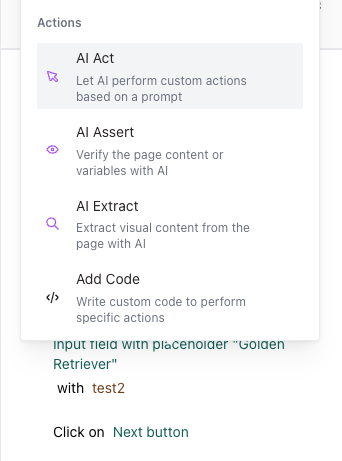
Click **Add action** to open the library of prebuilt interactions. Choose from:
* **Navigation & waits**: open URLs, reload, wait for selectors or specific durations.
* **Element actions**: click, fill, hover, drag-and-drop, or trigger keyboard shortcuts.
* **Assertions**: traditional checks like `to be visible` or `to contain text`.
* **Utilities**: define variables, inject custom JavaScript, or upload files.
## Capture actions while you explore
* **Interact normally**—navigate, click, type, and scroll while Stably records each action with resilient selectors.
* **Pause & resume** to stage data or wait for asynchronous work without creating noisy steps.
* **Edit as you go**: rename a step, tweak the locator, or update the step description directly in the timeline to preserve intent for future auto-heal.
* **Reorder or delete** steps with drag-and-drop so the flow mirrors your real user journey.
Give steps descriptive names (for example, “Submit onboarding form”) so AI auto-heal can reason about intent when your UI changes.
## Insert actions from the library
Click **Add action** to open the library of prebuilt interactions. Choose from:
* **Navigation & waits**: open URLs, reload, wait for selectors or specific durations.
* **Element actions**: click, fill, hover, drag-and-drop, or trigger keyboard shortcuts.
* **Assertions**: traditional checks like `to be visible` or `to contain text`.
* **Utilities**: define variables, inject custom JavaScript, or upload files.
 ## Accelerate repetitive flows with AI
* Use the AI co-pilot to describe the goal (“Sign up a trial user and confirm the dashboard renders charts”) and generate multiple steps automatically.
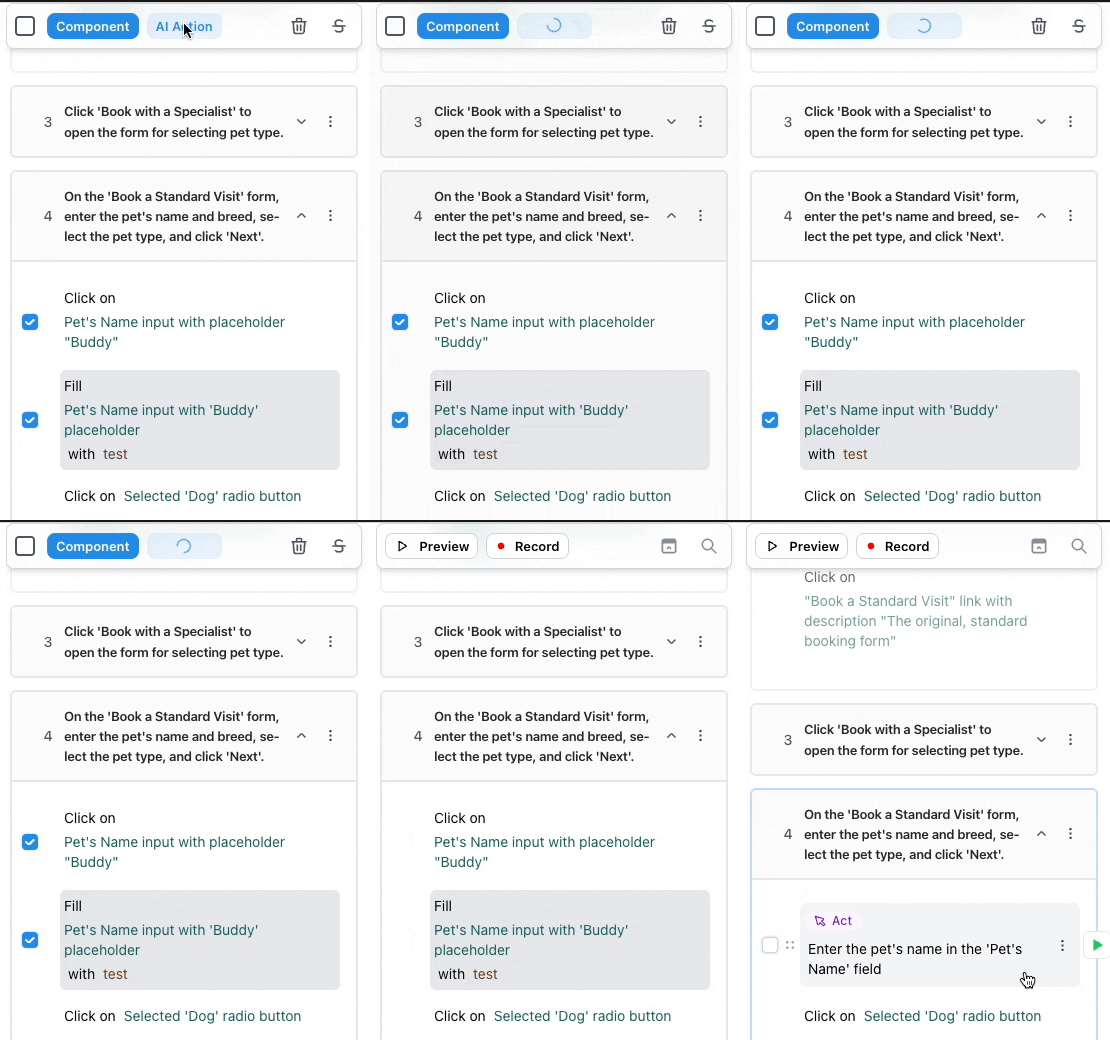
* Highlight a sequence of recorded steps and click **Convert to AI Action** to consolidate them into a single intent-driven block that can adapt to future UI changes.
* Add [AI Actions](/platform-capabilities/ai-action) for tasks that require reasoning (resetting state, dismissing dialogs) without micromanaging every DOM interaction.
## Accelerate repetitive flows with AI
* Use the AI co-pilot to describe the goal (“Sign up a trial user and confirm the dashboard renders charts”) and generate multiple steps automatically.
* Highlight a sequence of recorded steps and click **Convert to AI Action** to consolidate them into a single intent-driven block that can adapt to future UI changes.
* Add [AI Actions](/platform-capabilities/ai-action) for tasks that require reasoning (resetting state, dismissing dialogs) without micromanaging every DOM interaction.
 ## Validate outcomes
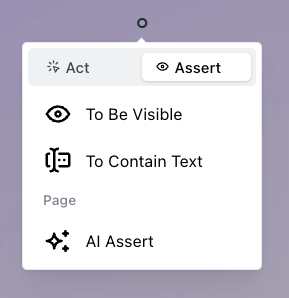
* Add traditional assertions for deterministic checks (status codes, text content).
* Layer intent-based [AI Assertions](/platform-capabilities/ai-assertion) to validate charts, tables, or dynamic UI in natural language.
* Combine multiple assertions in one step to validate the entire surface after a complex flow.
## Validate outcomes
* Add traditional assertions for deterministic checks (status codes, text content).
* Layer intent-based [AI Assertions](/platform-capabilities/ai-assertion) to validate charts, tables, or dynamic UI in natural language.
* Combine multiple assertions in one step to validate the entire surface after a complex flow.
 ## Work with data and environment state
* Define variables to capture dynamic values during the run—see [Variables](/platform-capabilities/variables).
* Pull in secrets and environment overrides from project settings so tests run consistently in staging, preview, or production.
* Insert [Custom Code](/platform-capabilities/custom-code) when you need to transform data, call APIs, or generate unique inputs.
## Review and save
1. Give the test a clear name and description so teammates understand the scenario.
2. Toggle step modes (Strict, Auto-heal, or AI) based on how dynamic the UI is—see [Auto-heal](./auto-heal) for detailed guidance.
3. Click **Save test** to commit the latest version and make it available to suites.
Saved tests are immediately runnable in the cloud. You can execute them ad hoc, include them in schedules, or export them to Playwright if you later move to the Stably SDK.
## Work with data and environment state
* Define variables to capture dynamic values during the run—see [Variables](/platform-capabilities/variables).
* Pull in secrets and environment overrides from project settings so tests run consistently in staging, preview, or production.
* Insert [Custom Code](/platform-capabilities/custom-code) when you need to transform data, call APIs, or generate unique inputs.
## Review and save
1. Give the test a clear name and description so teammates understand the scenario.
2. Toggle step modes (Strict, Auto-heal, or AI) based on how dynamic the UI is—see [Auto-heal](./auto-heal) for detailed guidance.
3. Click **Save test** to commit the latest version and make it available to suites.
Saved tests are immediately runnable in the cloud. You can execute them ad hoc, include them in schedules, or export them to Playwright if you later move to the Stably SDK.