> ## Documentation Index
> Fetch the complete documentation index at: https://docs.stably.ai/llms.txt
> Use this file to discover all available pages before exploring further.
# Run No-code Tests
> Execute no-code tests manually, on a schedule, or automatically via GitHub Actions and API triggers—all powered by Stably's managed cloud.
This documentation is for **Stably Classic**. For the new Stably Web Editor, see [Run Tests on Cloud](/run-tests/run-tests-on-cloud).
Stably's no-code tests run exclusively in our managed cloud environment, which means zero infrastructure setup, instant parallel execution, and automatic scaling. You can trigger tests manually from the dashboard, schedule recurring runs, integrate with GitHub Actions, or use our REST API for custom workflows.
No-code tests run only in Stably's cloud. If you need to self-host test execution or run tests in your own infrastructure, use [Stably SDK](/getting-started/stably-playwright-sdk) with your Playwright tests.
## Manual execution from the dashboard
Trigger a test suite instantly from the Stably dashboard to validate changes, debug issues, or run ad-hoc checks.
Open the Stably dashboard and select the test suite you want to run.
Click **Run** in the test suite view to open the run configuration modal.
Adjust settings for this specific run:
* **Concurrency**: Control parallel execution (1-10 parallel tests)
* **Retries**: Set retry attempts for failed tests
* **Notifications**: Override suite notification settings for this run
* **Variables**: Override environment variables for this execution
* **Environment**: Select PRODUCTION, STAGING, or DEVELOPMENT
Click **Run** to execute the test suite immediately in Stably's cloud.
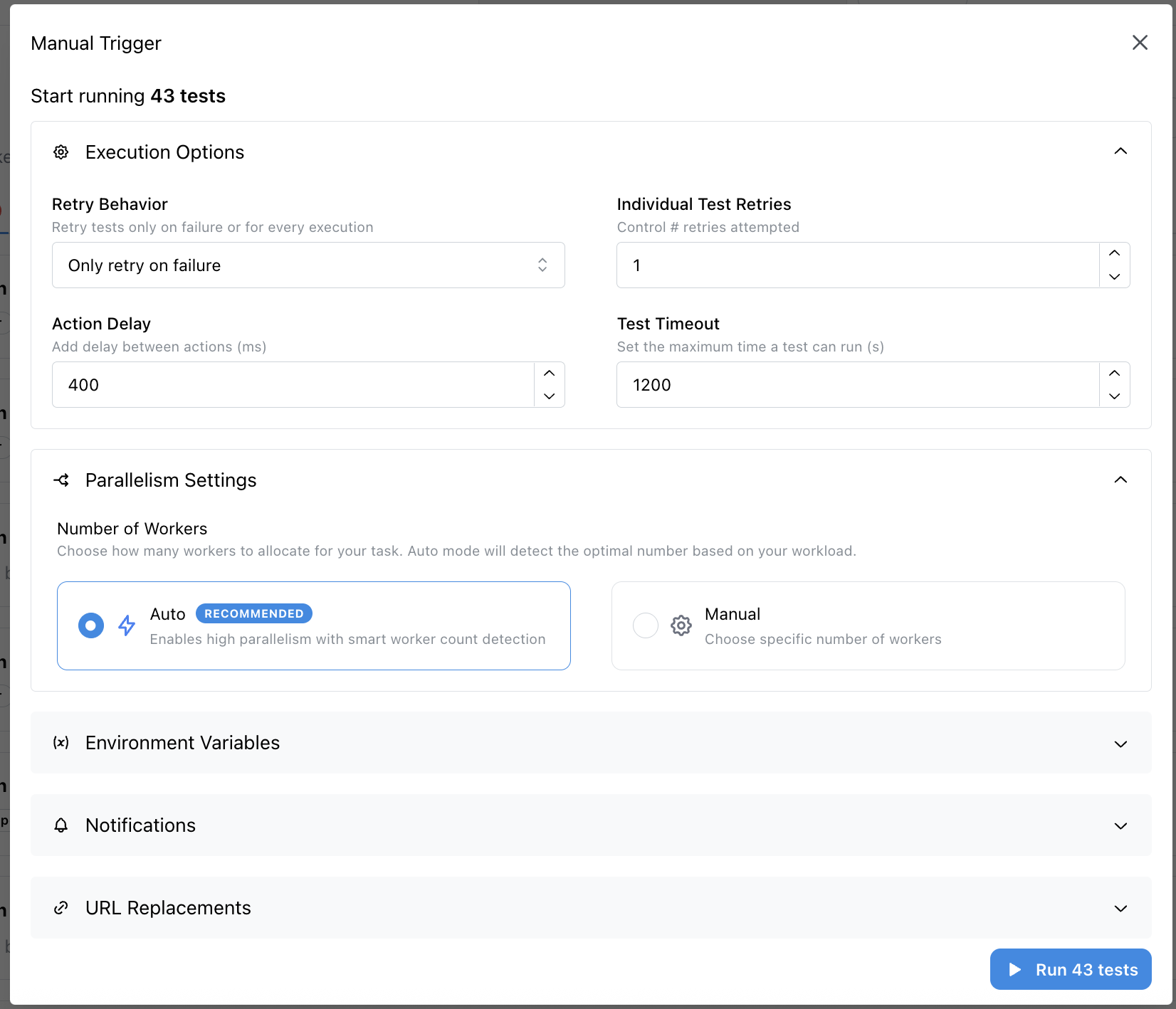 Manual runs can override suite-level settings temporarily. For example, disable notifications for debugging runs or increase workers for faster feedback.
Once triggered, view real-time progress and detailed results in the [Runs tab](/run-tests/viewing-run-results).
## Scheduled execution
Run your no-code tests automatically on a recurring schedule to monitor critical user journeys, catch regressions early, and ensure continuous application health.
Go to **Run Tests** > **Schedule Tests** in the Stably dashboard.
Click **Create Schedule** and select the test suite you want to automate.
Set when tests should run:
* **Days**: Select specific weekdays, weekends, or run daily
* **Times**: Choose one or multiple time slots throughout the day
* **Timezone**: Set the timezone for accurate scheduling
Define how scheduled tests execute:
* **Concurrency**: Control execution speed
* **Retry behavior**: Set retry attempts for flaky tests
* **Notifications**: Configure alerts for test failures via Slack or email
* **Environment**: Choose which environment to test against
Click **Save** to activate the schedule. Tests will run automatically at the configured times.
### Best practices for scheduled tests
* **Match usage patterns**: Schedule critical tests during business hours when issues have the most impact
* **Balance frequency**: Run essential smoke tests frequently (hourly), comprehensive suites less often (daily/nightly)
* **Configure notifications wisely**: Alert the right team members without creating noise
* **Monitor trends**: Use the dashboard to track success rates and identify flaky patterns over time
Learn more about scheduling in [Scheduled Checks](/testing-guides/scheduled-checks).
## GitHub Actions integration
Trigger no-code tests automatically in your CI/CD pipeline using Stably's dedicated GitHub Action. Tests run in Stably's cloud while your workflow waits for results or continues asynchronously.
Get your API key from the [settings page](https://app.stably.ai/settings?tab=api-key).
In your GitHub repository, go to **Settings** > **Secrets and variables** > **Actions** and create a new secret named `STABLY_API_KEY`.
From your test suite's page in the Stably dashboard, click **Add to CI** to get the workflow code snippet containing your test suite ID.
Create `.github/workflows/stably.yaml` in your repository and add the workflow configuration.
### Basic workflow example
```yaml .github/workflows/stably.yaml theme={null}
name: Stably No-code Tests
on:
pull_request:
push:
branches:
- main
# Required for PR comment integration
permissions:
pull-requests: write
contents: write
jobs:
run-tests:
name: Run No-code Tests in Cloud
runs-on: ubuntu-latest
steps:
- name: Trigger Stably Tests
id: stably-runner
uses: stablyai/stably-runner-action@v4
with:
api-key: ${{ secrets.STABLY_API_KEY }}
test-suite-id: clxxxxxxxxxxxxxxx # Replace with your test suite ID
note: "PR #${{ github.event.pull_request.number }}"
```
### Advanced configuration options
Customize test execution with additional parameters:
```yaml theme={null}
- name: Trigger Stably Tests
uses: stablyai/stably-runner-action@v4
with:
api-key: ${{ secrets.STABLY_API_KEY }}
test-suite-id: clxxxxxxxxxxxxxxx
# Execution settings
number-of-workers: 5 # Parallel execution (1-10)
retries: 2 # Retry failed tests
repeats: 1 # Run each test N times
# Timeouts and delays
test-timeout-ms: 60000 # Per-test timeout
operation-delay-ms: 100 # Delay between operations
# Environment and variables
environment: "STAGING" # PRODUCTION, STAGING, or DEVELOPMENT
variable-overrides: '{"API_URL": "https://staging.example.com"}'
# Results and notifications
notification-profile: "critical" # Notification behavior
note: "PR #${{ github.event.pull_request.number }} - ${{ github.sha }}"
```
The `note` parameter helps distinguish concurrent test runs and adds context to results in your dashboard.
For complete GitHub Actions documentation, see [GitHub Actions](/run-tests/github-actions).
## API integration
Trigger no-code tests programmatically from any CI/CD platform, automation script, or custom workflow using Stably's REST API.
### Authentication
All API requests require a Bearer token. Get your API key from the [settings page](https://app.stably.ai/settings?tab=api-key).
```bash theme={null}
export STABLY_API_KEY=your-api-key
```
### Trigger a test run
Initiate a test suite execution:
```bash theme={null}
export TEST_SUITE_ID=your-suite-id
export STABLY_API_KEY=your-api-key
curl -X 'POST' \
"https://api.stably.ai/v1/testSuite/$TEST_SUITE_ID/run" \
-H "accept: application/json" \
-H "Authorization: Bearer $STABLY_API_KEY"
```
**Response:**
```json theme={null}
{
"projectId": "clpubgab41000ku089nuy24g",
"testSuiteRunId": "cmgbkcce1009hmo013iiky0it",
"testSuiteName": "Smoke Test Suite",
"options": {}
}
```
Save the `testSuiteRunId` to poll for status and results.
### Poll test execution status
Check if your tests are still running or have completed:
```bash theme={null}
export TEST_SUITE_RUN_ID=your-test-suite-run-id
curl -X 'GET' \
"https://api.stably.ai/v1/testSuiteRun/$TEST_SUITE_RUN_ID/status" \
-H "accept: application/json" \
-H "Authorization: Bearer $STABLY_API_KEY"
```
**Response:**
```json theme={null}
{
"status": "RUNNING" | "FINISHED"
}
```
Poll this endpoint periodically until status is `FINISHED`.
### Retrieve test results
Fetch detailed results after execution completes:
```bash theme={null}
curl -X 'GET' \
"https://api.stably.ai/v1/testSuiteRun/$TEST_SUITE_RUN_ID/result" \
-H "accept: application/json" \
-H "Authorization: Bearer $STABLY_API_KEY"
```
**Response:**
```json theme={null}
{
"projectId": "",
"testSuiteRunId": "",
"testSuiteName": "Smoke Test Suite",
"results": [
{
"testId": "",
"testName": "Login and navigate to dashboard",
"status": "PASSED" | "FAILED" | "FLAKY" | "ERROR" | "SKIPPED"
}
]
}
```
### Example: Complete CI integration script
```bash theme={null}
#!/bin/bash
set -e
# Trigger test run
response=$(curl -s -X 'POST' \
"https://api.stably.ai/v1/testSuite/$TEST_SUITE_ID/run" \
-H "accept: application/json" \
-H "Authorization: Bearer $STABLY_API_KEY")
# Extract test suite run ID
run_id=$(echo $response | jq -r '.testSuiteRunId')
echo "Started test run: $run_id"
# Poll for completion
while true; do
status=$(curl -s -X 'GET' \
"https://api.stably.ai/v1/testSuiteRun/$run_id/status" \
-H "accept: application/json" \
-H "Authorization: Bearer $STABLY_API_KEY" | jq -r '.status')
echo "Status: $status"
if [ "$status" = "FINISHED" ]; then
break
fi
sleep 10
done
# Get results
results=$(curl -s -X 'GET' \
"https://api.stably.ai/v1/testSuiteRun/$run_id/result" \
-H "accept: application/json" \
-H "Authorization: Bearer $STABLY_API_KEY")
# Check for failures
failed_count=$(echo $results | jq '[.results[] | select(.status == "FAILED")] | length')
if [ "$failed_count" -gt 0 ]; then
echo "Tests failed! $failed_count test(s) failed."
exit 1
else
echo "All tests passed!"
exit 0
fi
```
For complete API reference and additional endpoints, visit [API Documentation](/api-reference/introduction) or see [API Integration](/run-tests/api-integration).
## Cloud execution benefits
All no-code tests run in Stably's managed cloud environment, providing:
* **Zero infrastructure maintenance**: No need to provision, configure, or maintain test runners
* **Instant parallel execution**: Scale workers dynamically without capacity planning
* **Consistent environment**: Every test runs in a clean, isolated browser instance
* **Global availability**: Tests run from multiple regions for realistic performance validation
* **Automatic updates**: Browser versions and dependencies stay current without manual upgrades
* **Built-in recording**: Screenshots, videos, and traces captured automatically for every run
The cloud execution model means you can focus on writing tests instead of managing infrastructure.
## Self-hosted execution alternative
If your organization requires self-hosted test execution for compliance, network isolation, or custom infrastructure needs, transition to [Stably SDK](/getting-started/stably-playwright-sdk).
With Stably SDK, you:
* Run tests in your own CI/CD environment or local machines
* Keep all AI features (AI assertions, AI actions, auto-heal)
* Maintain full control over infrastructure, dependencies, and secrets
* Integrate with existing Playwright test suites
See when to use Classic and when to move to Stably 2.0
Learn how to integrate Stably SDK into your Playwright project
## Next steps
Monitor test execution and analyze results in the dashboard
Configure auto-healing to reduce maintenance and flakiness
Deep dive into scheduling strategies and best practices
Connect Slack, Jira, or Linear for notifications and issue tracking
Manual runs can override suite-level settings temporarily. For example, disable notifications for debugging runs or increase workers for faster feedback.
Once triggered, view real-time progress and detailed results in the [Runs tab](/run-tests/viewing-run-results).
## Scheduled execution
Run your no-code tests automatically on a recurring schedule to monitor critical user journeys, catch regressions early, and ensure continuous application health.
Go to **Run Tests** > **Schedule Tests** in the Stably dashboard.
Click **Create Schedule** and select the test suite you want to automate.
Set when tests should run:
* **Days**: Select specific weekdays, weekends, or run daily
* **Times**: Choose one or multiple time slots throughout the day
* **Timezone**: Set the timezone for accurate scheduling
Define how scheduled tests execute:
* **Concurrency**: Control execution speed
* **Retry behavior**: Set retry attempts for flaky tests
* **Notifications**: Configure alerts for test failures via Slack or email
* **Environment**: Choose which environment to test against
Click **Save** to activate the schedule. Tests will run automatically at the configured times.
### Best practices for scheduled tests
* **Match usage patterns**: Schedule critical tests during business hours when issues have the most impact
* **Balance frequency**: Run essential smoke tests frequently (hourly), comprehensive suites less often (daily/nightly)
* **Configure notifications wisely**: Alert the right team members without creating noise
* **Monitor trends**: Use the dashboard to track success rates and identify flaky patterns over time
Learn more about scheduling in [Scheduled Checks](/testing-guides/scheduled-checks).
## GitHub Actions integration
Trigger no-code tests automatically in your CI/CD pipeline using Stably's dedicated GitHub Action. Tests run in Stably's cloud while your workflow waits for results or continues asynchronously.
Get your API key from the [settings page](https://app.stably.ai/settings?tab=api-key).
In your GitHub repository, go to **Settings** > **Secrets and variables** > **Actions** and create a new secret named `STABLY_API_KEY`.
From your test suite's page in the Stably dashboard, click **Add to CI** to get the workflow code snippet containing your test suite ID.
Create `.github/workflows/stably.yaml` in your repository and add the workflow configuration.
### Basic workflow example
```yaml .github/workflows/stably.yaml theme={null}
name: Stably No-code Tests
on:
pull_request:
push:
branches:
- main
# Required for PR comment integration
permissions:
pull-requests: write
contents: write
jobs:
run-tests:
name: Run No-code Tests in Cloud
runs-on: ubuntu-latest
steps:
- name: Trigger Stably Tests
id: stably-runner
uses: stablyai/stably-runner-action@v4
with:
api-key: ${{ secrets.STABLY_API_KEY }}
test-suite-id: clxxxxxxxxxxxxxxx # Replace with your test suite ID
note: "PR #${{ github.event.pull_request.number }}"
```
### Advanced configuration options
Customize test execution with additional parameters:
```yaml theme={null}
- name: Trigger Stably Tests
uses: stablyai/stably-runner-action@v4
with:
api-key: ${{ secrets.STABLY_API_KEY }}
test-suite-id: clxxxxxxxxxxxxxxx
# Execution settings
number-of-workers: 5 # Parallel execution (1-10)
retries: 2 # Retry failed tests
repeats: 1 # Run each test N times
# Timeouts and delays
test-timeout-ms: 60000 # Per-test timeout
operation-delay-ms: 100 # Delay between operations
# Environment and variables
environment: "STAGING" # PRODUCTION, STAGING, or DEVELOPMENT
variable-overrides: '{"API_URL": "https://staging.example.com"}'
# Results and notifications
notification-profile: "critical" # Notification behavior
note: "PR #${{ github.event.pull_request.number }} - ${{ github.sha }}"
```
The `note` parameter helps distinguish concurrent test runs and adds context to results in your dashboard.
For complete GitHub Actions documentation, see [GitHub Actions](/run-tests/github-actions).
## API integration
Trigger no-code tests programmatically from any CI/CD platform, automation script, or custom workflow using Stably's REST API.
### Authentication
All API requests require a Bearer token. Get your API key from the [settings page](https://app.stably.ai/settings?tab=api-key).
```bash theme={null}
export STABLY_API_KEY=your-api-key
```
### Trigger a test run
Initiate a test suite execution:
```bash theme={null}
export TEST_SUITE_ID=your-suite-id
export STABLY_API_KEY=your-api-key
curl -X 'POST' \
"https://api.stably.ai/v1/testSuite/$TEST_SUITE_ID/run" \
-H "accept: application/json" \
-H "Authorization: Bearer $STABLY_API_KEY"
```
**Response:**
```json theme={null}
{
"projectId": "clpubgab41000ku089nuy24g",
"testSuiteRunId": "cmgbkcce1009hmo013iiky0it",
"testSuiteName": "Smoke Test Suite",
"options": {}
}
```
Save the `testSuiteRunId` to poll for status and results.
### Poll test execution status
Check if your tests are still running or have completed:
```bash theme={null}
export TEST_SUITE_RUN_ID=your-test-suite-run-id
curl -X 'GET' \
"https://api.stably.ai/v1/testSuiteRun/$TEST_SUITE_RUN_ID/status" \
-H "accept: application/json" \
-H "Authorization: Bearer $STABLY_API_KEY"
```
**Response:**
```json theme={null}
{
"status": "RUNNING" | "FINISHED"
}
```
Poll this endpoint periodically until status is `FINISHED`.
### Retrieve test results
Fetch detailed results after execution completes:
```bash theme={null}
curl -X 'GET' \
"https://api.stably.ai/v1/testSuiteRun/$TEST_SUITE_RUN_ID/result" \
-H "accept: application/json" \
-H "Authorization: Bearer $STABLY_API_KEY"
```
**Response:**
```json theme={null}
{
"projectId": "",
"testSuiteRunId": "",
"testSuiteName": "Smoke Test Suite",
"results": [
{
"testId": "",
"testName": "Login and navigate to dashboard",
"status": "PASSED" | "FAILED" | "FLAKY" | "ERROR" | "SKIPPED"
}
]
}
```
### Example: Complete CI integration script
```bash theme={null}
#!/bin/bash
set -e
# Trigger test run
response=$(curl -s -X 'POST' \
"https://api.stably.ai/v1/testSuite/$TEST_SUITE_ID/run" \
-H "accept: application/json" \
-H "Authorization: Bearer $STABLY_API_KEY")
# Extract test suite run ID
run_id=$(echo $response | jq -r '.testSuiteRunId')
echo "Started test run: $run_id"
# Poll for completion
while true; do
status=$(curl -s -X 'GET' \
"https://api.stably.ai/v1/testSuiteRun/$run_id/status" \
-H "accept: application/json" \
-H "Authorization: Bearer $STABLY_API_KEY" | jq -r '.status')
echo "Status: $status"
if [ "$status" = "FINISHED" ]; then
break
fi
sleep 10
done
# Get results
results=$(curl -s -X 'GET' \
"https://api.stably.ai/v1/testSuiteRun/$run_id/result" \
-H "accept: application/json" \
-H "Authorization: Bearer $STABLY_API_KEY")
# Check for failures
failed_count=$(echo $results | jq '[.results[] | select(.status == "FAILED")] | length')
if [ "$failed_count" -gt 0 ]; then
echo "Tests failed! $failed_count test(s) failed."
exit 1
else
echo "All tests passed!"
exit 0
fi
```
For complete API reference and additional endpoints, visit [API Documentation](/api-reference/introduction) or see [API Integration](/run-tests/api-integration).
## Cloud execution benefits
All no-code tests run in Stably's managed cloud environment, providing:
* **Zero infrastructure maintenance**: No need to provision, configure, or maintain test runners
* **Instant parallel execution**: Scale workers dynamically without capacity planning
* **Consistent environment**: Every test runs in a clean, isolated browser instance
* **Global availability**: Tests run from multiple regions for realistic performance validation
* **Automatic updates**: Browser versions and dependencies stay current without manual upgrades
* **Built-in recording**: Screenshots, videos, and traces captured automatically for every run
The cloud execution model means you can focus on writing tests instead of managing infrastructure.
## Self-hosted execution alternative
If your organization requires self-hosted test execution for compliance, network isolation, or custom infrastructure needs, transition to [Stably SDK](/getting-started/stably-playwright-sdk).
With Stably SDK, you:
* Run tests in your own CI/CD environment or local machines
* Keep all AI features (AI assertions, AI actions, auto-heal)
* Maintain full control over infrastructure, dependencies, and secrets
* Integrate with existing Playwright test suites
See when to use Classic and when to move to Stably 2.0
Learn how to integrate Stably SDK into your Playwright project
## Next steps
Monitor test execution and analyze results in the dashboard
Configure auto-healing to reduce maintenance and flakiness
Deep dive into scheduling strategies and best practices
Connect Slack, Jira, or Linear for notifications and issue tracking