> ## Documentation Index
> Fetch the complete documentation index at: https://docs.stably.ai/llms.txt
> Use this file to discover all available pages before exploring further.
# AI Action
> Perform complex multi-step actions in plain English with Stably's AI agent.
This documentation is for **Stably Classic**. For the new Stably Web Editor, see [AI Agent Execute](/stably-sdk/ai-agent-execute).
Stably is the only testing platform that allows you to perform complex multi-step actions in plain English.
Not only do we have the best-in-class AI agent, we also build a knowledge base for each app to ensure the AI can handle your unique business logic.
## How AI Actions Can Help
AI actions enhance your testing workflows by solving complex scenarios. Here are five concrete examples of how they're used:
1. **Test Data Reset** - Reset application data to a specific state at the beginning of tests with commands like "Clear all user data" or "Reset inventory to default values."
2. **Dynamic Popup Handling** - Automatically detect and respond to unexpected popups, alerts, or dialogs with instructions like "Dismiss any error popups that appear" or "Accept cookies if prompted."
3. **Conditional Navigation** - Navigate through different paths based on application state with steps like "If the dashboard shows zero orders, create a new order, otherwise view the latest order."
You can also use [conditional actions](/platform-capabilities/conditionals) to do this.
4. **Environment Verification** - Verify the testing environment is properly configured before test execution with commands like "Check if the test database is connected" or "Verify the API endpoints are accessible."
5. **Complex Data Input** - Handle complex data entry scenarios by instructing the AI to "Fill the form with valid user information" or "Generate and input random test data that meets validation requirements."
## Add AI Action to your test
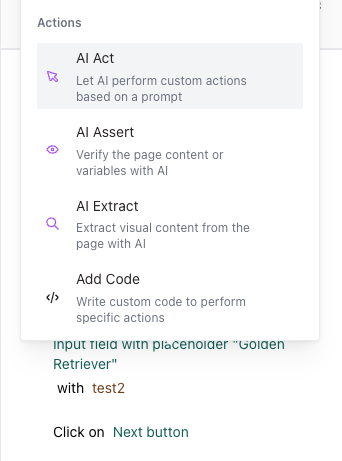
You can add an AI Action to your test by clicking the "AI Action" button in the test editor.
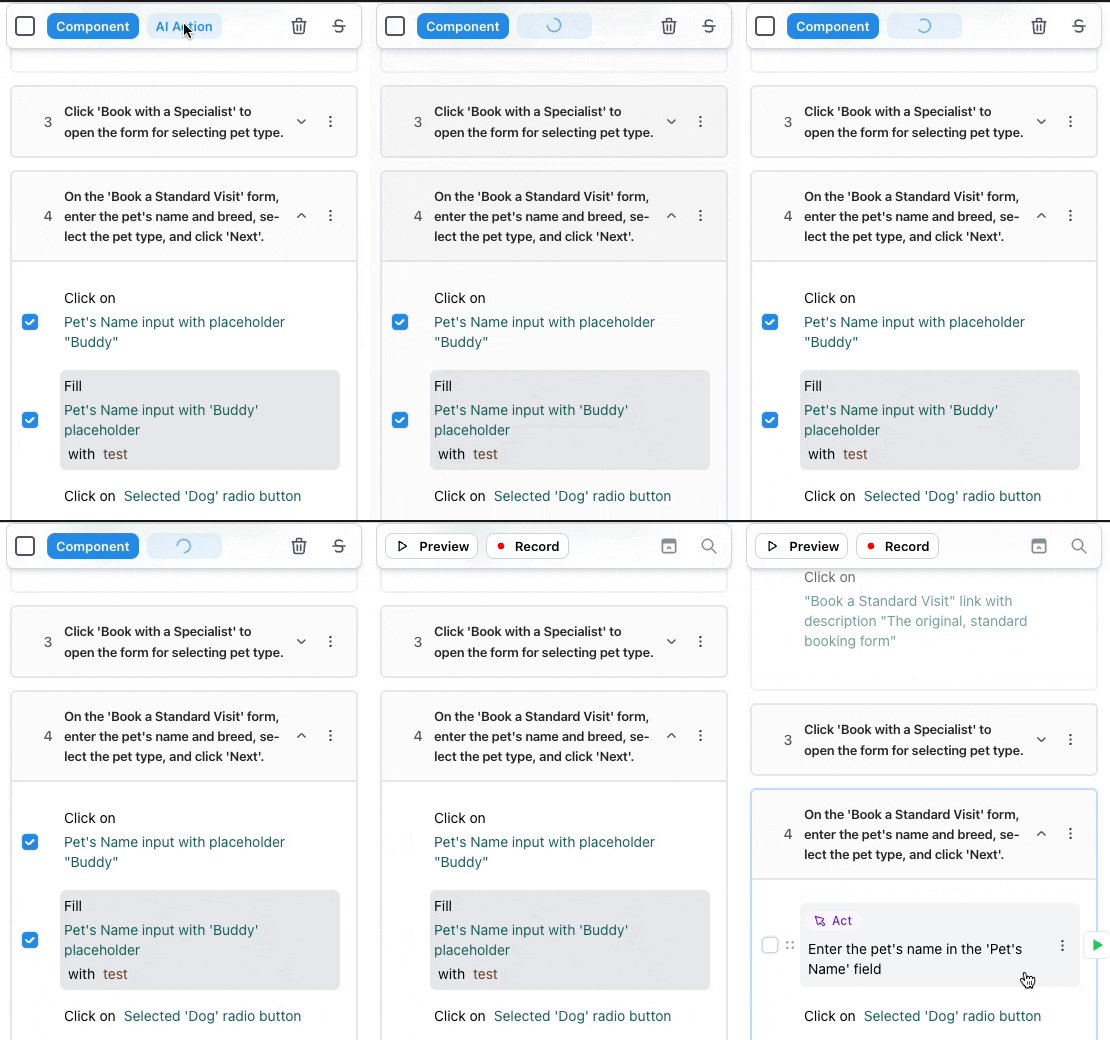
 You can also convert multiple Playwright actions to an AI Action by clicking the "AI Action" button in the action list.