> ## Documentation Index
> Fetch the complete documentation index at: https://docs.stably.ai/llms.txt
> Use this file to discover all available pages before exploring further.
# Chrome Extensions
> Test Chrome extensions directly in Stably with simple upload, install, and automated testing - no complicated setup required.
This documentation is for **Stably Classic**. For the new Stably Web Editor, see [Stably Web Editor](/stably/stably-web-editor).
## Introduction
Traditionally, testing Chrome extensions has been a challenge. Between packaging requirements, browser security restrictions, and setting up custom environments, it's often much more complicated than testing a standard website.
Stably simplifies all of this. With just a few quick steps, you can upload, install, and test Chrome extensions directly in your automated flows — no complicated setup needed.
***
## Uploading
Before you upload your extension, it’s important to package it correctly:
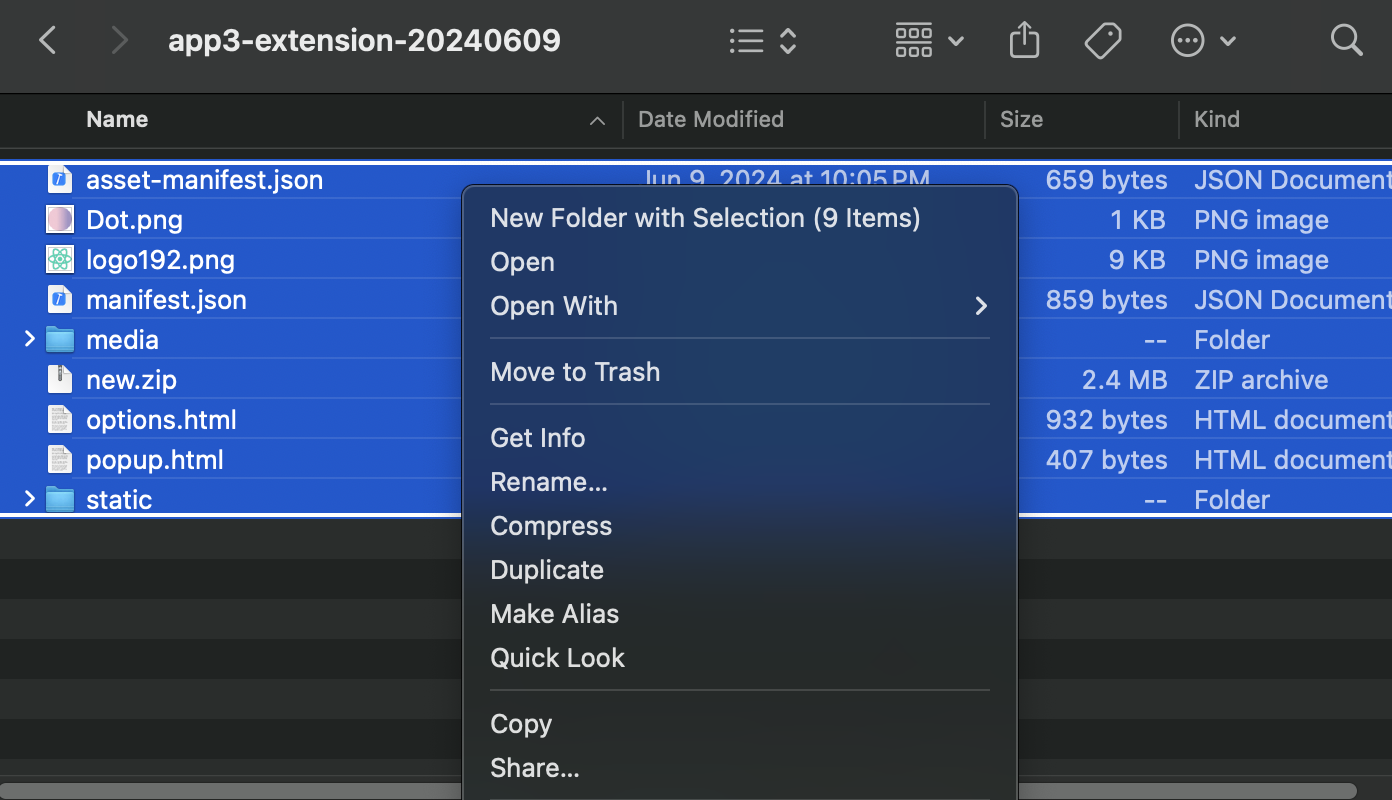
Open the extension's root folder, and select *all* the contents inside (including `manifest.json`). Right-click and select **Compress**, and save the new `.zip` file, we'll need it later.
> *Tip: Do not compress the parent folder itself — only the files inside it.*
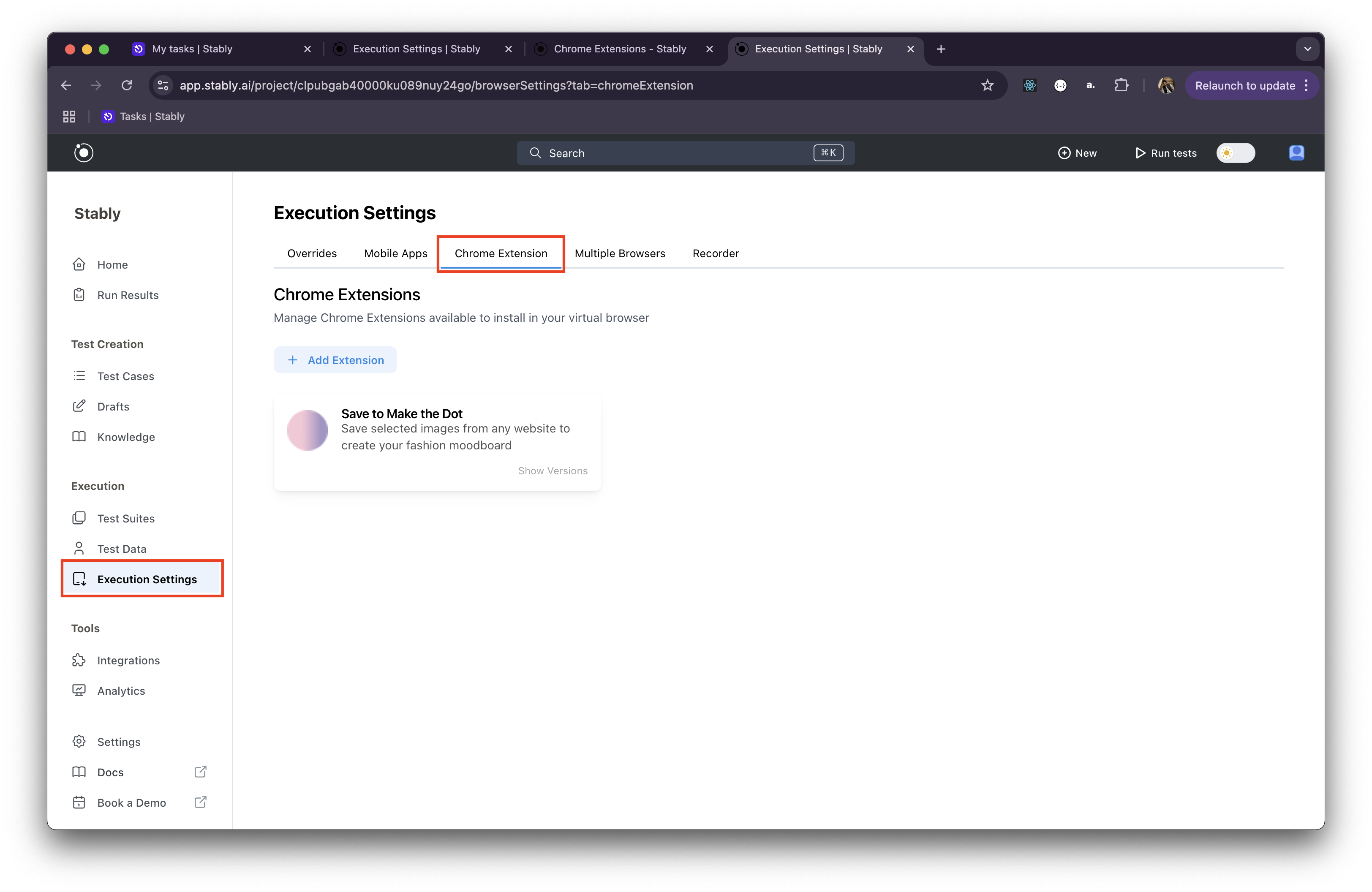
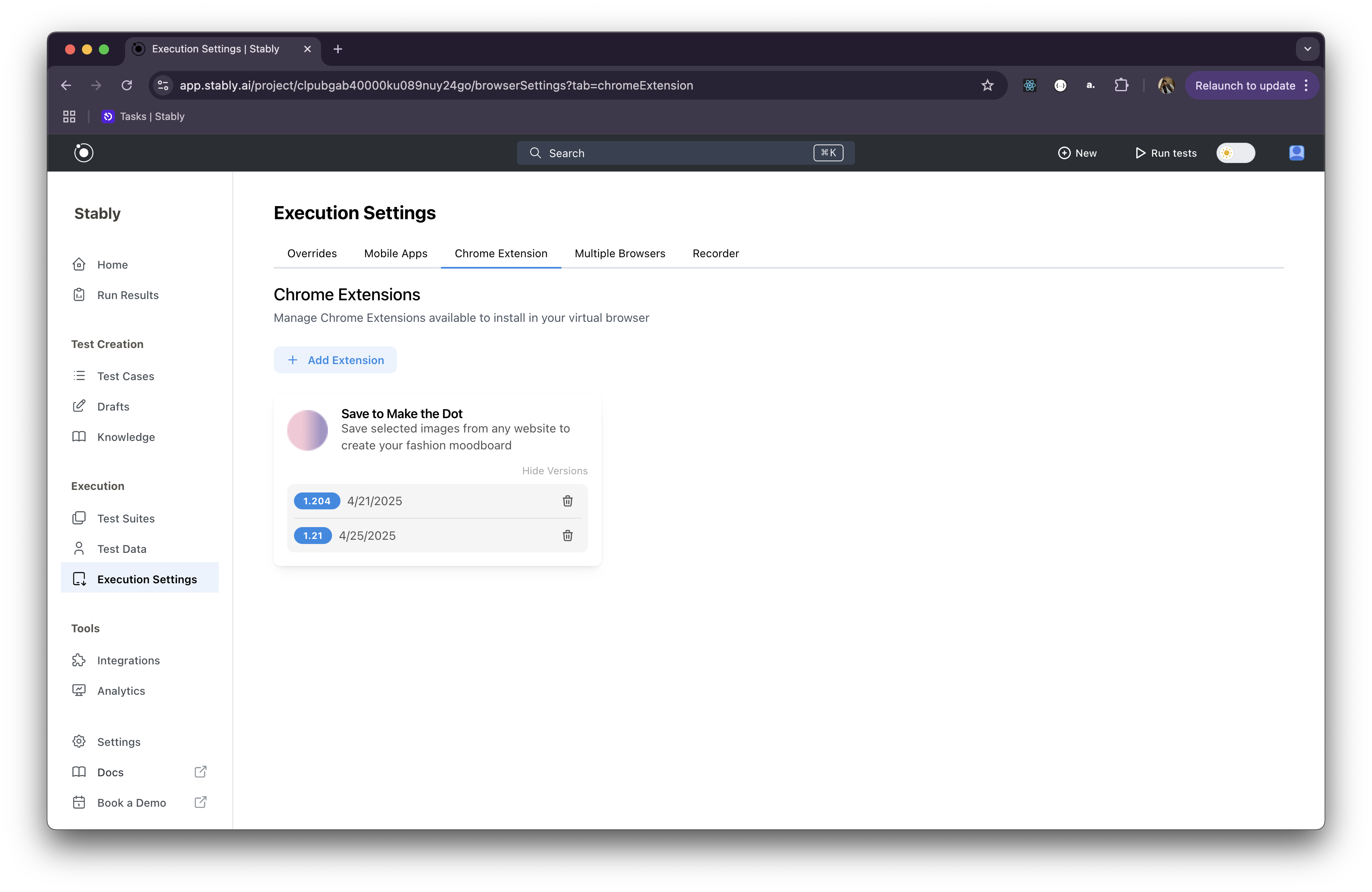
 Log in to your workspace in [Stably](https://app.stably.ai), and from the sidebar menu, go to **Execution Settings**, and click the **Chrome Extension** tab at the top.
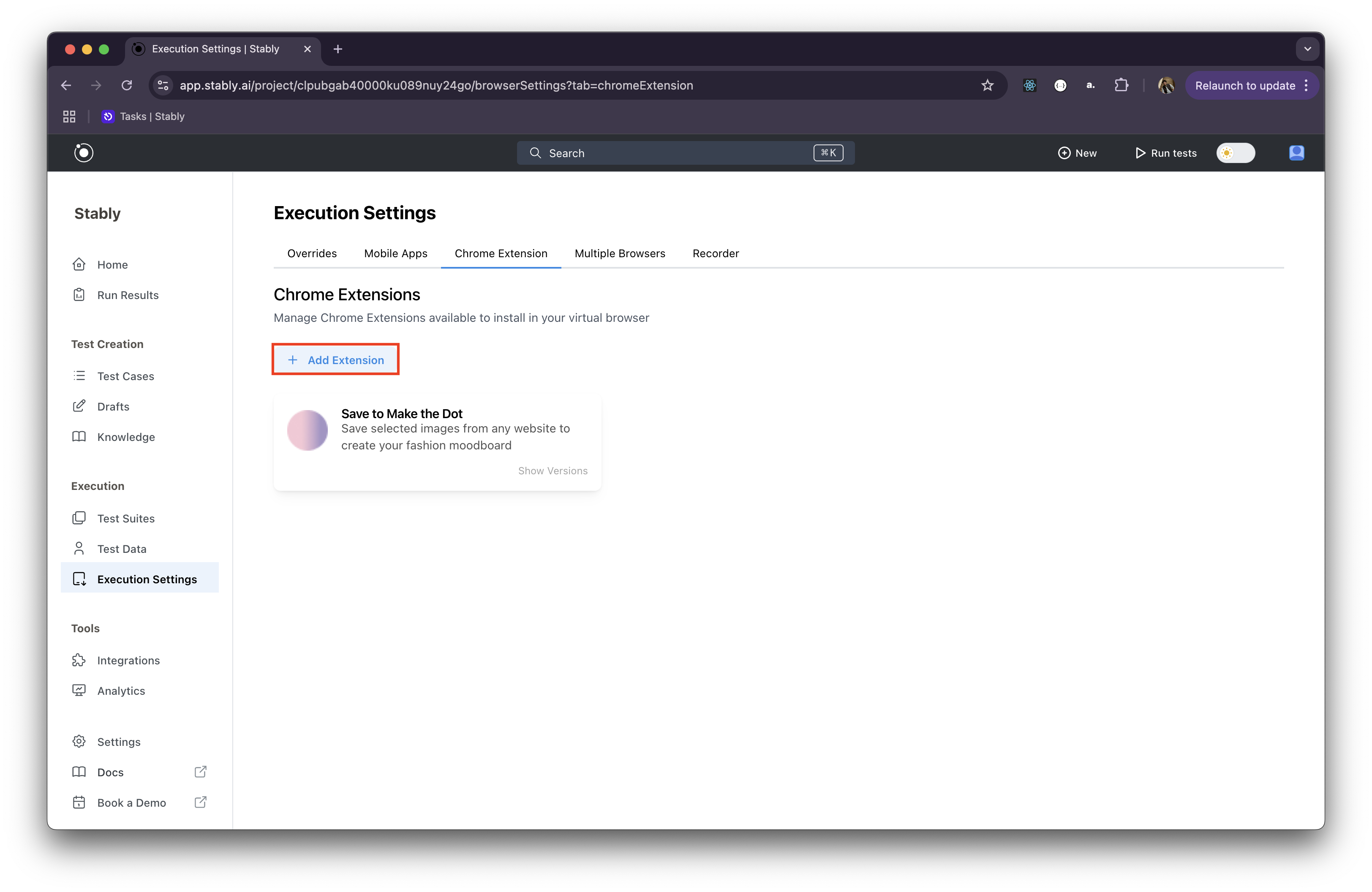
 Click **+ Add Extension**, and select the packaged `.zip` file you created earlier.
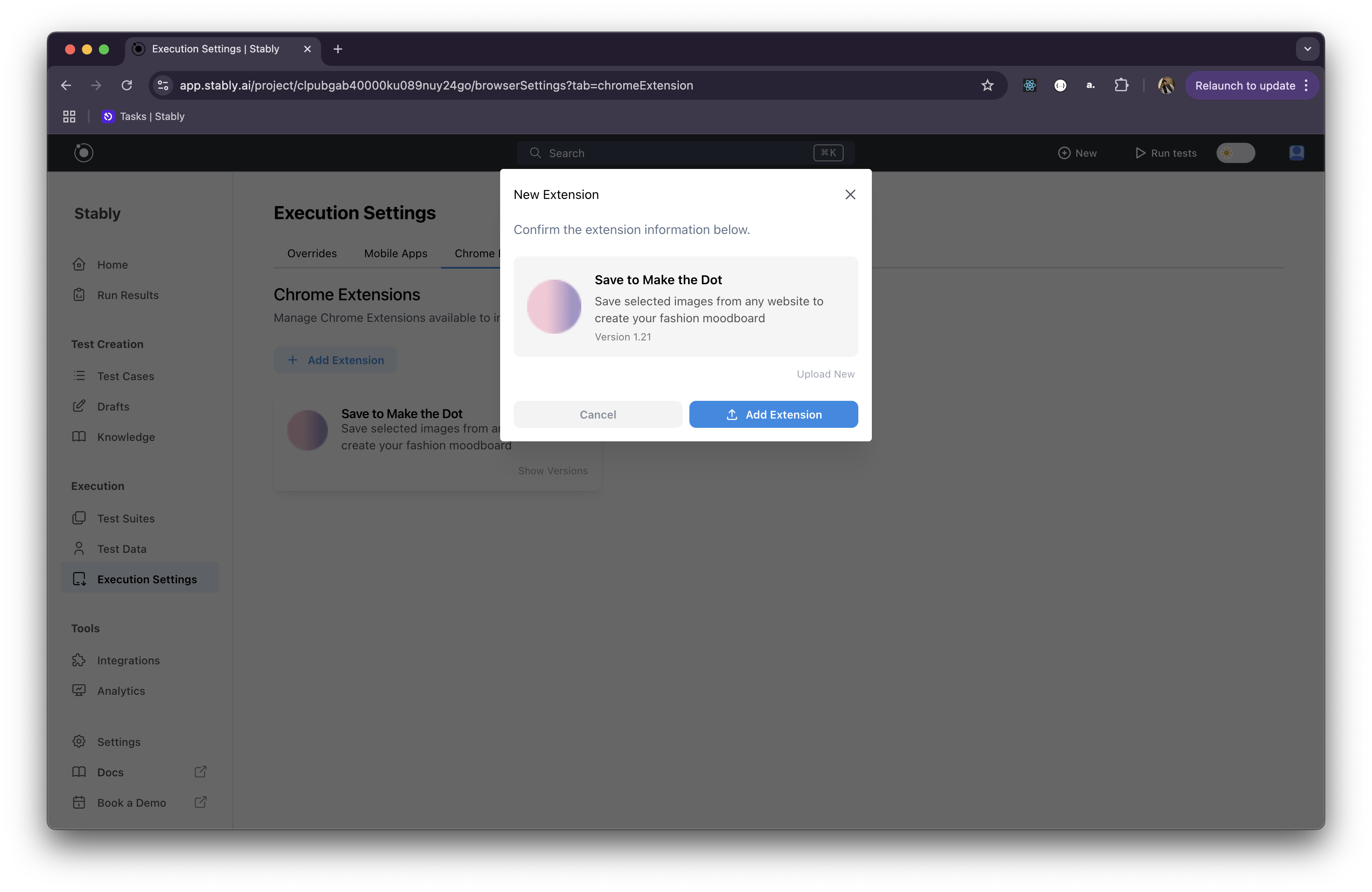
 Review the displayed extension information, and when satisfied, click **Upload**. Once the upload is complete, your extension will appear among the others on the same page. If a previous version of the extension already exists, the new upload will be grouped under the same name and versioned accordingly.
 ***
## Using in Tests
Once your extension is uploaded, using it in your tests is easy:
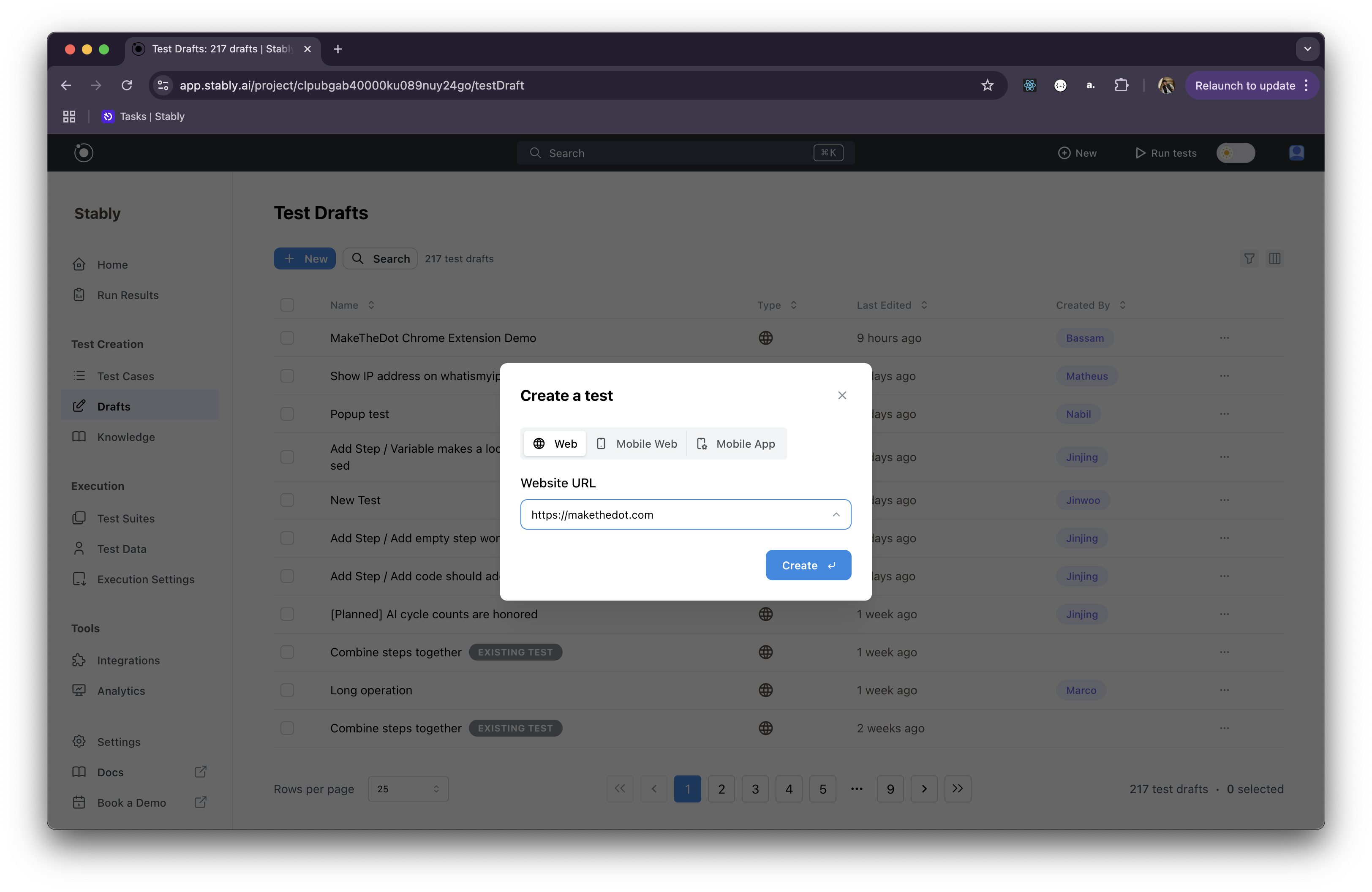
Choose the **Desktop Web** test format when creating a new test.
***
## Using in Tests
Once your extension is uploaded, using it in your tests is easy:
Choose the **Desktop Web** test format when creating a new test.
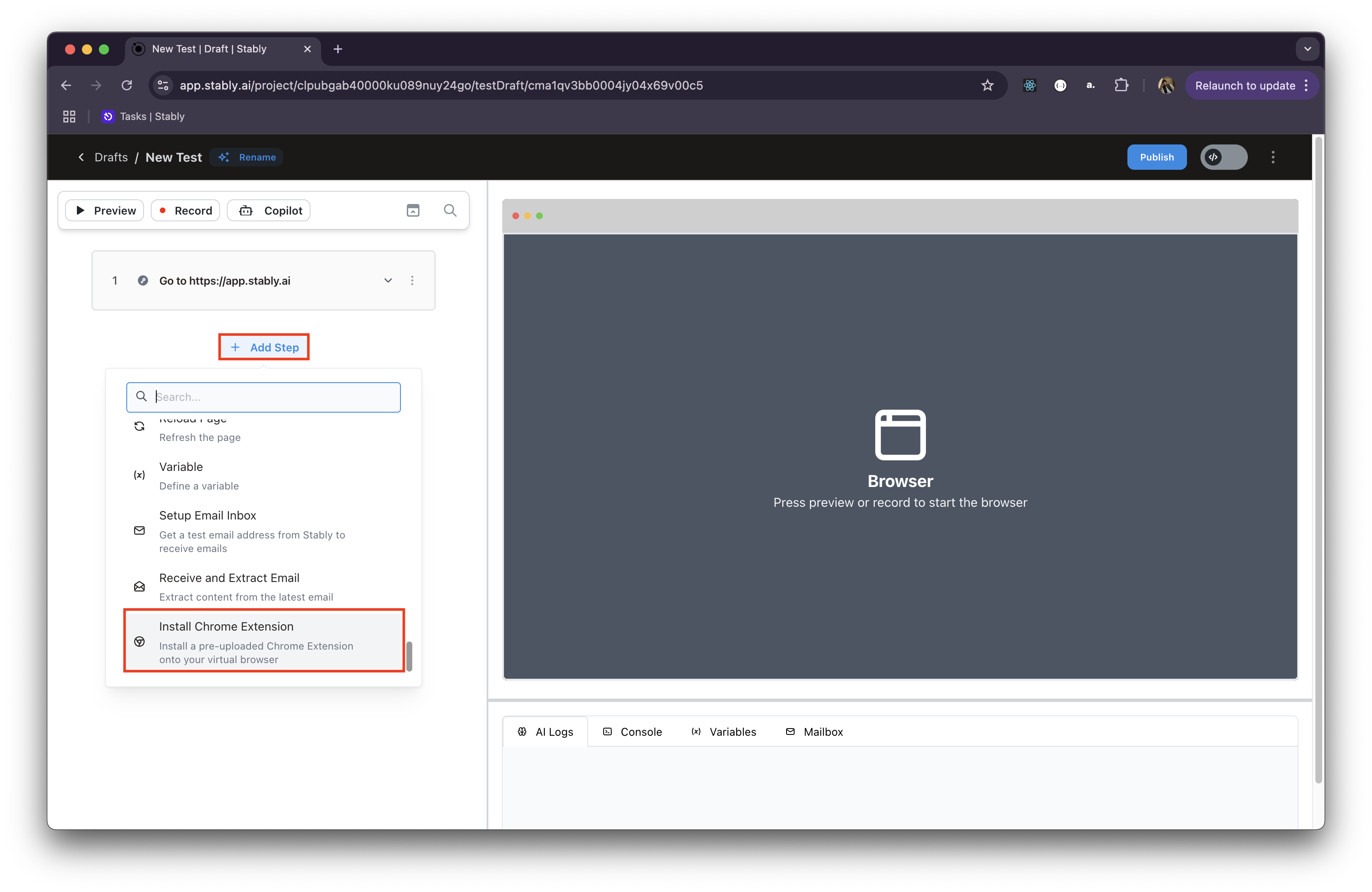
 To install the extension onto your virtual browser, select **Install Chrome Extension** from the **Add Step** menu.
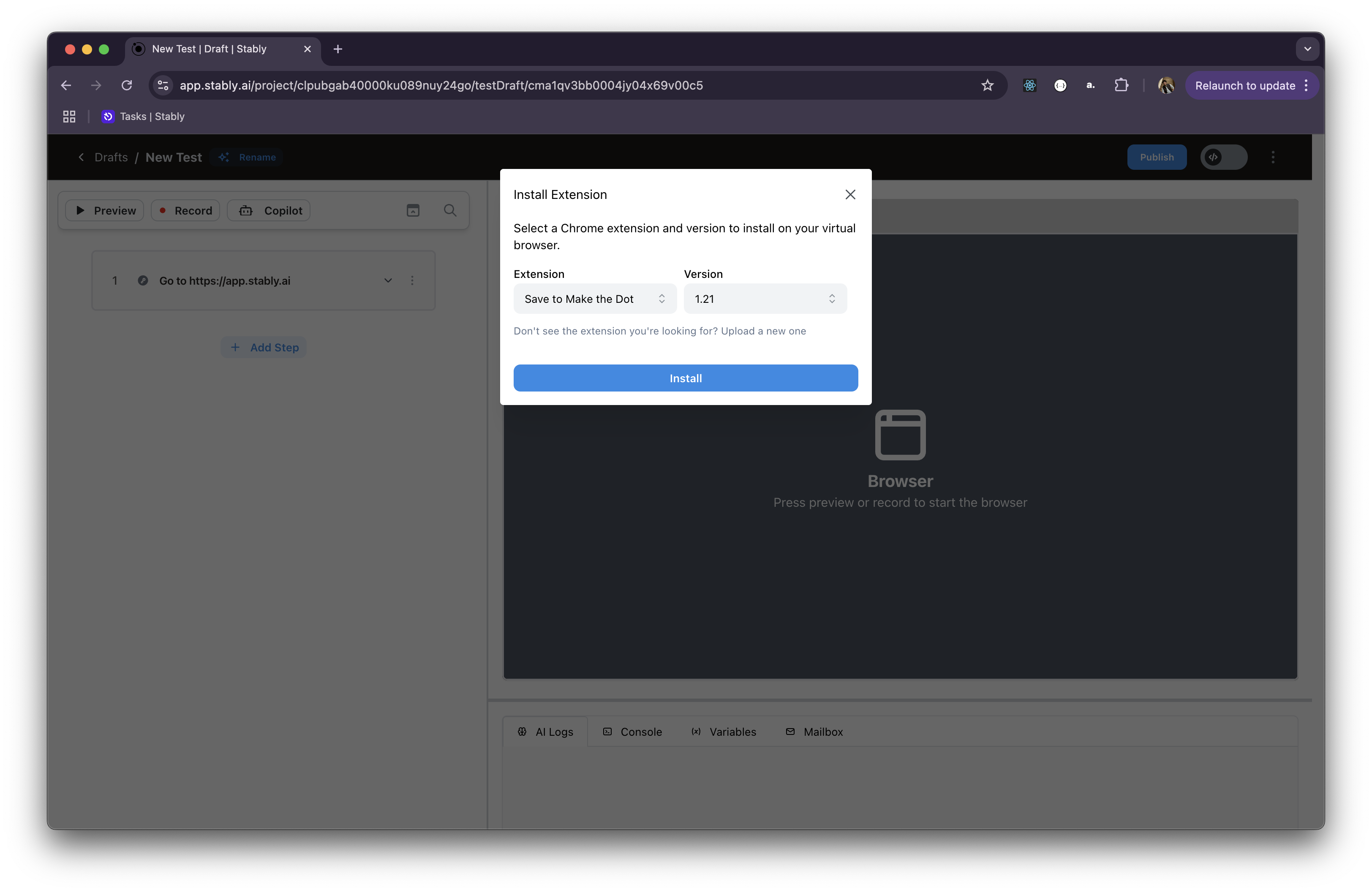
 Pick the Chrome extension and version you want installed on the virtual browser for your test, and click **Install**.
 Continue building your test flow as usual. The extension will be available just like in a real Chrome environment.
**Pro Tip:**\
To quickly verify that the extension is installed, navigate to `chrome://extensions` inside your test, and verify that your extension is listed there.
Continue building your test flow as usual. The extension will be available just like in a real Chrome environment.
**Pro Tip:**\
To quickly verify that the extension is installed, navigate to `chrome://extensions` inside your test, and verify that your extension is listed there.