> ## Documentation Index
> Fetch the complete documentation index at: https://docs.stably.ai/llms.txt
> Use this file to discover all available pages before exploring further.
# Conditionals
> Execute different test actions based on page conditions and variables with Stably's infinitely nestable conditional logic.
This documentation is for **Stably Classic**. For the new Stably Web Editor, see [Stably Web Editor](/stably/stably-web-editor).
Execute different actions based on a condition.
## How does it work?
Conditional actions can be used to execute two different branches of actions based on the current state of the page, as well as any variables defined. Conditional actions are infinitely nestable.
We currently only support locator-only auto-heal for conditional actions.
## Adding a conditional action
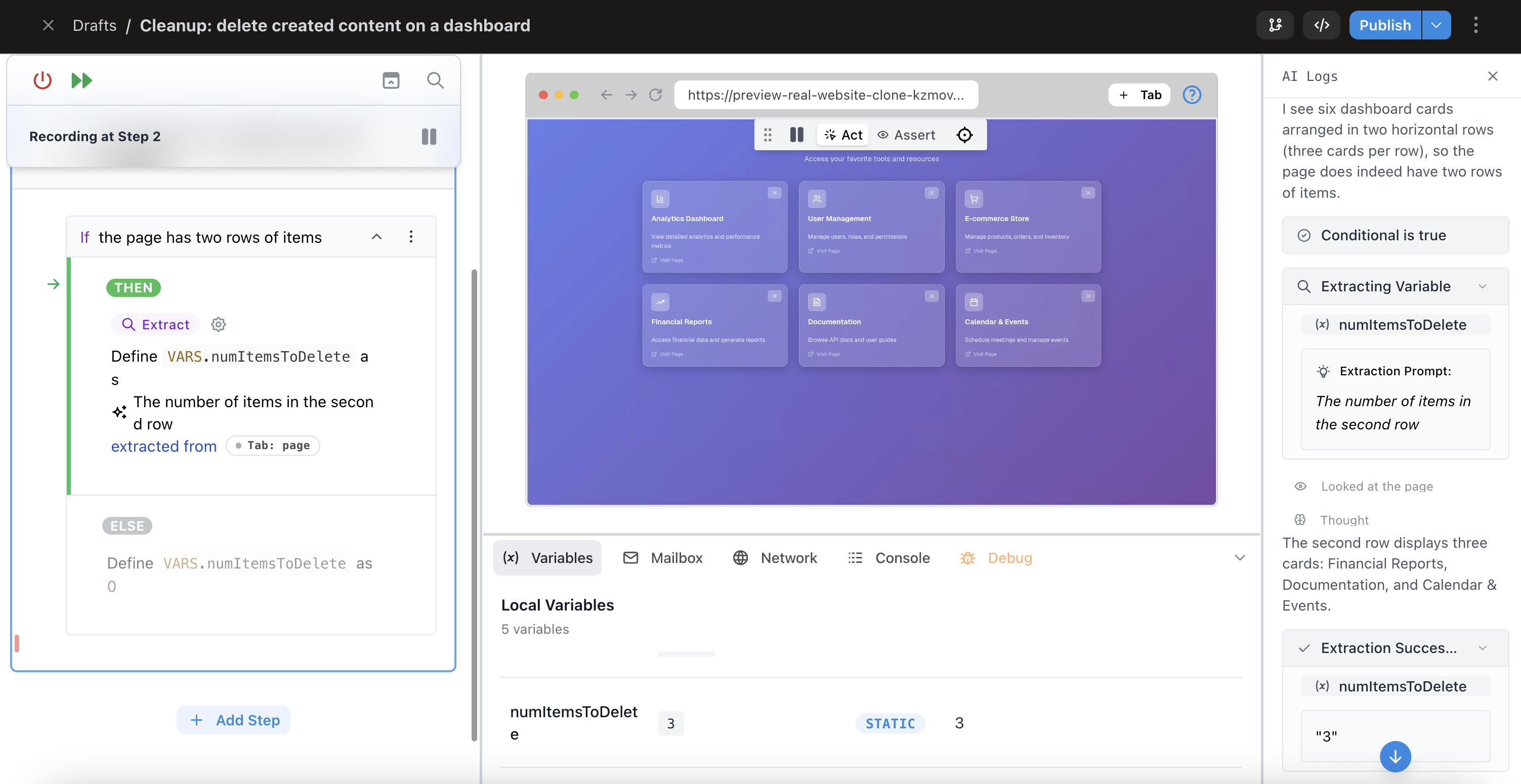
You can add a conditional action like you would any other action. First, enter your conditional statement. Stably AI will use the current state of the page, as well as any variables you have defined, to resolve the prompt to true or false when the test is run.
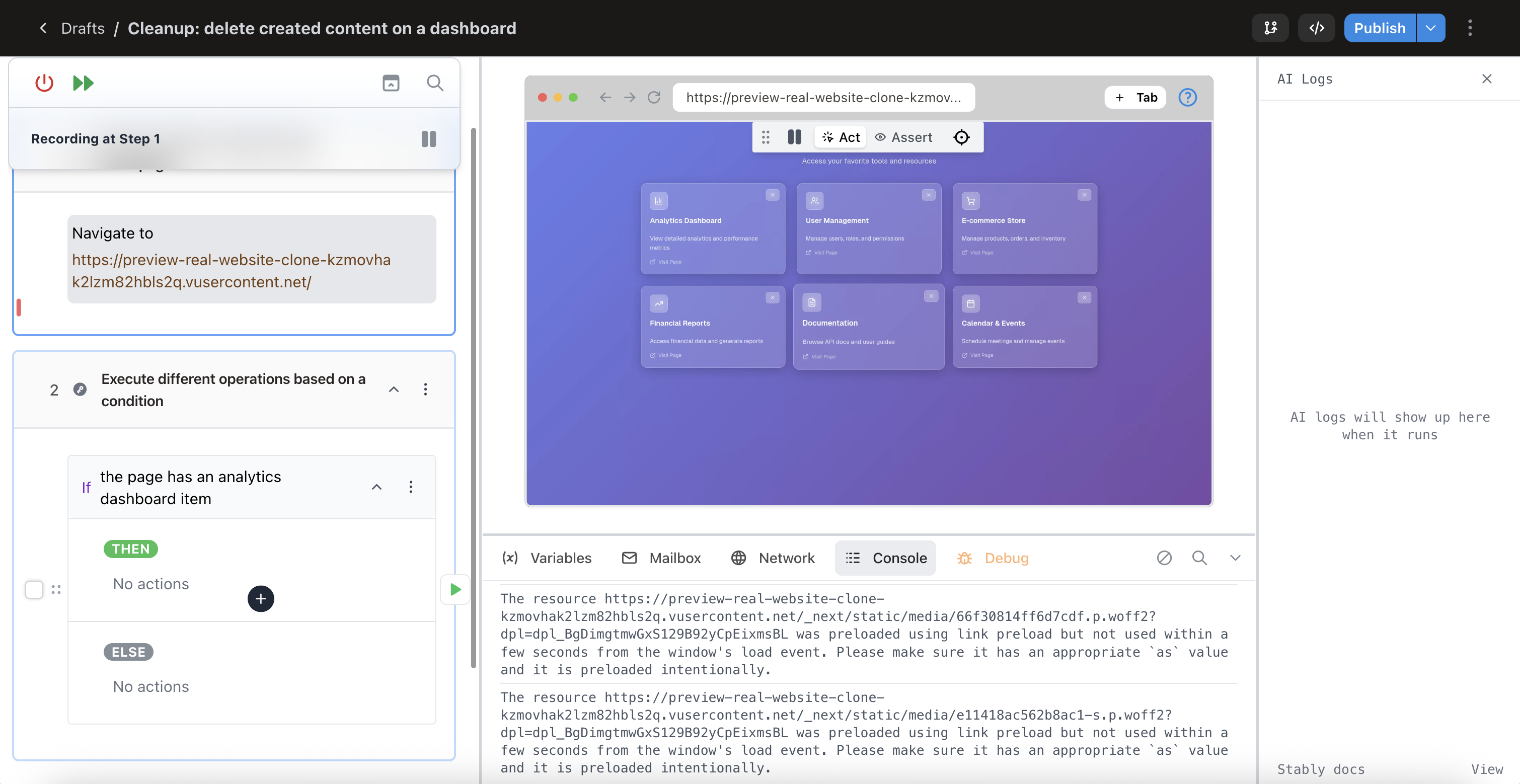 **Adding nested actions to each branch**
You can add actions to the 'Then' and 'Else' action groups by clicking on the plus button inside each conditional block. You may also leave these empty.
## Running conditional actions
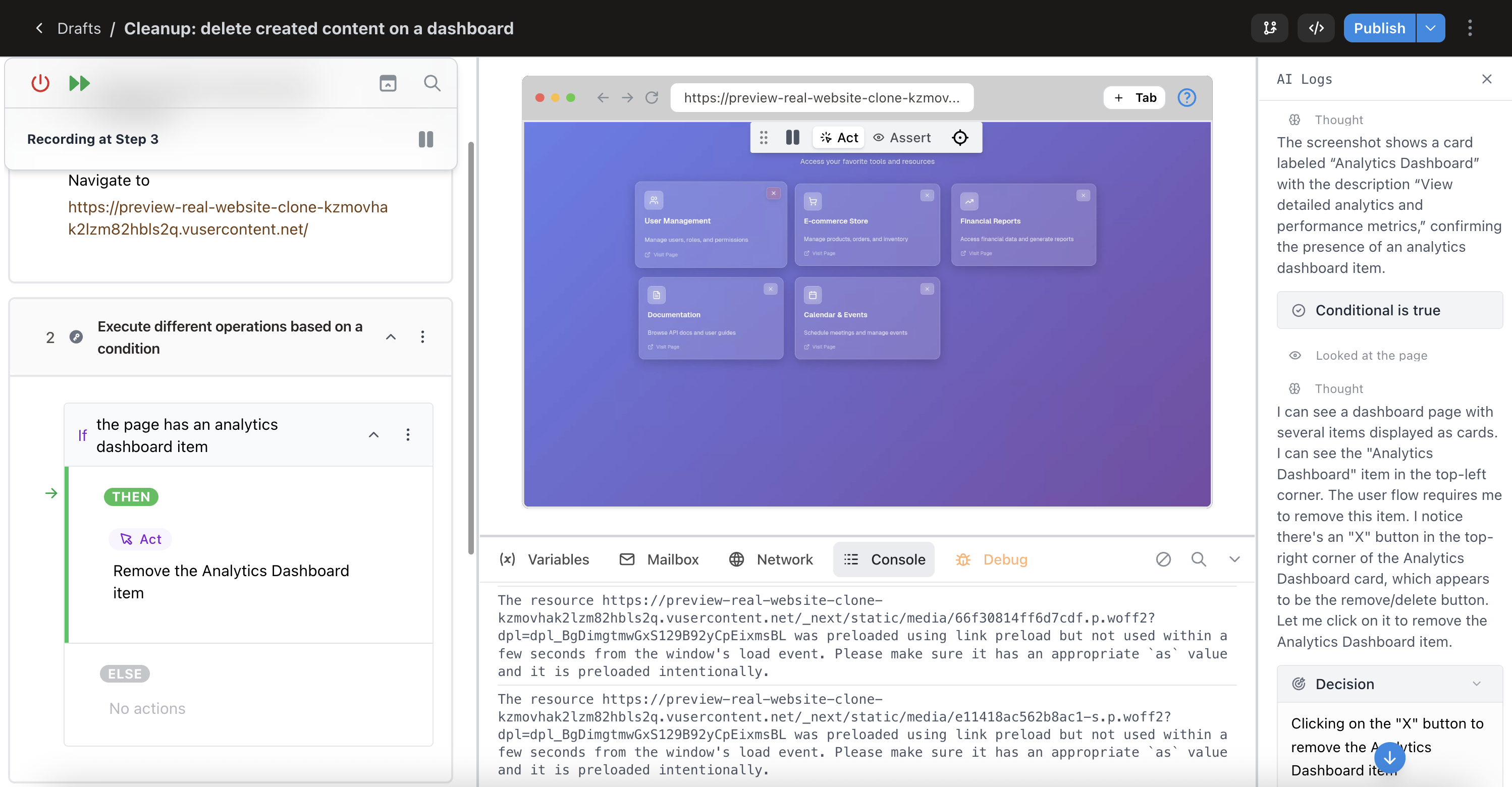
When running a conditional action, the executed path will be highlighted in green, and the logs will appear in the AI Logs sidebar.
**Adding nested actions to each branch**
You can add actions to the 'Then' and 'Else' action groups by clicking on the plus button inside each conditional block. You may also leave these empty.
## Running conditional actions
When running a conditional action, the executed path will be highlighted in green, and the logs will appear in the AI Logs sidebar.
 ## Recording inside a conditional
To record actions inside a conditional, you can move the cursor to a location inside a conditional block.
## Recording inside a conditional
To record actions inside a conditional, you can move the cursor to a location inside a conditional block.
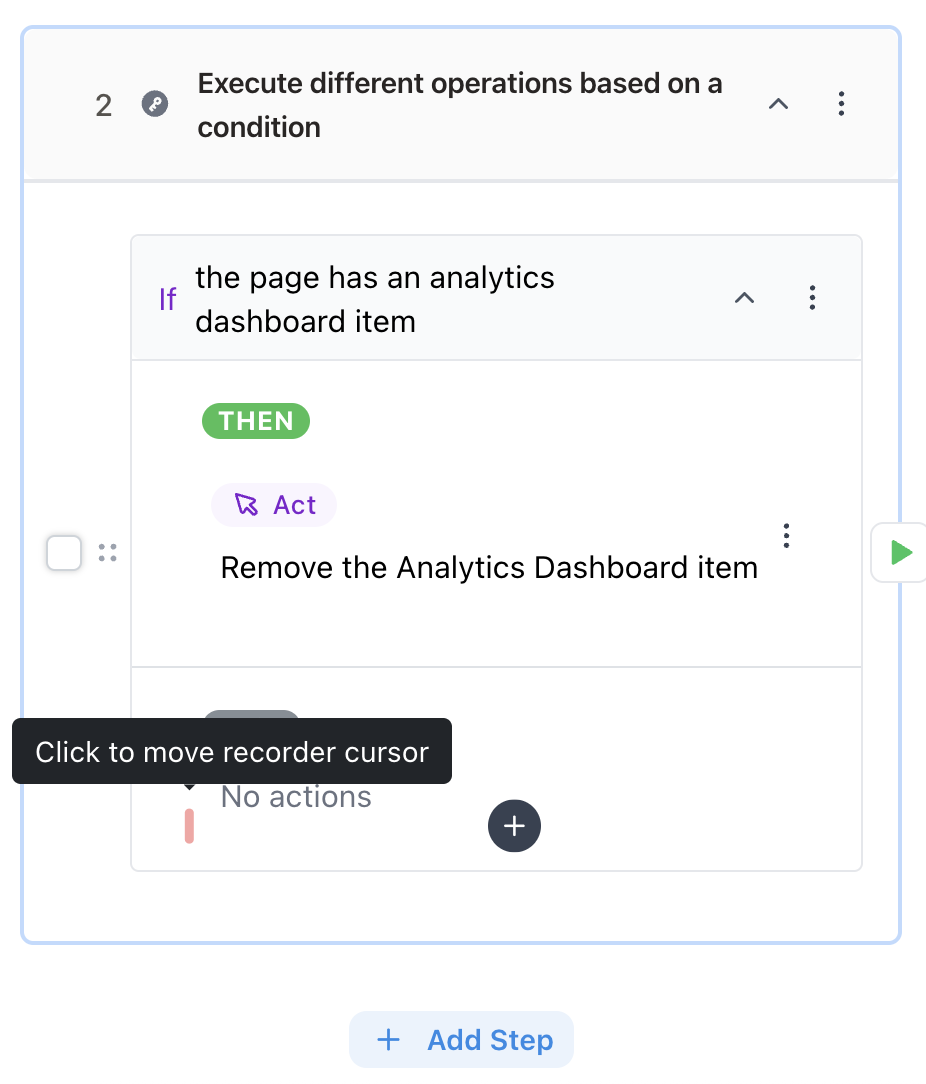 Then, any actions you do in the recorder will now be added at the location of the cursor.
## Seeing the execution path taken in executed tests
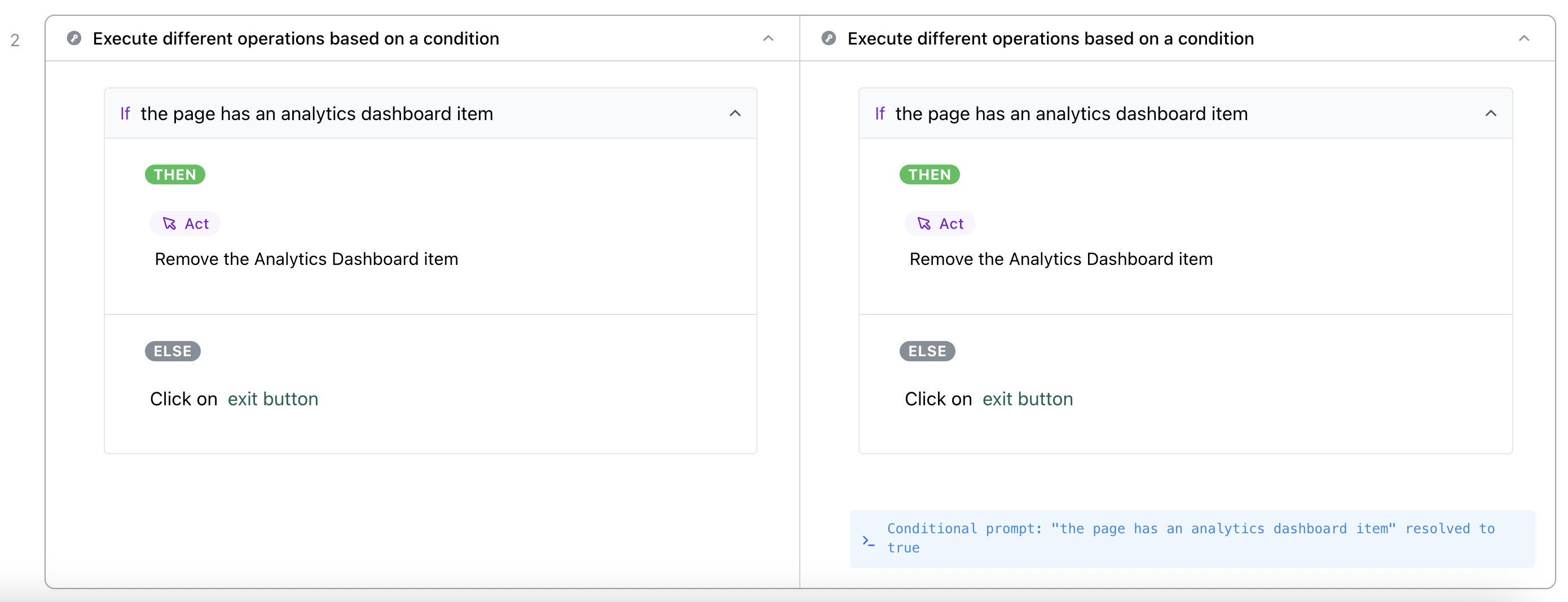
You can see the execution path taken in the test result page's Diff View tab, where the conditional action will show which branch was executed.
Then, any actions you do in the recorder will now be added at the location of the cursor.
## Seeing the execution path taken in executed tests
You can see the execution path taken in the test result page's Diff View tab, where the conditional action will show which branch was executed.
 ## Common use cases
* Cleanup tests that return the state of your website to how it was before a test or test suite was run. See [Run Settings](/run-tests/configuration/run-settings) for setup/teardown options.
* Conditionally defining variables
## Common use cases
* Cleanup tests that return the state of your website to how it was before a test or test suite was run. See [Run Settings](/run-tests/configuration/run-settings) for setup/teardown options.
* Conditionally defining variables