> ## Documentation Index
> Fetch the complete documentation index at: https://docs.stably.ai/llms.txt
> Use this file to discover all available pages before exploring further.

# Test with Google OAuth

> Set up seamless Google OAuth authentication in Stably tests with built-in support for verifying Google integrations and 2FA workflows.

<Note>
  This documentation is for **Stably Classic**. For the new Stably Web Editor, see [Stably Web Editor](/stably/stably-web-editor).
</Note>

Stably enables seamless Google OAuth authentication in our tests. With our built-in support, you can easily verify your Google integrations work correctly.

## Setup Steps

<Steps>
  <Step title="Access Google Account Settings">
    Sign in to your test Google Workspace account at `accounts.google.com`.
  </Step>

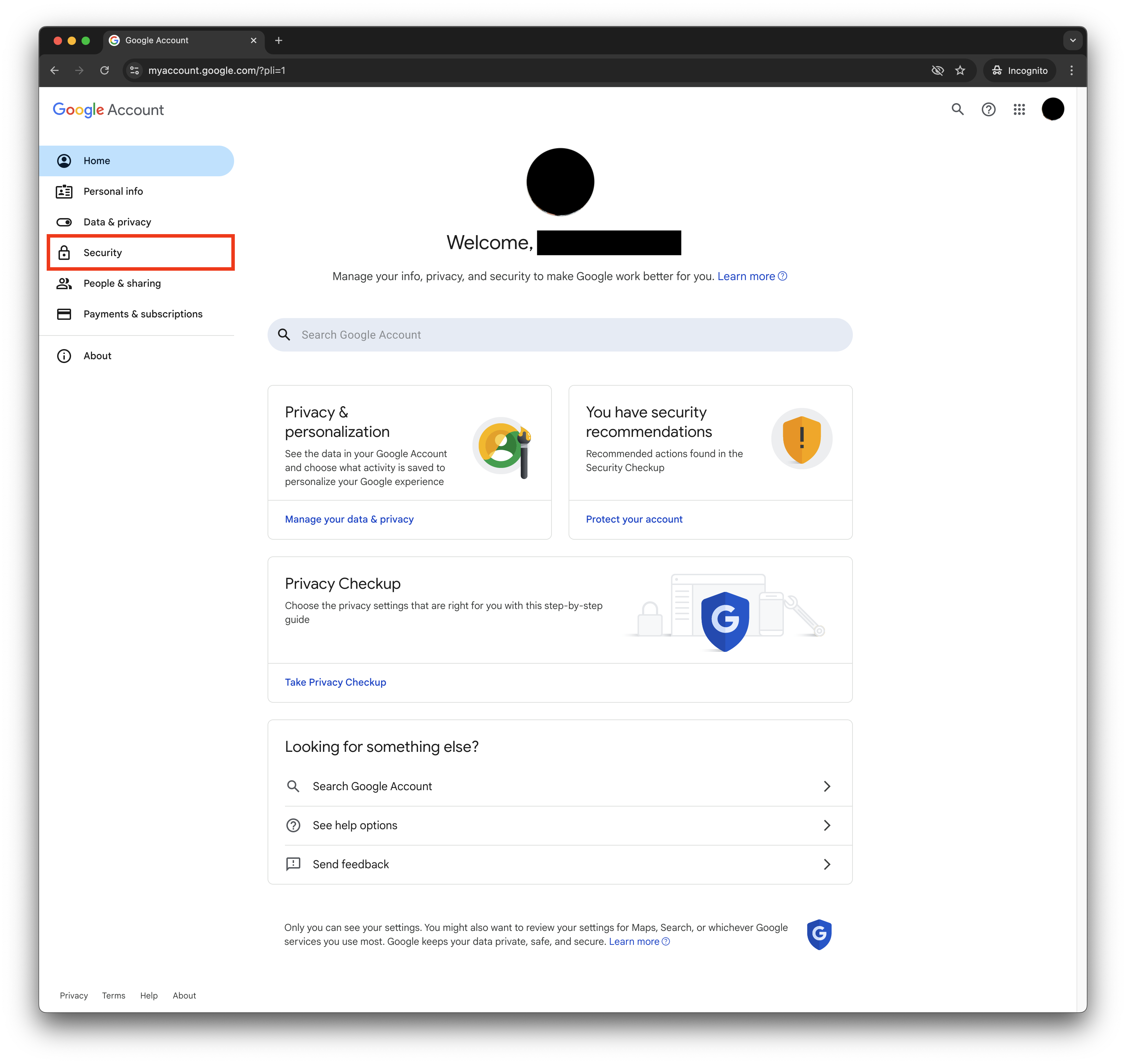
  <Step title="Navigate to Security Settings">
    Select 'Security' from the left sidebar menu.
    <Frame>
      <img src="https://mintcdn.com/stablyai/gQcjGEzeMU3Scby6/images/google-auth/sidebar-security.png?fit=max&auto=format&n=gQcjGEzeMU3Scby6&q=85&s=bd94b84087b30ff9713b5a64952c081e" width="3232" height="3054" data-path="images/google-auth/sidebar-security.png" />
    </Frame>
  </Step>

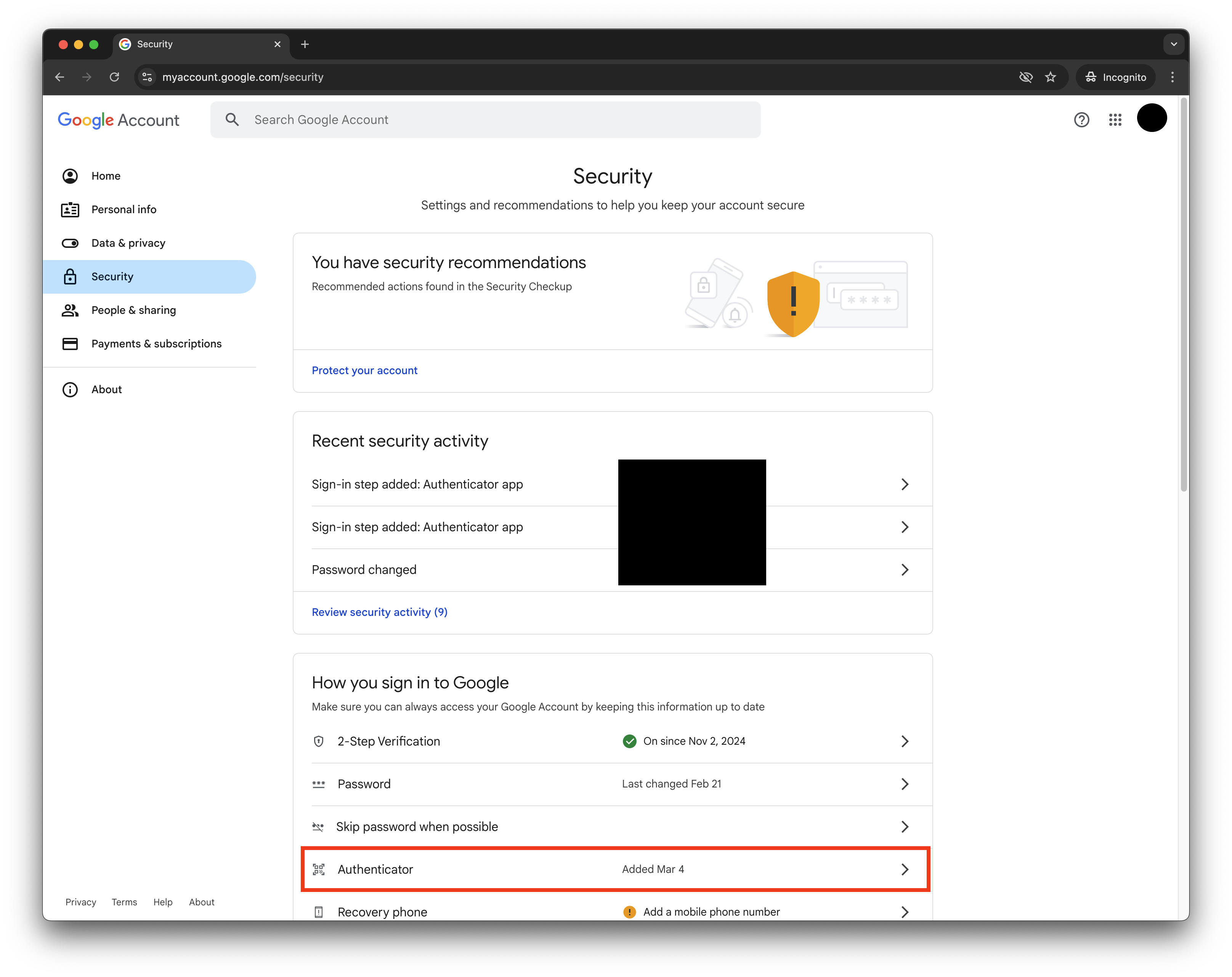
  <Step title="Scroll to 'How you sign in to Google' and click 'Authenticator'">
    <Frame>
      <img src="https://mintcdn.com/stablyai/gQcjGEzeMU3Scby6/images/google-auth/authenticator.png?fit=max&auto=format&n=gQcjGEzeMU3Scby6&q=85&s=110690689cae92aca43ca223d725e0e6" width="3232" height="2562" data-path="images/google-auth/authenticator.png" />
    </Frame>
  </Step>

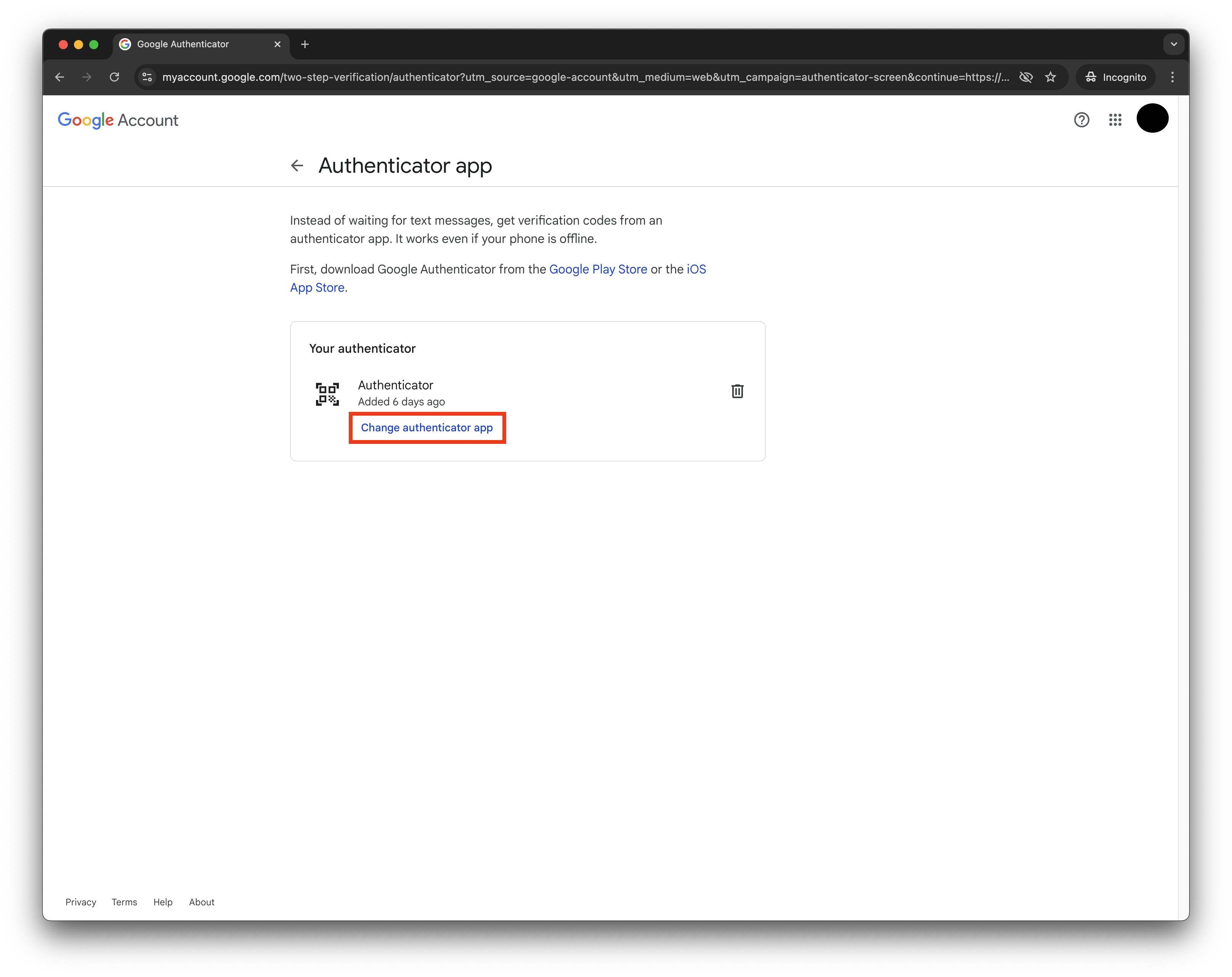
  <Step title="Click 'Add Authenticator' (or 'Change Authenticator App')">
    <Frame>
      <img src="https://mintcdn.com/stablyai/gQcjGEzeMU3Scby6/images/google-auth/add-authenticator.png?fit=max&auto=format&n=gQcjGEzeMU3Scby6&q=85&s=cdc2fffd46b117a89326503cd085a6e3" width="3232" height="2562" data-path="images/google-auth/add-authenticator.png" />
    </Frame>

    <Note>
      Note: This will invalidate your previous Authenticator app setup.
    </Note>
  </Step>

  <Step title="Access OTP Secret">
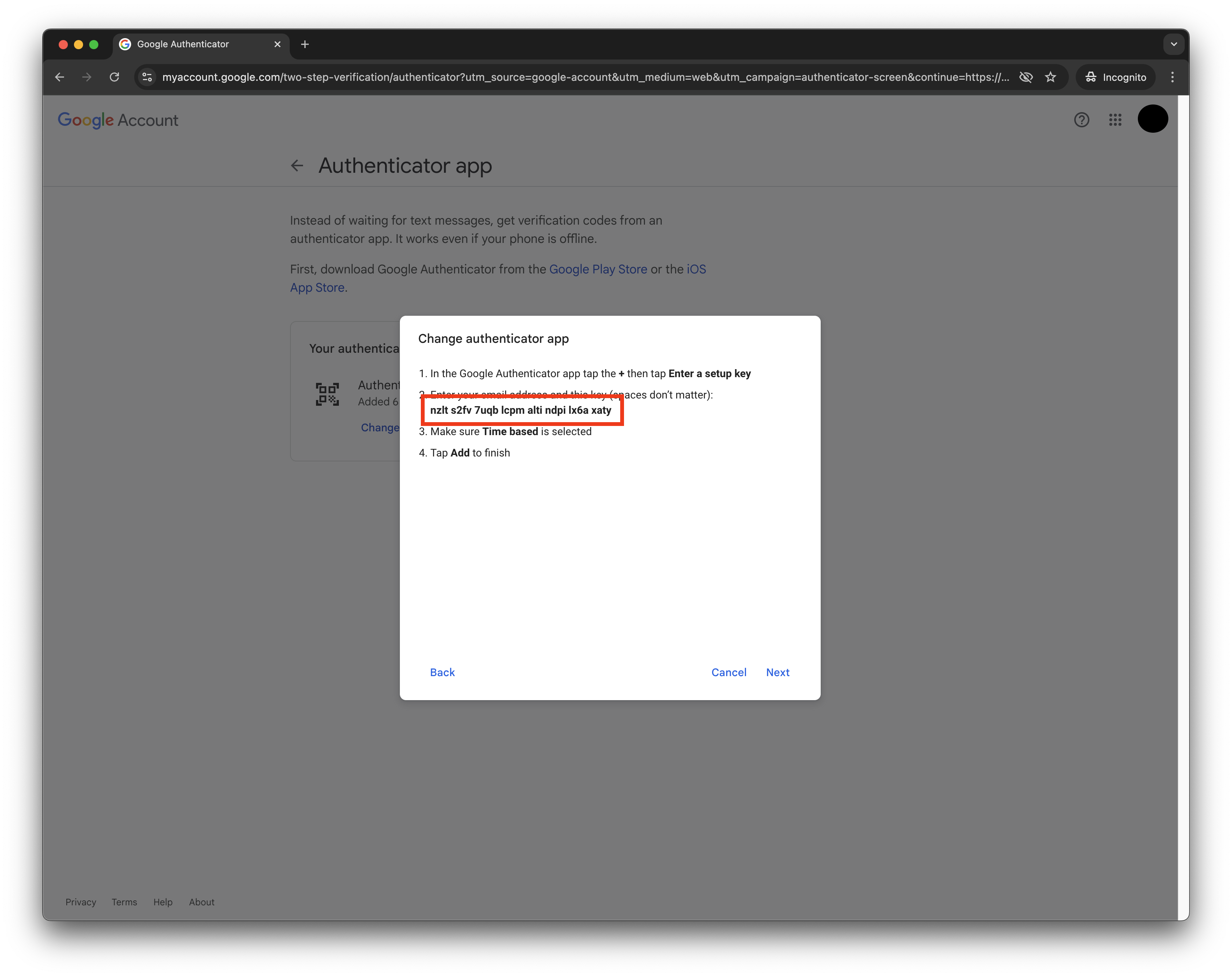
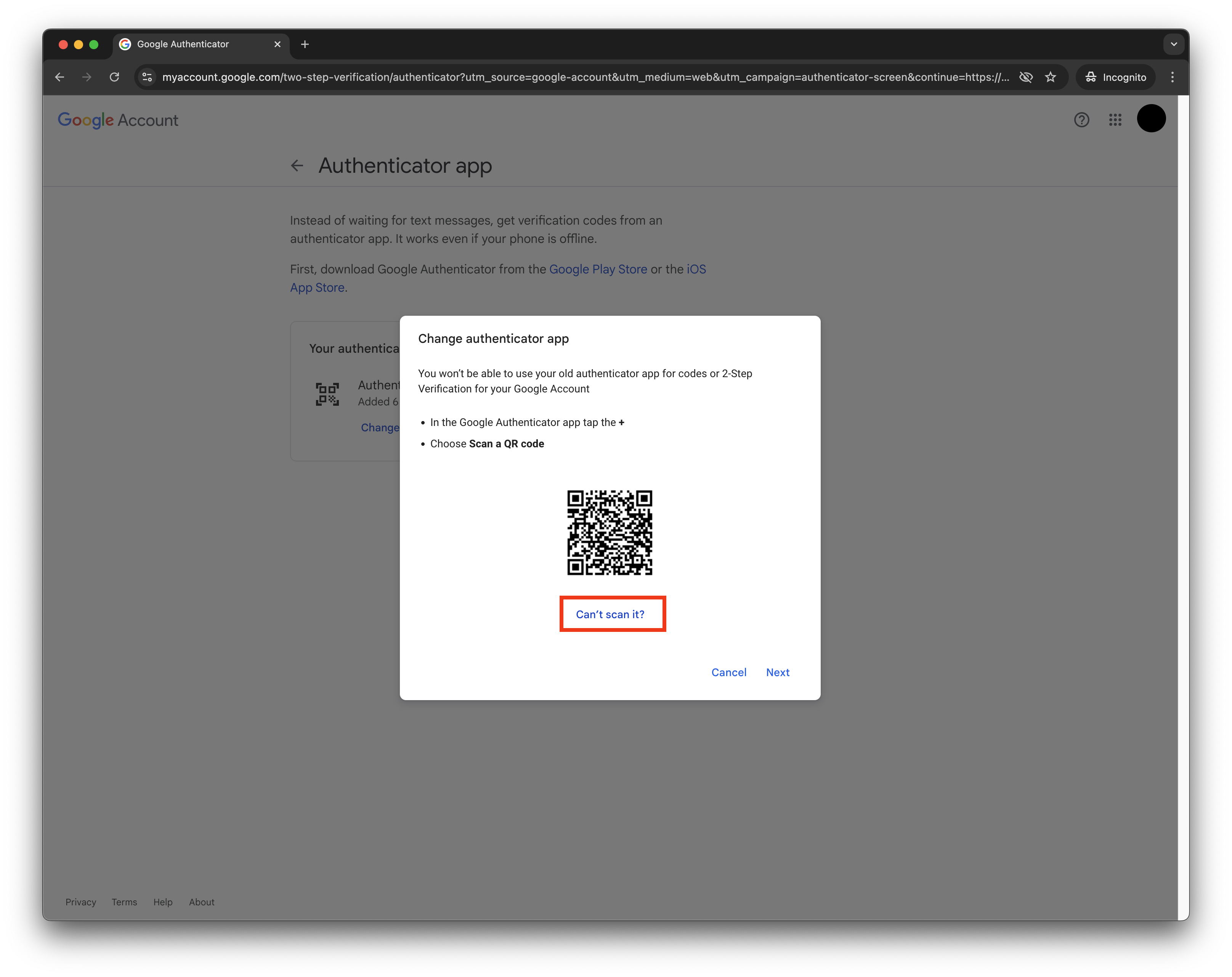
    When the QR code pop-up appears:

    1. Click 'Can't scan QR code'
    2. This will reveal the OTP secret in text format
    <Frame>
      <img src="https://mintcdn.com/stablyai/gQcjGEzeMU3Scby6/images/google-auth/cant-scan.png?fit=max&auto=format&n=gQcjGEzeMU3Scby6&q=85&s=e72d9efa38bbf808002a1a5cb7755343" width="3232" height="2562" data-path="images/google-auth/cant-scan.png" />
    </Frame>

    <Frame>
      <img src="https://mintcdn.com/stablyai/gQcjGEzeMU3Scby6/images/google-auth/plaintext-secret.png?fit=max&auto=format&n=gQcjGEzeMU3Scby6&q=85&s=9943b02b4f76838f2b4900dd1f2e2387" width="3232" height="2562" data-path="images/google-auth/plaintext-secret.png" />
    </Frame>
  </Step>

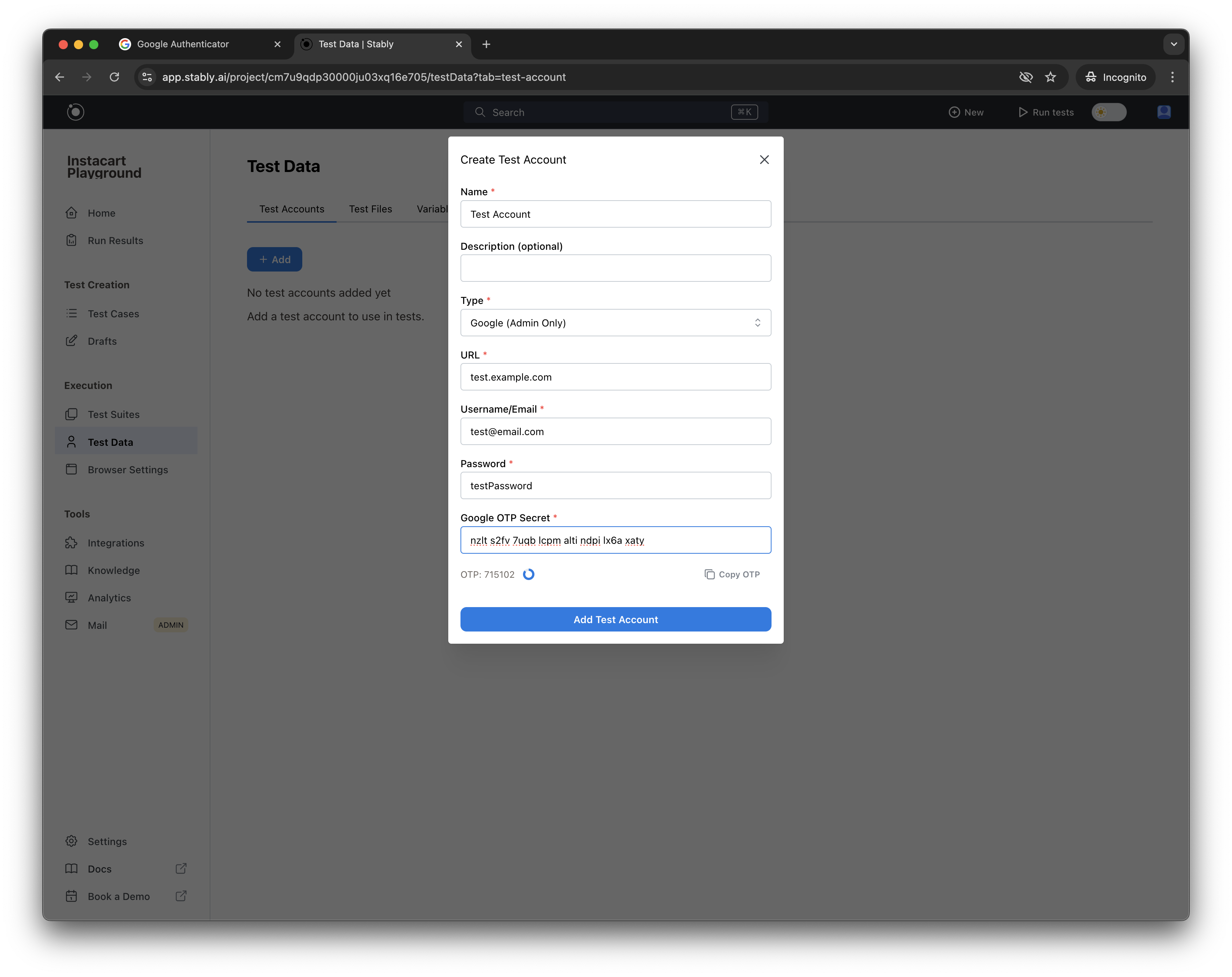
  <Step title="Create Test Account in Stably">
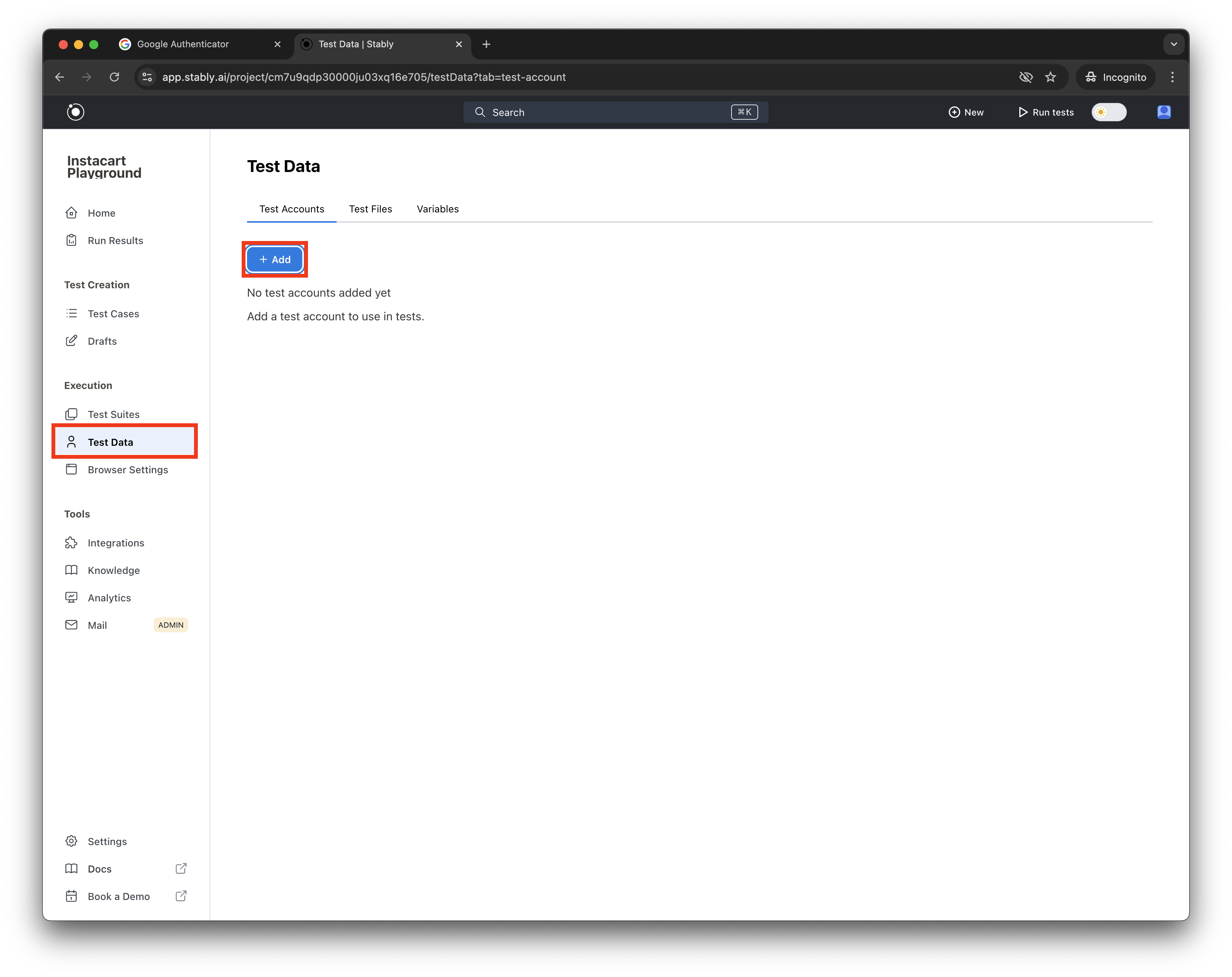
    1. Open `app.stably.ai` in a new tab
    2. Navigate to **Test Data** > **Test Accounts**
    3. Click 'Add Test Account'
    4. Select 'Google' as the account type
    5. Fill in the required details
    <Frame>
      <img src="https://mintcdn.com/stablyai/gQcjGEzeMU3Scby6/images/google-auth/add-test-account.png?fit=max&auto=format&n=gQcjGEzeMU3Scby6&q=85&s=426c5358d4ee6ae3789558bd663a0d67" width="3232" height="2562" data-path="images/google-auth/add-test-account.png" />
    </Frame>
  </Step>

  <Step title="Copy-paste the OTP secret into Stably" />

  <Step title="In Stably, you'll see an OTP with a 30-second timer. Click 'Copy OTP' to copy it.">
    <Frame>
      <img src="https://mintcdn.com/stablyai/gQcjGEzeMU3Scby6/images/google-auth/create-test-account.png?fit=max&auto=format&n=gQcjGEzeMU3Scby6&q=85&s=788c6dc681a3f6025084ddcb0472cfdc" width="3232" height="2562" data-path="images/google-auth/create-test-account.png" />
    </Frame>
  </Step>

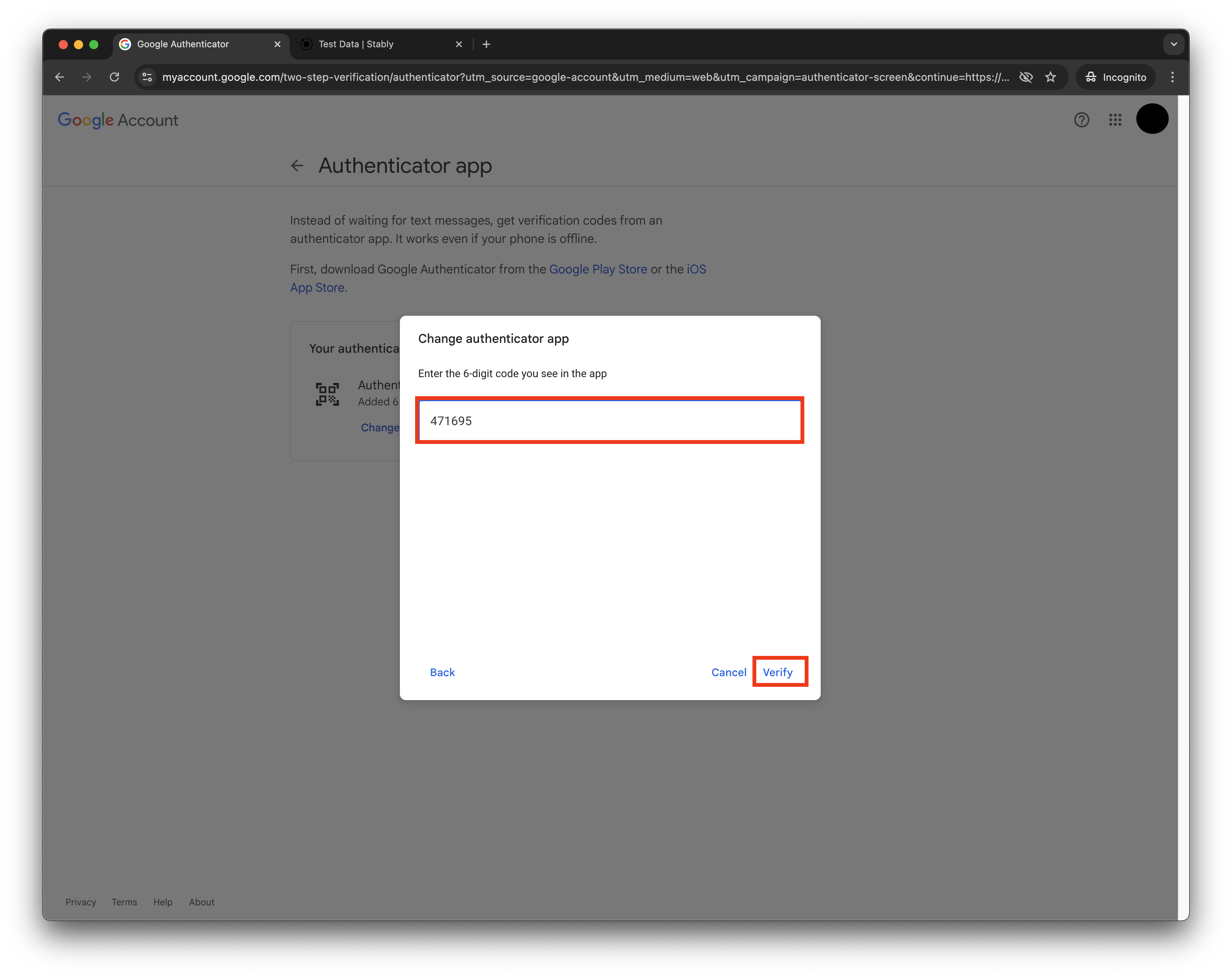
  <Step title="Finish authenticator setup in Google">
    Go back to the Google Accounts pop-up, click 'Next', paste the copied OTP, and click 'Verify' to finish the Authenticator setup.
    <Frame>
      <img src="https://mintcdn.com/stablyai/gQcjGEzeMU3Scby6/images/google-auth/finish-authenticator.png?fit=max&auto=format&n=gQcjGEzeMU3Scby6&q=85&s=ea64ff15fd45f3e19922f23767a49bd5" width="3232" height="2562" data-path="images/google-auth/finish-authenticator.png" />
    </Frame>
  </Step>

  <Step title="Finish test account creation in Stably">
    Back in Stably, click 'Add Test Account' to finish test account creation.
  </Step>

  <Step title="Enable 2FA and validate second steps">
    Go back to the Google Accounts page, turn on 2FA, and under 'Second Steps', make sure only the Authenticator is enabled (you might have to sign out of the Google Account on mobile devices).
  </Step>

  <Step title="You can now use this Google OAuth account in tests" />
</Steps>