> ## Documentation Index
> Fetch the complete documentation index at: https://docs.stably.ai/llms.txt
> Use this file to discover all available pages before exploring further.
# Email Receiving
> Set up email inboxes in Stably tests to receive and validate emails with unique identifiers and automated email handling.
This documentation is for **Stably Classic**. For the new Stably Web Editor, see [Stably Web Editor](/stably/stably-web-editor).
Create a `Setup Email Inbox` step or operation to create an inbox. Stably can receive emails on your behalf by generating an email
for your use. The email will be stored in a variable which can be used in later steps.
When generating emails through Stably, you must include a unique identifier. You can choose between two types of identifiers:
**Static:** Uses the same identifier for all test runs
**Dynamic:** Creates a unique identifier for each test run. This can be implemented in two ways:
* Simply click the `Use dynamic inbox address` button to automatically generate a new email address for each run. It will generate the name
from the current date.
* Write your own code to create dynamic identifiers based on your specific requirements
This step is required to receive and extract emails
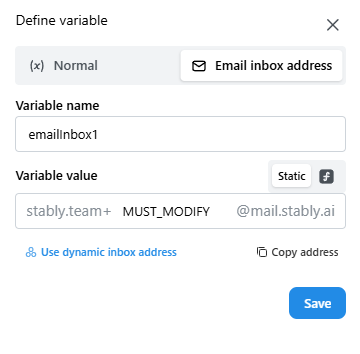 To use your own email address, navigate to the `Normal` tab in the interface. Please note that when using your personal email, you will
need to manually monitor and check all sent communications yourself.
Continue adding steps to the test to trigger an email send from your website and utilize the previously defined variable to access the generated email.
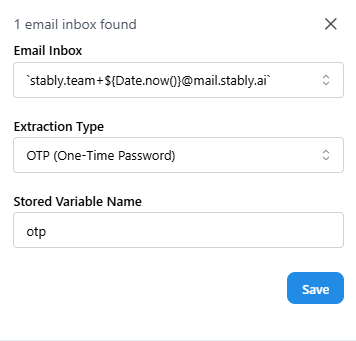
Add the `Receive and Extract Email` step or operation to your test. Specify the expected inbox and extract content from incoming emails. As of now, we only support the
extraction of login-related content such as One-Time Passwords (OTP) or Magic Links, which can be specified in the
`Extraction Type` field. The extracted value will be stored in a variable.
To use your own email address, navigate to the `Normal` tab in the interface. Please note that when using your personal email, you will
need to manually monitor and check all sent communications yourself.
Continue adding steps to the test to trigger an email send from your website and utilize the previously defined variable to access the generated email.
Add the `Receive and Extract Email` step or operation to your test. Specify the expected inbox and extract content from incoming emails. As of now, we only support the
extraction of login-related content such as One-Time Passwords (OTP) or Magic Links, which can be specified in the
`Extraction Type` field. The extracted value will be stored in a variable.
 Feel free to contact us if you have a unique use case for email extraction.