> ## Documentation Index
> Fetch the complete documentation index at: https://docs.stably.ai/llms.txt
> Use this file to discover all available pages before exploring further.
# Variables
> Capture and reference dynamic information with environment variables (global) and local variables for flexible test automation in Stably.
This documentation is for **Stably Classic**. For the new Stably Web Editor, see [Stably Web Editor](/stably/stably-web-editor).
## Introduction
Variables let you capture dynamic information at run‑time and reference it later from a single, well‑known location.
* **Environment variables (global)** live at the project level and are shared by every test in the workspace. They are managed in the **Test Data** section.
* **Local variables** are defined inside an individual test and exist only for that test run.
Using variables keeps your scenarios concise and resilient – you change the value in one place and every reference stays up to date.
JSON values are supported and accessible in your tests as JSON objects.
***
## Environment Variables
Environment variables provide a centralized way to store values that can be shared across all tests in your project. They are managed through the **Test Data** section in your workspace.
**See:** [Environment Variables](/core-configuration/environment-variables) for a comprehensive guide on creating, managing, and using environment variables (accessible via **Test Data → Variables** in your workspace).
***
## Local Variables
You can add a **Define variable** step anywhere in a test. Stably offers four ways to assign a value:
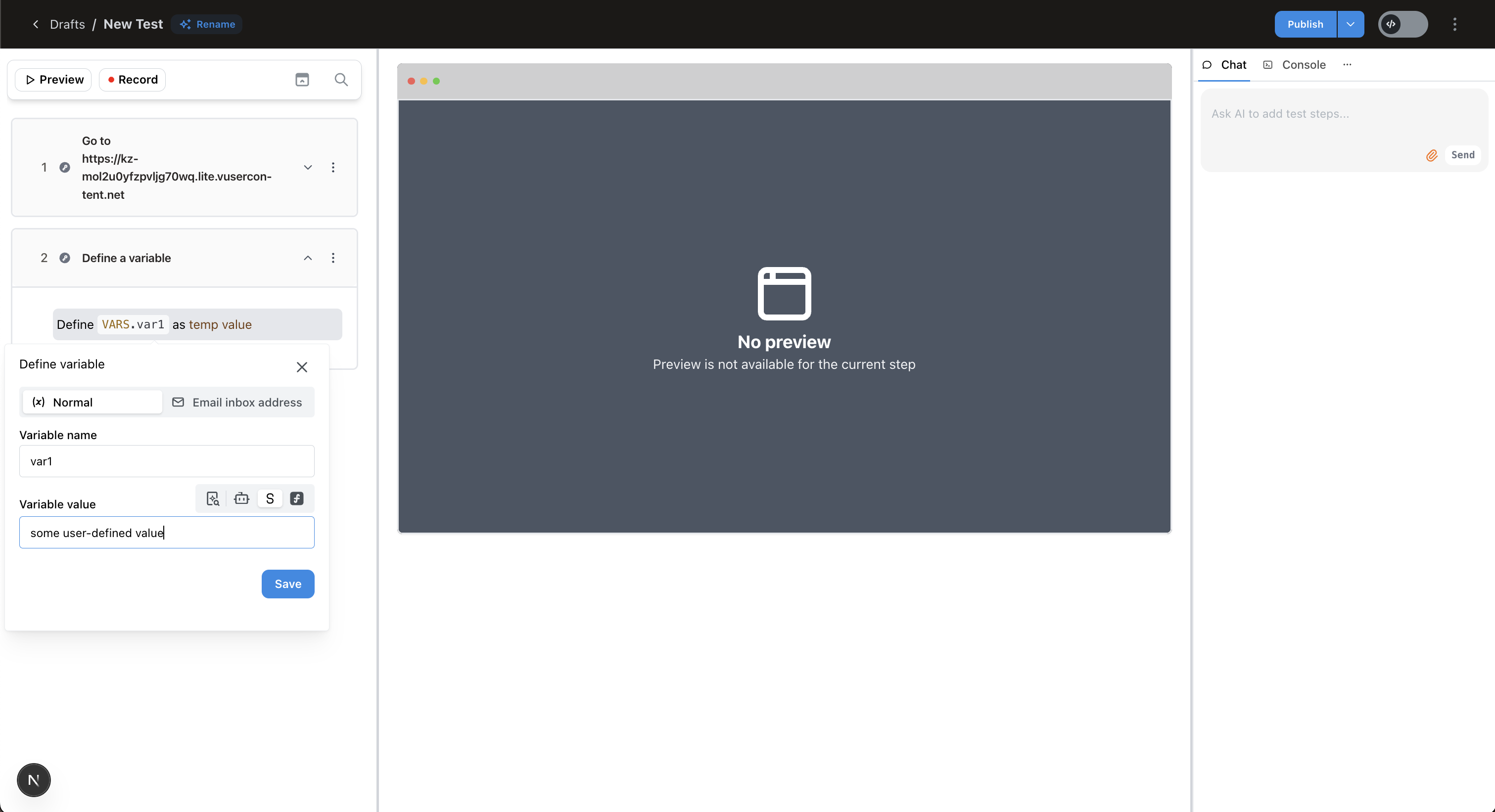
### 1. Static value
Type any literal such as `3`, `true`, or `"hello world"` and click **Save**.
 ### 2. Extract from the current page
When defining the variable value, select the "AI Extraction" option and simply type in a natural language description of the data you want to extract, and Stably will capture its text/attribute in real‑time. In the example below we store the large centered number in `var1`:
### 2. Extract from the current page
When defining the variable value, select the "AI Extraction" option and simply type in a natural language description of the data you want to extract, and Stably will capture its text/attribute in real‑time. In the example below we store the large centered number in `var1`:
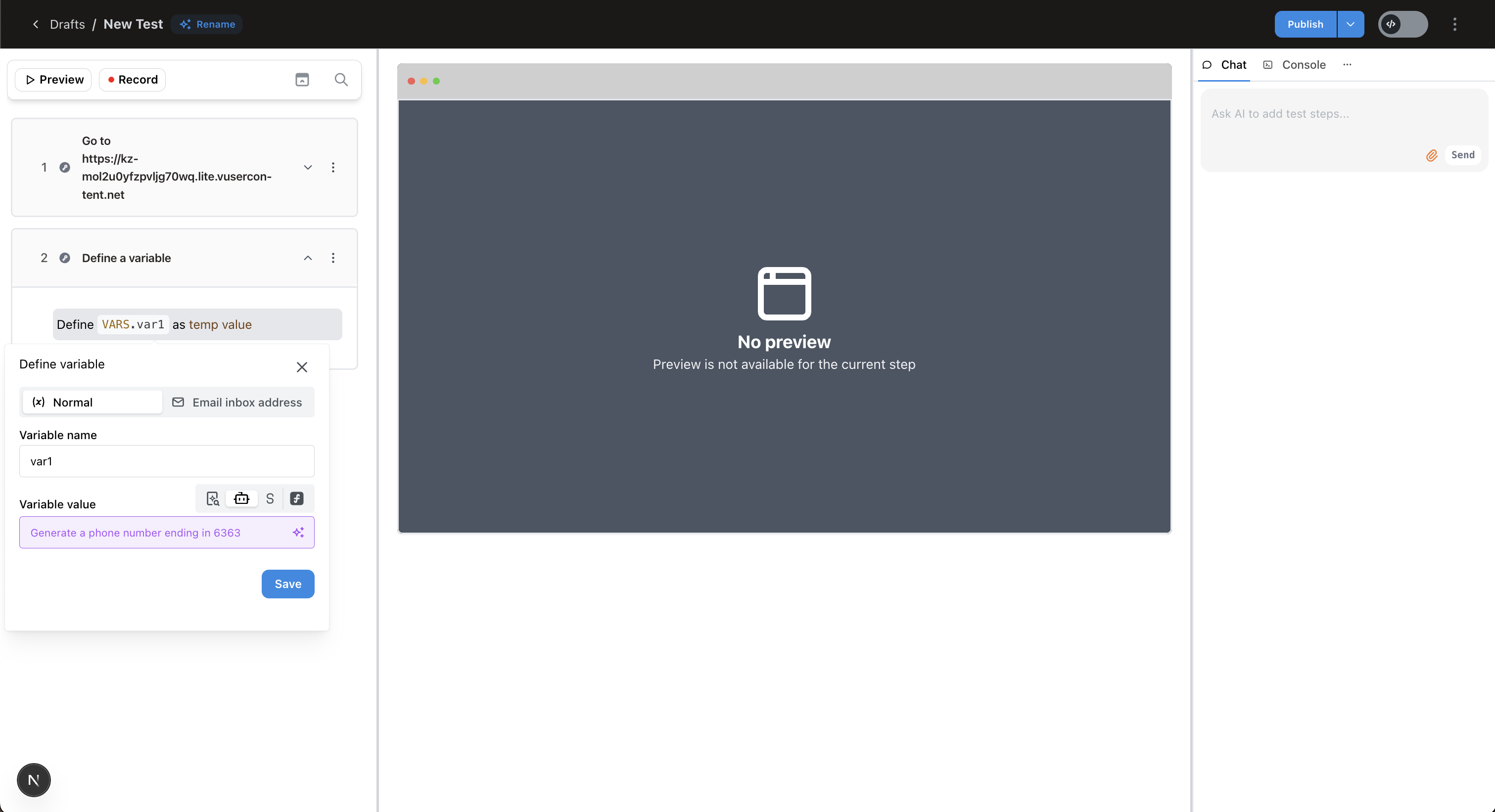
 ### 3. Generate test data with AI
In case you don't need a very particular value, but something random that satisfies a set of criteria, then use AI to generate appropriate random values – e.g. *"Generate a phone number ending in 6363"*. Stably creates realistic, unique data every run.
### 3. Generate test data with AI
In case you don't need a very particular value, but something random that satisfies a set of criteria, then use AI to generate appropriate random values – e.g. *"Generate a phone number ending in 6363"*. Stably creates realistic, unique data every run.
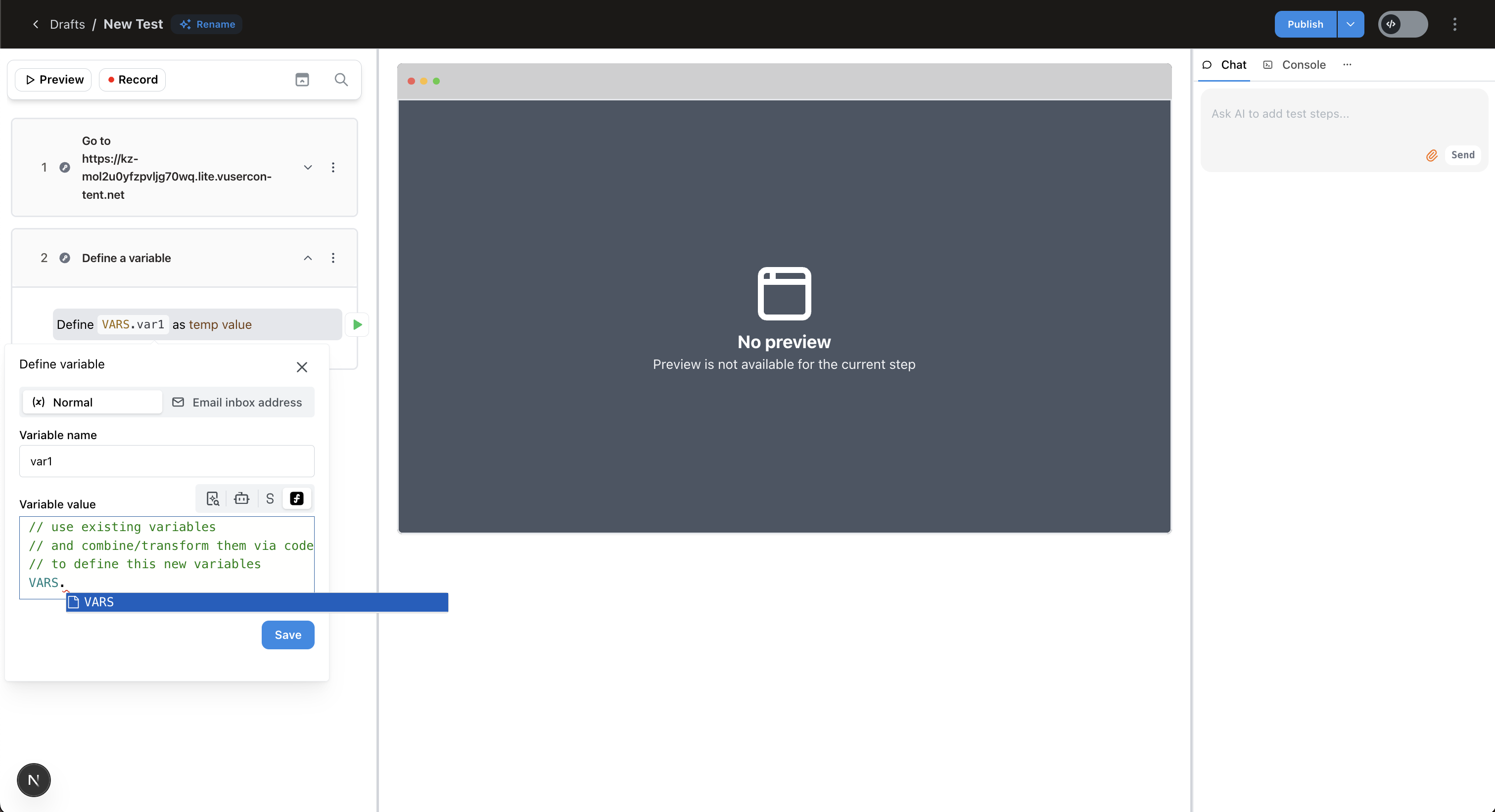
 ### 4. Compute a value using an expression
Use JavaScript and any built-in helpers to combine or transform existing variables (prefix `VARS.`) to come up with the value that will be assigned to this new variable.
### 4. Compute a value using an expression
Use JavaScript and any built-in helpers to combine or transform existing variables (prefix `VARS.`) to come up with the value that will be assigned to this new variable.
 ```js theme={null}
// use existing variables and logic
return `${VARS.firstName}.${VARS.lastName}`.toLowerCase();
```
### 5. Extract from email
Stably also allows you to extract information from emails that are sent to your Stably-provisioned email address. For more details on how to do this, check out ["Receiving Emails"](/platform-capabilities/receive-emails).
***
## Using Variables in Tests
There are several ways to utilize variables throughout your tests. Note that *all* variables (both global and local) are referenced from the same `VARS` object.
### 1. Inside custom code blocks
Use `VARS.` to refer to the variable named ``. `VARS` is a JS object, so you can use it like you would any other JS object.
```js theme={null}
// use existing variables and logic
return `${VARS.firstName}.${VARS.lastName}`.toLowerCase();
```
### 5. Extract from email
Stably also allows you to extract information from emails that are sent to your Stably-provisioned email address. For more details on how to do this, check out ["Receiving Emails"](/platform-capabilities/receive-emails).
***
## Using Variables in Tests
There are several ways to utilize variables throughout your tests. Note that *all* variables (both global and local) are referenced from the same `VARS` object.
### 1. Inside custom code blocks
Use `VARS.` to refer to the variable named ``. `VARS` is a JS object, so you can use it like you would any other JS object.
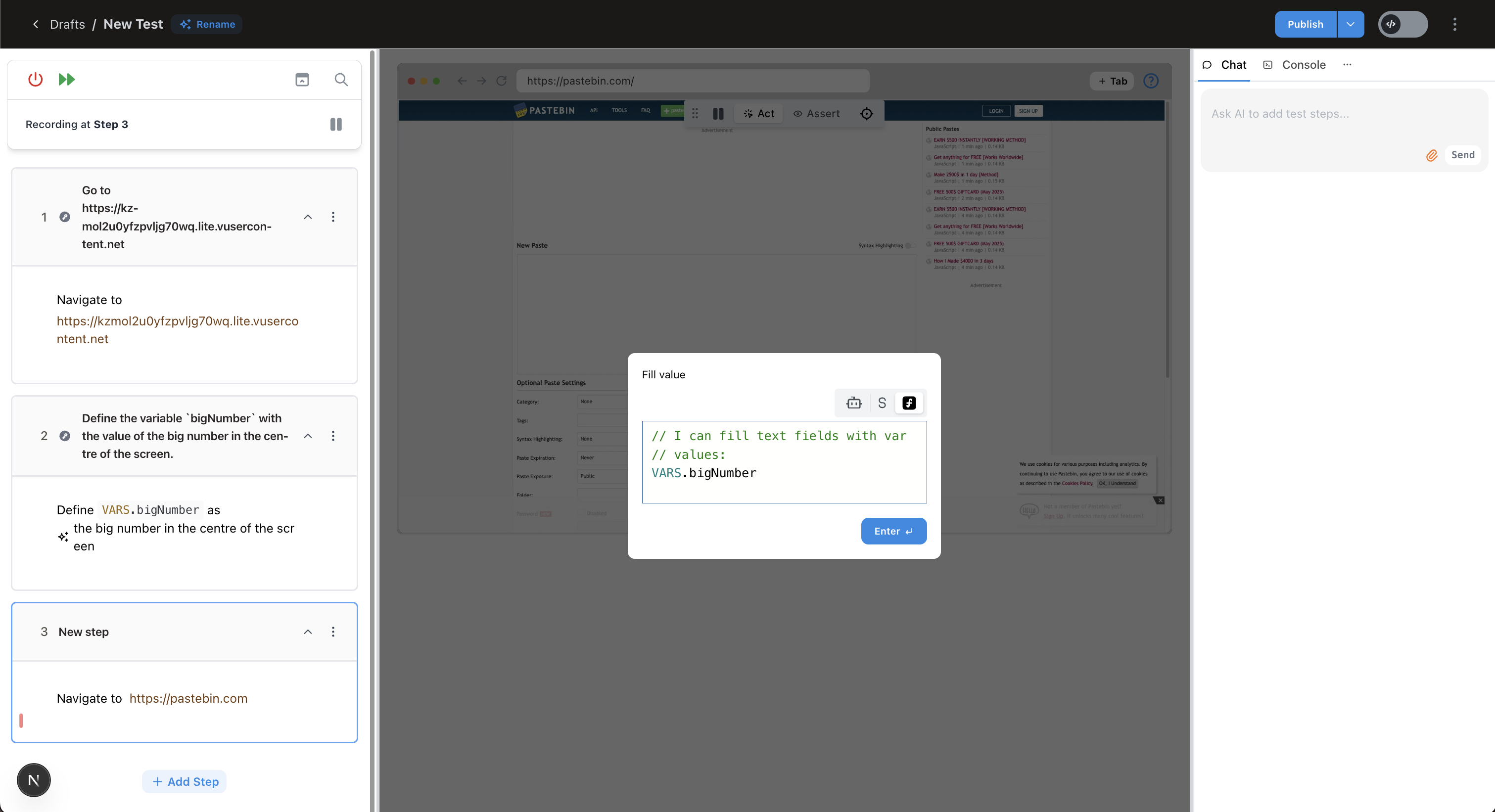
 ### 2. Fill inputs with variable values
Similarly, when filling out text inputs, you can reference your variables in the same way to fill the input with a variable's value rather than a static literal.
### 2. Fill inputs with variable values
Similarly, when filling out text inputs, you can reference your variables in the same way to fill the input with a variable's value rather than a static literal.
 ### 3. AI agent context
Whenever you ask Stably's AI to generate steps it automatically receives the current variable set, so you can prompt it with instructions like *"if `VARS.plan` is 'premium' skip the upsell page"*.
### 4. AI assertions
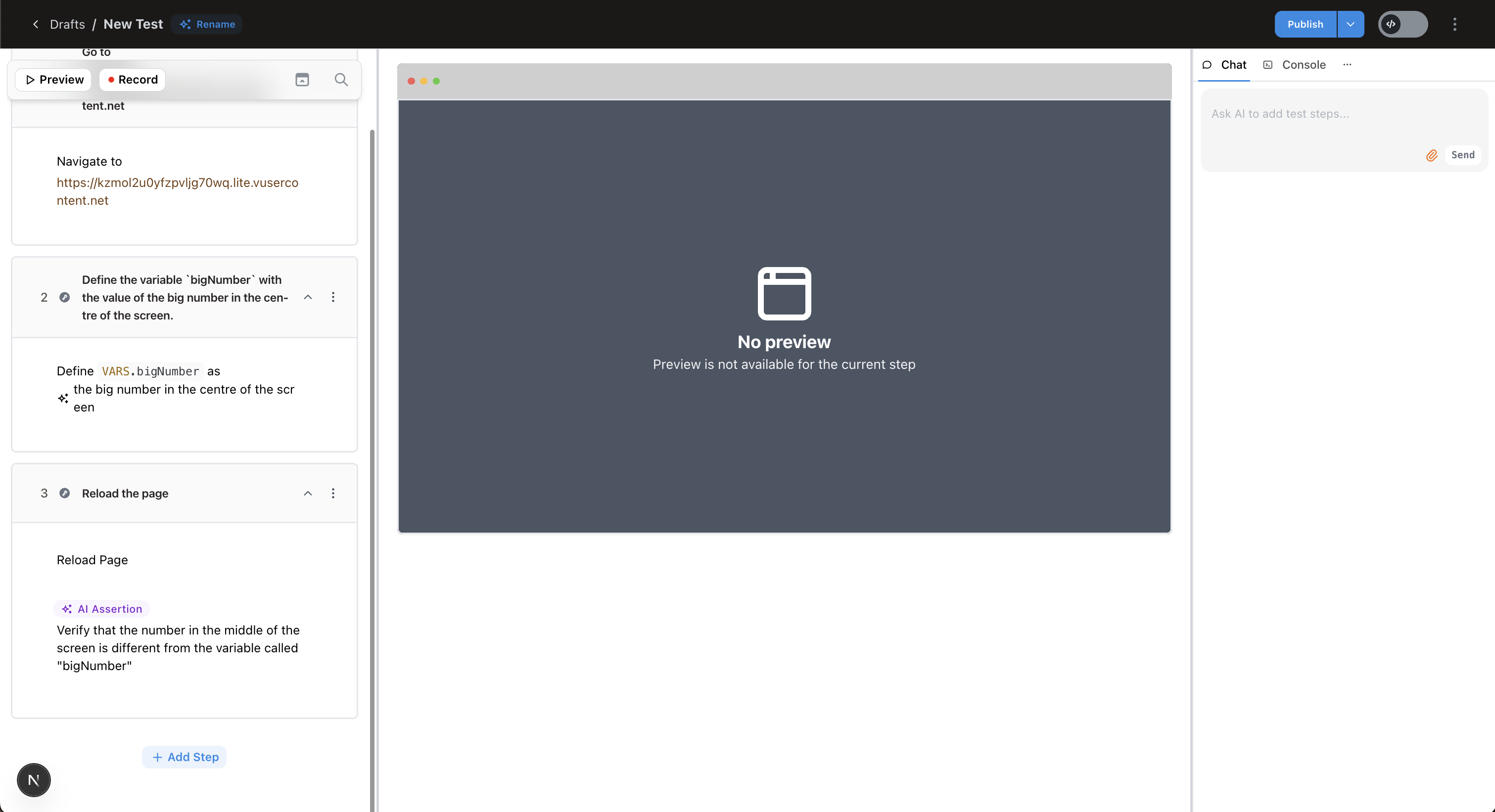
Variables are also supplied to the AI when asserting, so you can add a layer of conditional logic to your AI visual assertions.
### 3. AI agent context
Whenever you ask Stably's AI to generate steps it automatically receives the current variable set, so you can prompt it with instructions like *"if `VARS.plan` is 'premium' skip the upsell page"*.
### 4. AI assertions
Variables are also supplied to the AI when asserting, so you can add a layer of conditional logic to your AI visual assertions.
 ***
## Best practices
| ✔️ Do | ❌ Avoid |
| ------------------------------------------------------------------------ | ----------------------------------------------------------- |
| Give variables descriptive, lower‑camelCase names (`totalRevenueToday`). | Abbreviations that will be hard to remember later (`trtd`). |
| Store secrets in environment variables marked **Sensitive**. | Hard‑coding credentials directly in steps. |
| Re‑use variables instead of duplicating text across steps. | Updating the same literal value in many places. |
| Reset or regenerate variables at the start of each run when needed. | Relying on state left over from previous runs. |
***
## Best practices
| ✔️ Do | ❌ Avoid |
| ------------------------------------------------------------------------ | ----------------------------------------------------------- |
| Give variables descriptive, lower‑camelCase names (`totalRevenueToday`). | Abbreviations that will be hard to remember later (`trtd`). |
| Store secrets in environment variables marked **Sensitive**. | Hard‑coding credentials directly in steps. |
| Re‑use variables instead of duplicating text across steps. | Updating the same literal value in many places. |
| Reset or regenerate variables at the start of each run when needed. | Relying on state left over from previous runs. |