> ## Documentation Index
> Fetch the complete documentation index at: https://docs.stably.ai/llms.txt
> Use this file to discover all available pages before exploring further.
# Autofix
> Automatically diagnose and fix failing tests after cloud runs — on a schedule or on-demand from the dashboard.
## Overview
Autofix automatically diagnoses test failures and generates code fixes after cloud runs complete. When `autofix: true` is enabled, Stably's AI kicks in automatically after failures — analyzing why your tests are failing, categorizing each issue, and applying targeted repairs to your test code. You can also trigger it manually from the dashboard on any failed run.
This is ideal for teams that want their scheduled test suites to stay healthy overnight without waking anyone up.
## How It Works
Your scheduled tests execute normally on Stably Cloud Runner.
If any tests fail, autofix kicks in automatically.
Stably analyzes the failure context — screenshots, traces, DOM snapshots, and logs — to determine *why* each test failed.
The AI generates targeted code changes and applies them to your test files.
View the diagnosis report and fixes in your dashboard.
* **If your repo is [connected to GitHub/GitLab](/stably2/bring-your-own-repo):** A PR/MR is created automatically. Review and merge when ready.
* **If your repo is not connected:** View the diagnosis report and code diffs in the dashboard. Apply changes to your codebase manually, or [connect your repo](/stably2/bring-your-own-repo) to enable automatic PRs.
"Repo connected" here means the [Bring Your Own Repo](/stably2/bring-your-own-repo) integration. This is not required for running tests or using the CLI — it's specifically needed when you want Stably to create PRs/MRs from cloud and dashboard runs.
By default, autofix changes are submitted as a PR/MR for your team to review before merging. If your repo connection is configured with a different [publish behavior](/stably2/bring-your-own-repo) (e.g., push directly), that setting applies to autofix as well.
## Enabling Autofix
### From the Dashboard
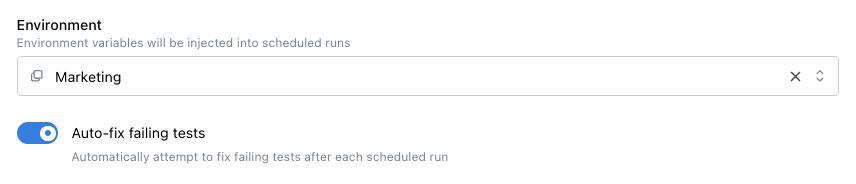
When creating or editing a scheduled test run, toggle **"Auto-fix failing tests"** to enable autofix for that schedule.
 ### In `stably.yaml`
You can enable autofix as a **project-level default** that applies to all runs (scheduled, API-triggered, and UI-triggered):
```yaml stably.yaml theme={null}
autofix: true
```
Or enable it for specific schedules only:
```yaml stably.yaml theme={null}
schedules:
nightly-regression:
cron: "0 2 * * *"
stablyTestArgs: "--project regression"
autofix: true
```
You can also combine both — the top-level `autofix` sets the default, and per-schedule values override it:
```yaml stably.yaml theme={null}
autofix: true # default for all runs
schedules:
nightly-regression:
cron: "0 2 * * *"
# inherits autofix: true from top level
smoke-tests:
cron: "0 9 * * *"
autofix: false # overrides: no autofix for this schedule
```
### Via the API
When triggering a run via the API, you can pass `autofix: true` in the request body. If omitted, the project-level default from `stably.yaml` is used.
```bash theme={null}
curl -X POST https://api.stably.ai/v1/projects/{projectId}/runs \
-H "Authorization: Bearer $API_KEY" \
-H "Content-Type: application/json" \
-d '{"autofix": true}'
```
### Triggering Autofix from the Dashboard (Post-Run)
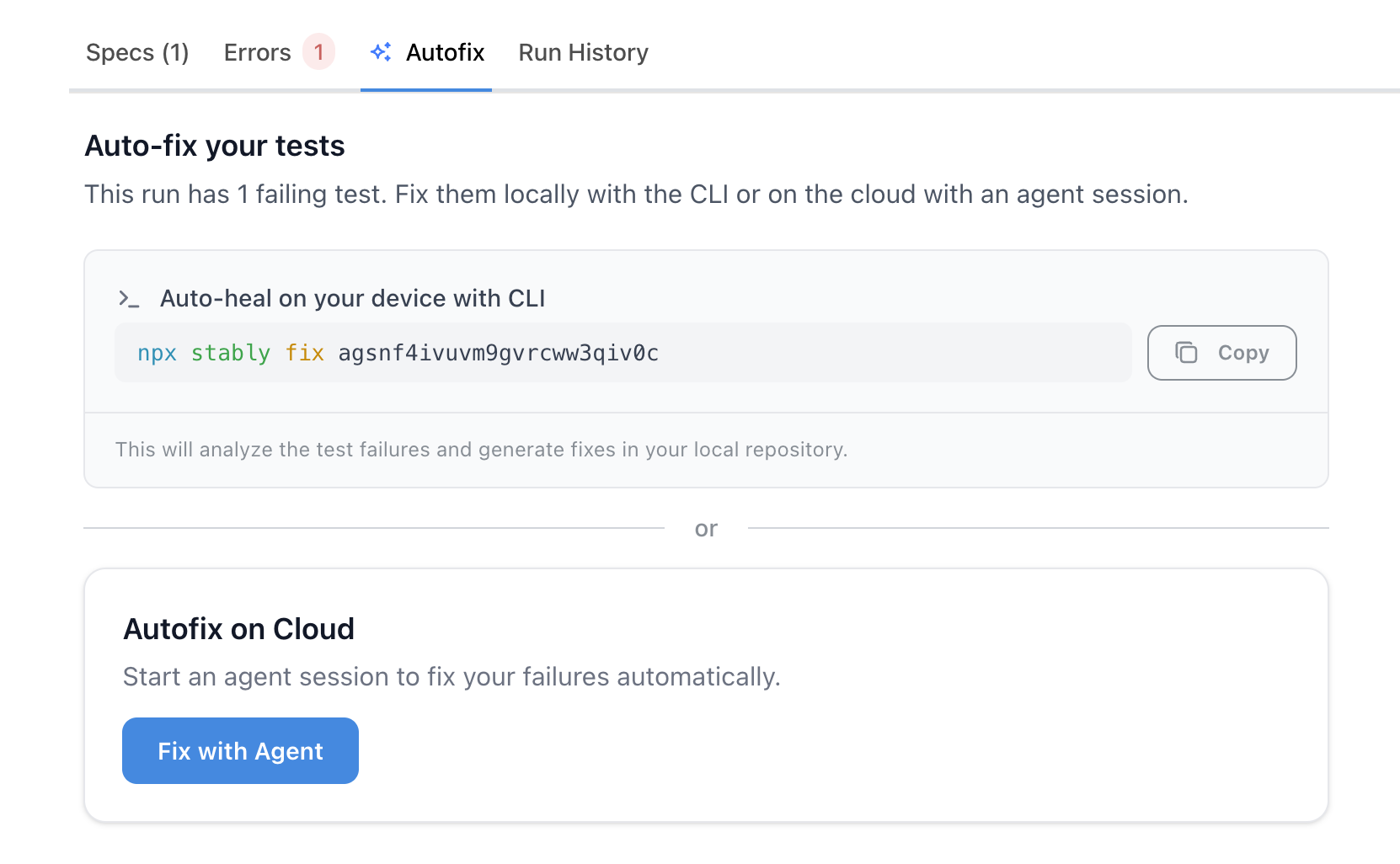
You don't have to enable `autofix: true` upfront. After any test run completes with failures, the **Autofix tab** on the run details page presents two options:
* **Autofix on Cloud** — Click **"Fix with Agent"** to start a cloud agent session. The agent diagnoses failures and generates fixes; when complete, you can create a PR (if your [repo is connected](/stably2/bring-your-own-repo)).
* **Auto-heal on your device with CLI** — Copy the ready-to-run `npx stably fix ` command and run it in your local repo. Fixes are applied to your working tree.
### In `stably.yaml`
You can enable autofix as a **project-level default** that applies to all runs (scheduled, API-triggered, and UI-triggered):
```yaml stably.yaml theme={null}
autofix: true
```
Or enable it for specific schedules only:
```yaml stably.yaml theme={null}
schedules:
nightly-regression:
cron: "0 2 * * *"
stablyTestArgs: "--project regression"
autofix: true
```
You can also combine both — the top-level `autofix` sets the default, and per-schedule values override it:
```yaml stably.yaml theme={null}
autofix: true # default for all runs
schedules:
nightly-regression:
cron: "0 2 * * *"
# inherits autofix: true from top level
smoke-tests:
cron: "0 9 * * *"
autofix: false # overrides: no autofix for this schedule
```
### Via the API
When triggering a run via the API, you can pass `autofix: true` in the request body. If omitted, the project-level default from `stably.yaml` is used.
```bash theme={null}
curl -X POST https://api.stably.ai/v1/projects/{projectId}/runs \
-H "Authorization: Bearer $API_KEY" \
-H "Content-Type: application/json" \
-d '{"autofix": true}'
```
### Triggering Autofix from the Dashboard (Post-Run)
You don't have to enable `autofix: true` upfront. After any test run completes with failures, the **Autofix tab** on the run details page presents two options:
* **Autofix on Cloud** — Click **"Fix with Agent"** to start a cloud agent session. The agent diagnoses failures and generates fixes; when complete, you can create a PR (if your [repo is connected](/stably2/bring-your-own-repo)).
* **Auto-heal on your device with CLI** — Copy the ready-to-run `npx stably fix ` command and run it in your local repo. Fixes are applied to your working tree.
 This works on any failed run — scheduled, API-triggered, UI-triggered, or CLI-triggered — regardless of whether `autofix` was enabled at trigger time.
## Diagnosis Categories
When autofix runs, it categorizes each failure into one of the following:
| Category | What it means |
| ----------------- | ------------------------------------------------------------------------- |
| **Test Outdated** | The test references selectors or flows that have changed in your app |
| **Actual Bug** | The test caught a real bug in your application |
| **Unstable** | The test fails intermittently due to timing or race conditions |
| **UI Change** | The UI changed intentionally and the test needs to reflect the new design |
| **Miscellaneous** | Other issues that don't fit the categories above |
This categorization helps you understand at a glance whether failures need attention or have already been addressed.
## Viewing Results
After autofix completes, results appear in your test runs table under the **"Diagnosis & Fix"** column:
This works on any failed run — scheduled, API-triggered, UI-triggered, or CLI-triggered — regardless of whether `autofix` was enabled at trigger time.
## Diagnosis Categories
When autofix runs, it categorizes each failure into one of the following:
| Category | What it means |
| ----------------- | ------------------------------------------------------------------------- |
| **Test Outdated** | The test references selectors or flows that have changed in your app |
| **Actual Bug** | The test caught a real bug in your application |
| **Unstable** | The test fails intermittently due to timing or race conditions |
| **UI Change** | The UI changed intentionally and the test needs to reflect the new design |
| **Miscellaneous** | Other issues that don't fit the categories above |
This categorization helps you understand at a glance whether failures need attention or have already been addressed.
## Viewing Results
After autofix completes, results appear in your test runs table under the **"Diagnosis & Fix"** column:
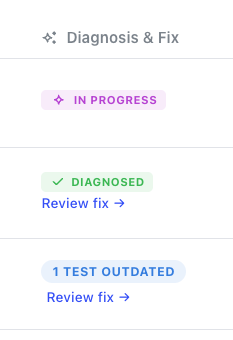 * **In Progress** — autofix is still running
* **Diagnosed** — analysis is complete, with issue counts by category
* **Review fix** — click to see the full report and code changes
* **No fix available** — the issue was identified but couldn't be automatically repaired
Click **"Review fix"** to open the detailed report, which includes:
* Each failing test with its diagnosis
* The code changes that were applied
* A link to the generated pull request (if your repo is connected to GitHub)
## Configuration
You can fine-tune how the fix agent behaves — including budget caps, turn limits, and smart skip rules — using the `agent.fix` section in `stably.yaml`:
```yaml stably.yaml theme={null}
agent:
fix:
maxBudgetUsd: 30
maxTurnsPerIssue: 20
skipAfterConsecutiveUnfixed: 1
```
This is especially important for scheduled runs, where autofix can trigger unattended. Setting a session budget and skip rules prevents runaway costs if an external issue (e.g., an auth provider outage) causes widespread failures.
See [Autofix Cost Controls](/core-configuration/autofix-cost-controls) for the full reference — including all options, recommended settings by use case, and strategies for preventing runaway costs.
## Running Autofix from the CLI
In addition to the cloud-based approaches above, you can run autofix from the command line — on your local machine or in CI:
```bash theme={null}
# Auto-detects the last test run
stably fix
# With a specific run ID (works with local, CI, or cloud runs)
stably fix
# Full pipeline: run tests, then fix failures
stably test || stably fix
```
CLI fixes are applied to your local files, and results are always uploaded to the Stably dashboard. If your repo is [connected](/stably2/bring-your-own-repo), you can create a PR from the dashboard without any extra steps. In CI, you can also add git commit/push steps if you prefer to commit directly from the pipeline.
See [Fix Tests (stably fix)](/stably-cli/fix) for the full guide — including prerequisites, CI integration examples (with matrix/sharding support), ad-hoc fixing, and configuration.
## Next Steps
Configure when your tests run automatically
Full guide on `stably fix` — run ID detection, CI integration, and configuration
Watch fix progress live on the dashboard and send messages to the agent
Get notified about test failures and fixes
* **In Progress** — autofix is still running
* **Diagnosed** — analysis is complete, with issue counts by category
* **Review fix** — click to see the full report and code changes
* **No fix available** — the issue was identified but couldn't be automatically repaired
Click **"Review fix"** to open the detailed report, which includes:
* Each failing test with its diagnosis
* The code changes that were applied
* A link to the generated pull request (if your repo is connected to GitHub)
## Configuration
You can fine-tune how the fix agent behaves — including budget caps, turn limits, and smart skip rules — using the `agent.fix` section in `stably.yaml`:
```yaml stably.yaml theme={null}
agent:
fix:
maxBudgetUsd: 30
maxTurnsPerIssue: 20
skipAfterConsecutiveUnfixed: 1
```
This is especially important for scheduled runs, where autofix can trigger unattended. Setting a session budget and skip rules prevents runaway costs if an external issue (e.g., an auth provider outage) causes widespread failures.
See [Autofix Cost Controls](/core-configuration/autofix-cost-controls) for the full reference — including all options, recommended settings by use case, and strategies for preventing runaway costs.
## Running Autofix from the CLI
In addition to the cloud-based approaches above, you can run autofix from the command line — on your local machine or in CI:
```bash theme={null}
# Auto-detects the last test run
stably fix
# With a specific run ID (works with local, CI, or cloud runs)
stably fix
# Full pipeline: run tests, then fix failures
stably test || stably fix
```
CLI fixes are applied to your local files, and results are always uploaded to the Stably dashboard. If your repo is [connected](/stably2/bring-your-own-repo), you can create a PR from the dashboard without any extra steps. In CI, you can also add git commit/push steps if you prefer to commit directly from the pipeline.
See [Fix Tests (stably fix)](/stably-cli/fix) for the full guide — including prerequisites, CI integration examples (with matrix/sharding support), ad-hoc fixing, and configuration.
## Next Steps
Configure when your tests run automatically
Full guide on `stably fix` — run ID detection, CI integration, and configuration
Watch fix progress live on the dashboard and send messages to the agent
Get notified about test failures and fixes