

Overview
Environments let you organize variables into named groups — such as Production, Staging, or Local Dev — so your tests can use different configurations depending on the context they run in. Each environment holds a set of key-value variables that your tests can reference at runtime. Variables can be marked as sensitive to protect secrets like API keys and passwords.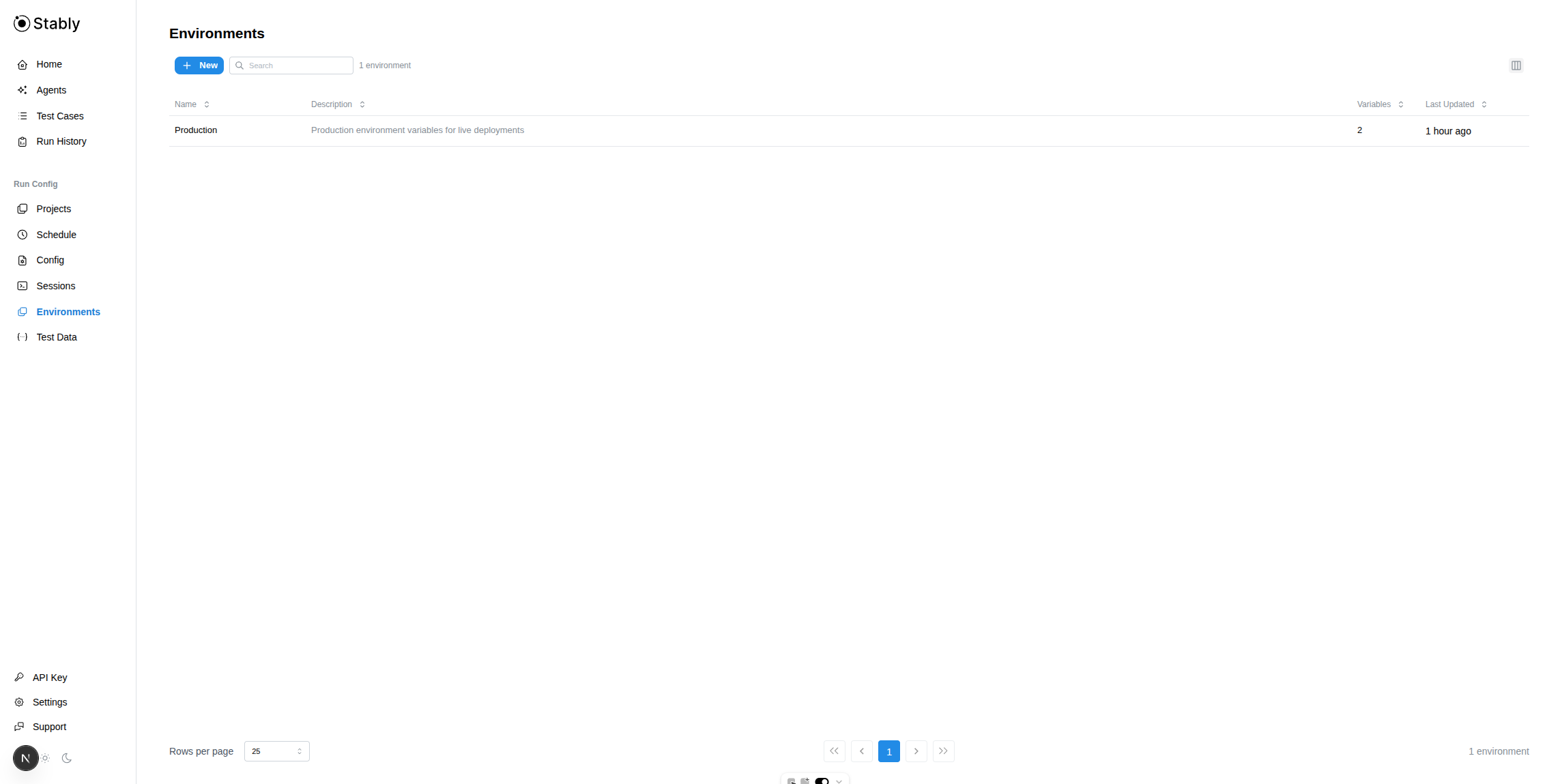
Creating an Environment
1
Navigate to Environments
Click Environments in the sidebar.
2
Click New
Click the + New button in the toolbar.
3
Enter details
Provide a Name (e.g., 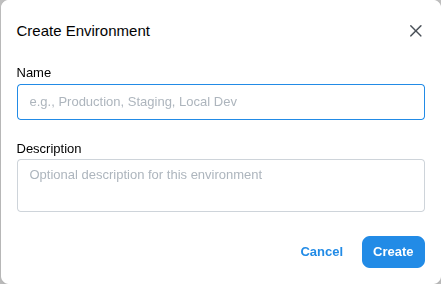
Production, Staging) and an optional Description to help your team understand what this environment is for.4
Create
Click Create. The new environment appears in the table and opens automatically.
Managing Variables
Click any environment row to open its detail drawer, where you can add, edit, search, and delete variables.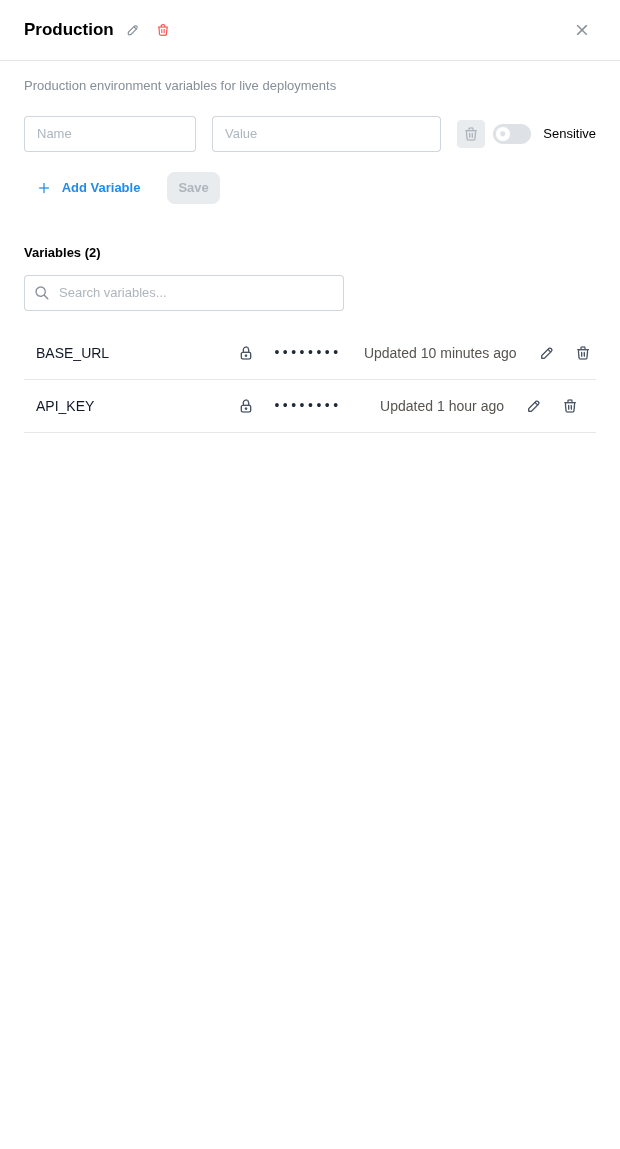
Adding Variables
1
Enter name and value
Type a variable Name and Value in the form at the top of the drawer.
2
Mark as sensitive (optional)
Toggle Sensitive if the value contains a secret (API key, password, token). Sensitive values are encrypted and masked in the UI.
3
Add more rows (optional)
Click + Add Variable to add multiple variables at once before saving.
4
Save
Click Save to store all new variables.
Editing Variables
Click the pencil icon on any variable row to open inline editing. You can change the name, value, or toggle the sensitive flag (for non-sensitive variables only).Deleting Variables
Click the trash icon on any variable row. A confirmation dialog will appear before the variable is permanently removed.Sensitive Variables
Sensitive variables provide an extra layer of protection for secrets:Automatic Trace Scrubbing
When you run tests withstably --env <name> test, any variable marked Sensitive is automatically scrubbed from Playwright traces before they are uploaded to Stably. You do not need to configure sensitiveValues in your playwright.config.ts — the CLI handles it for you.
This means the simplest way to protect secrets in traces is:
- Add your secrets as variables on this page and mark them as Sensitive.
- Run tests with
--env:
Default Environment
You can set a default environment for your project. The default environment is automatically used by scheduled runs and cloud executions when no specific environment is selected. To set a default, click the star icon next to an environment in the list, or use the Set as Default option in the environment detail drawer.Using Environments from the CLI
The--env flag lets you load a named environment’s variables directly from Stably when running CLI commands. This removes the need to manage local .env files — variables are fetched securely from the Stably API at runtime.
process.env for your tests. Variables marked as Sensitive are automatically scrubbed from Playwright traces — see Automatic Trace Scrubbing above.
The
--env flag requires authentication. Set STABLY_API_KEY and STABLY_PROJECT_ID, or run stably login first.Variable Precedence
When using the CLI, variables can come from multiple sources. They are resolved in the following order, from lowest to highest priority:
If the same variable name exists in multiple sources, the higher-priority source wins. For example, a
BASE_URL defined in your --env Staging environment will override the same variable from a local --env-file .env file.
Loading from a Local .env File
You can also load variables from a local file using the --env-file flag:
Downloading as .env
Click Download .env in the environment detail drawer to export all variables as a .env file. Non-sensitive variables include their full values, while sensitive variables appear as empty placeholders.
Bulk Import
Typically, managing test secrets across CI providers means adding each variable individually in GitHub Actions, GitLab CI, Jenkins — and keeping them in sync when credentials rotate. With Stably Environments, you upload your.env file once and every test run pulls from the same source of truth via --env.
To get started:
- Go to Environments in the Stably dashboard.
- Open an environment and click Bulk Import.
- Select your
.envfile — all key-value pairs are imported automatically. - Mark any secrets (API keys, passwords, tokens) as Sensitive — they’ll be encrypted, masked in the UI, and automatically scrubbed from traces.
--env anywhere — locally, in CI, or on Stably Cloud:
- One place to update. When a credential rotates, update it once in Stably. Every CI provider, every teammate, every scheduled run picks up the change automatically.
- No per-provider secret configuration. The only CI secret you need is
STABLY_API_KEY— your app secrets (database URLs, API keys, tokens) stay in Stably, not scattered across GitHub, GitLab, and Jenkins settings pages. - Secrets stay protected. Sensitive values are encrypted at rest, hidden from the API, and automatically scrubbed from Playwright traces before upload. No extra configuration needed.