

Prerequisites
- A Stably account: Sign up
- Access to the app you want to test (URL plus test credentials if needed)
- Optional: GitHub repository access if you want to sync tests back to code
Step-by-step
1
Capture or ask AI for a flow
Click Start Recording to capture actions in your app, or ask AI to build tests for you (e.g., “Create a login test that verifies the dashboard loads”). The editor builds Playwright-compatible steps you can inspect.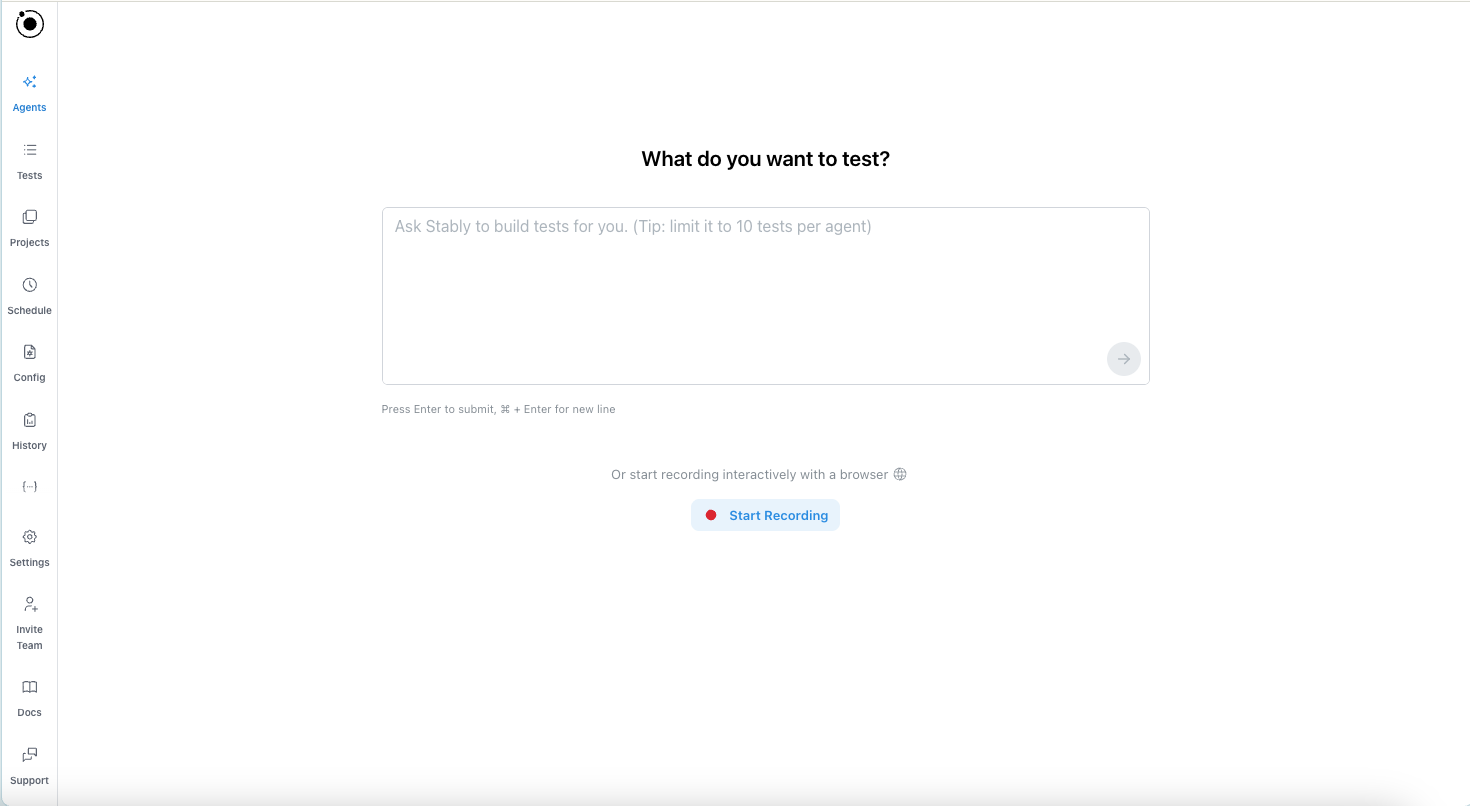
2
Preview the changes and publish
View changes in the no-code view or code view. Use the recorder or chat with AI to make modifications, and preview the test—all in the editor. Publish when ready.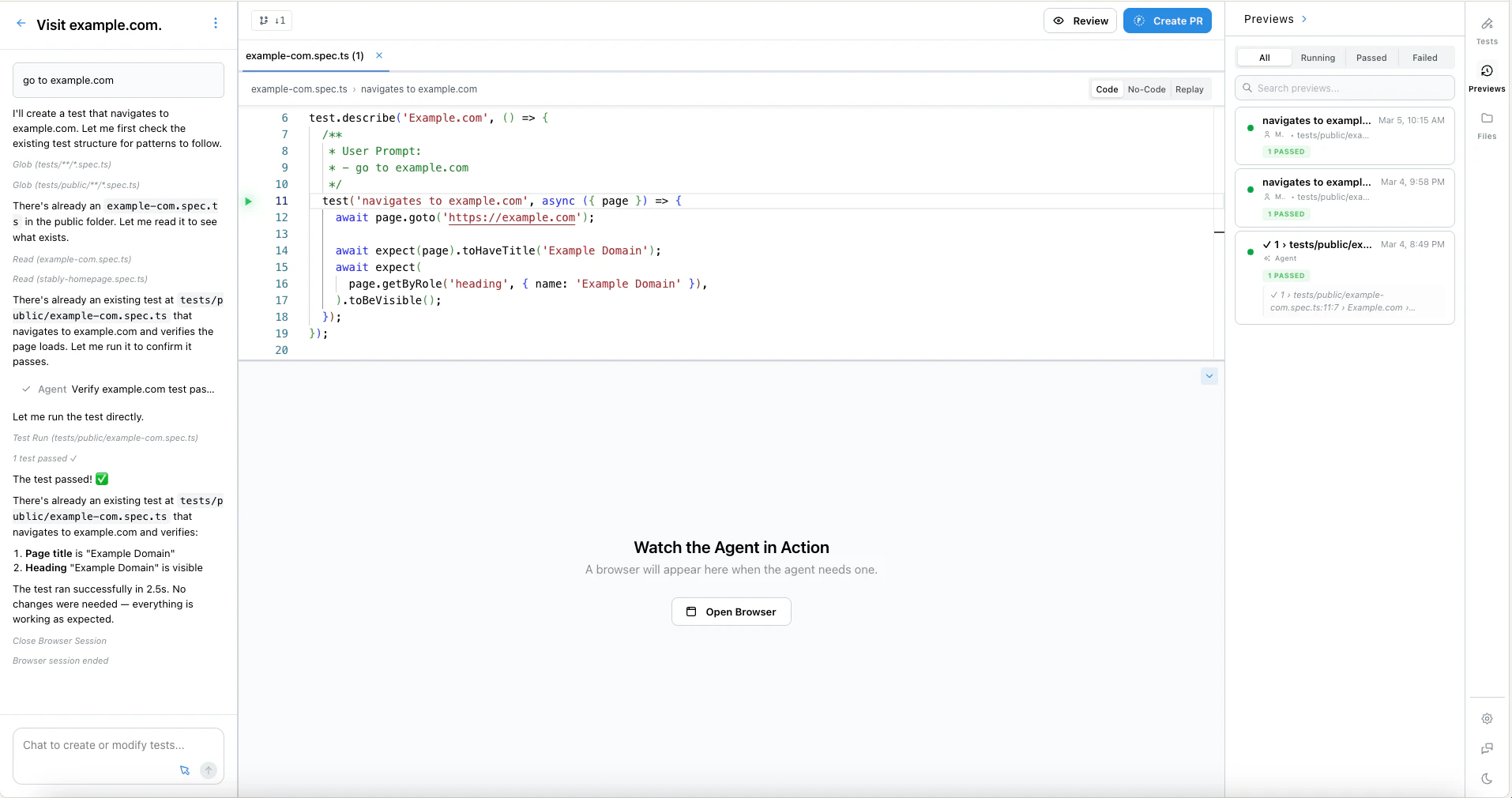
3
Run in Stably Cloud
Choose Run and pick a test project (e.g., “prod release”). Stably provisions the browser, runs the test, and streams results with screenshots and logs. No local installs required.
Preview vs Run
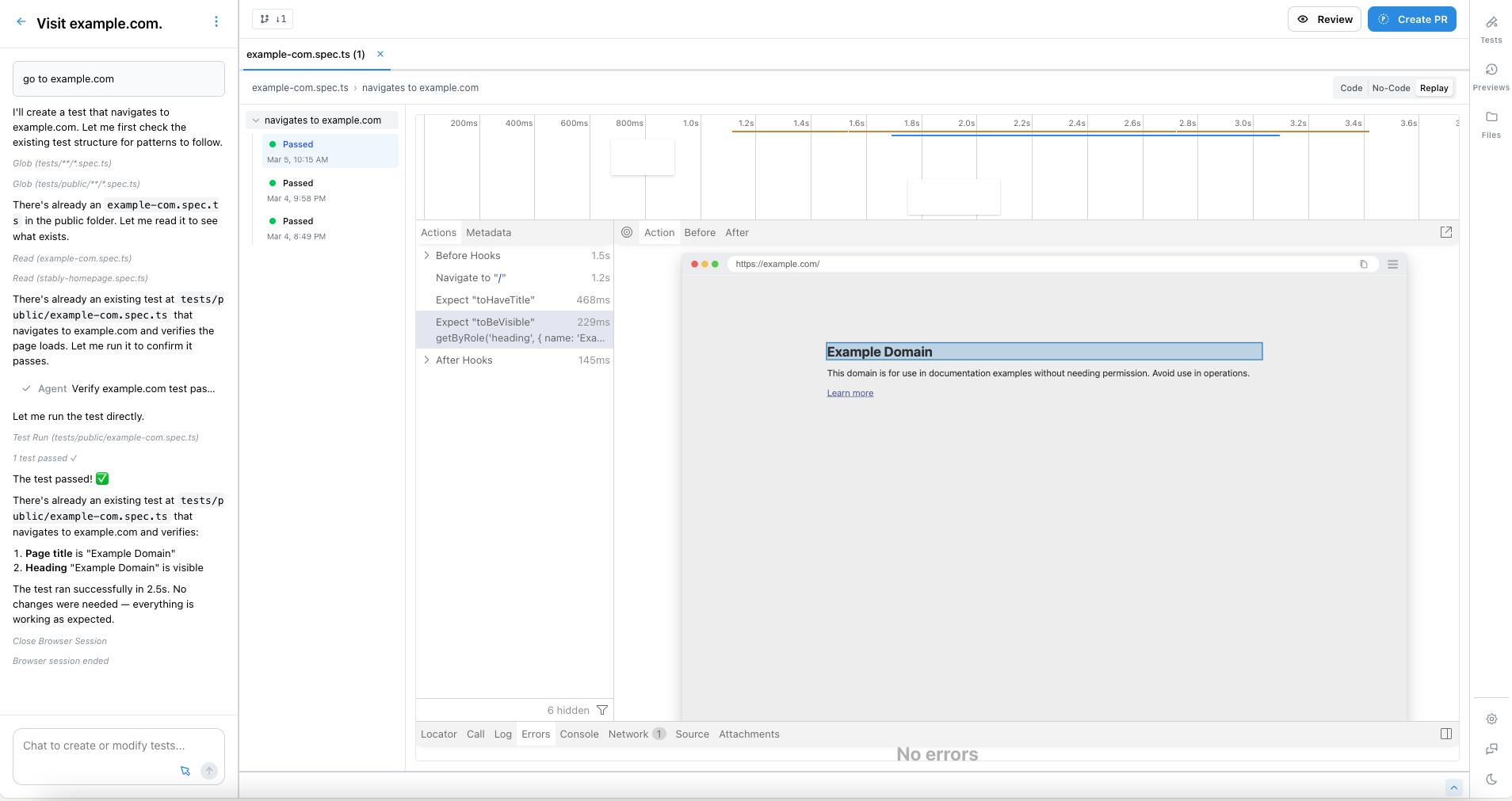
Preview and Run serve different purposes:- Preview executes the test inside the editor’s virtual browser so you can watch each step play out in real time. Use it to quickly validate changes, debug failures, and iterate—without leaving the editor.
- Run is available after you publish your tests. Use it to execute tests in headless mode at scale—on your own machine via the CLI or on Stably Cloud.
What you get
- Playwright-compatible tests you can export or run anywhere
- Full run history with screenshots, logs, and video recordings
- Git-backed version control—every change is saved
Next step
Web Editor guide
Learn the editor, AI assistance, and recording tips