

Background
You might want to authorize/login with Google in your tests, but doing so in your an automated web browser can have issues may be blocked by Google (as they might think this is bot traffic). This method exists to login in a way that won’t trigger such a response by Google.On rare occasions, Google may still prompt for a one-time passcode (OTP). You can handle this by generating a code from your
otpSecret.context.authWithGoogle(options)
Signs in a Google test account and applies the authenticated session to the current browser context. After this resolves, subsequent pages in the context are fully authenticated — no need to drive the login UI manually.
You can also use
authWithGoogle stand-alone (pass your own context) if you import it directly:Options
string
required
Google account email address.
string
required
Google account password.
string
required
TOTP secret used to generate the Google 2FA code. This is the 32-character base32 secret Google shows when you click Can’t scan QR code during authenticator setup. See Setting up a Google test account below for how to obtain this.
boolean
default:"false"
Force a cache refresh server-side. Use this if you need a fresh session.
string
Optional Stably API key override. Defaults to the configured API key.
Your credentials are sent to Stably’s servers to perform the Google sign-in. The authenticated session is cached server-side for reuse across test runs.
Setting up a Google test account
Before usingauthWithGoogle, you need a Google account with 2FA configured using an authenticator app. The key requirement is obtaining the OTP secret — the 32-character base32 string Google provides during authenticator setup.
1
Get your Google secret
In Google account security settings, start authenticator setup and click Can’t scan QR code to reveal the secret text.
2
Generate the verification code
Paste the secret into the Stably OTP helper and copy the displayed 6-digit code.
3
Finish in Google
Return to Google’s verification screen, paste the 6-digit code, and complete setup.
4
Store the secret
Save the OTP secret as an environment variable (e.g.
GOOGLE_TEST_OTP_SECRET) for use in your tests.Detailed walkthrough
Step-by-step with screenshots
Step-by-step with screenshots
1
Access Google Account Settings
Sign in to your test Google Workspace account at accounts.google.com.
2
Navigate to Security Settings
Select ‘Security’ from the left sidebar menu.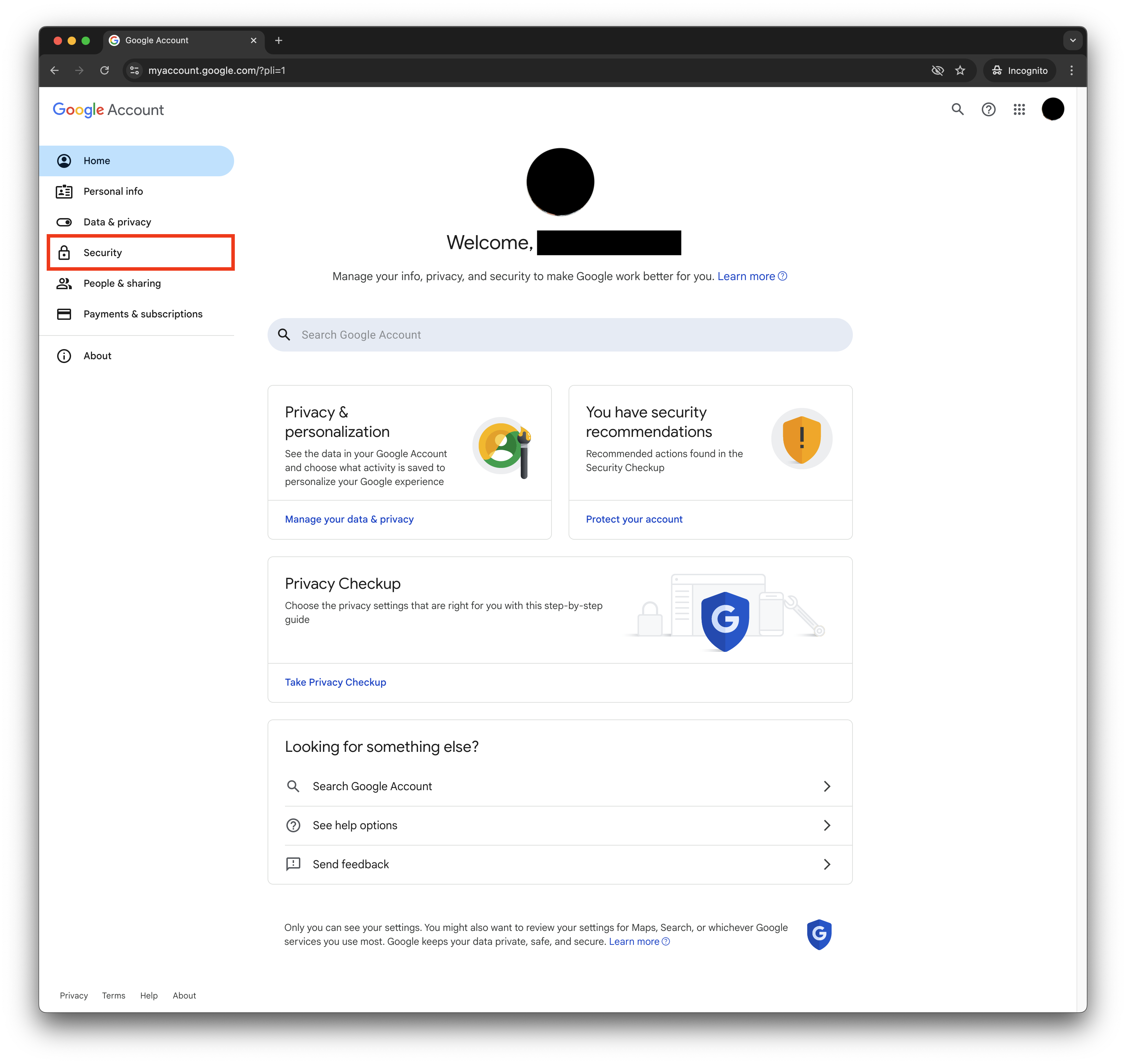
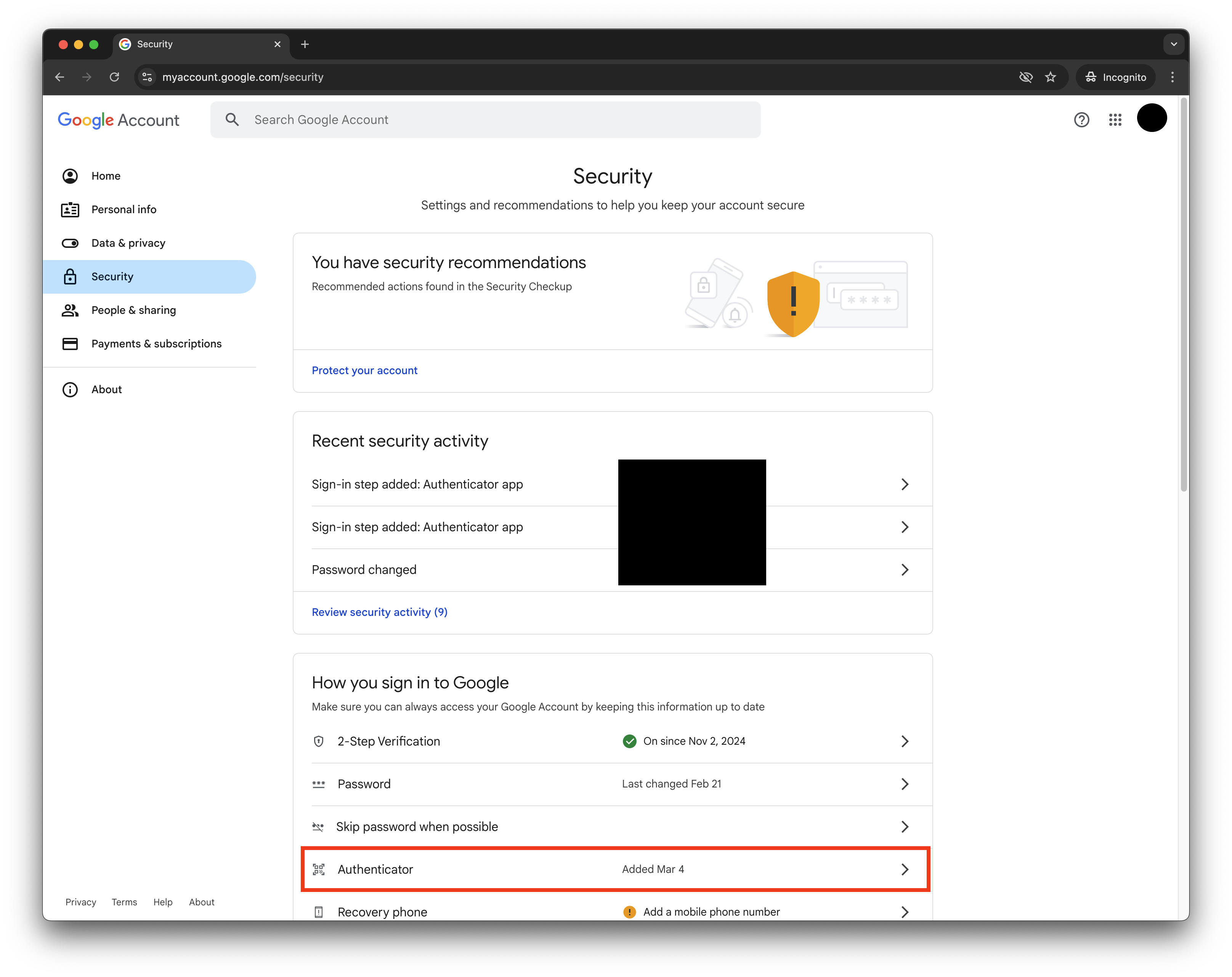
3
Scroll to 'How you sign in to Google' and click 'Authenticator'
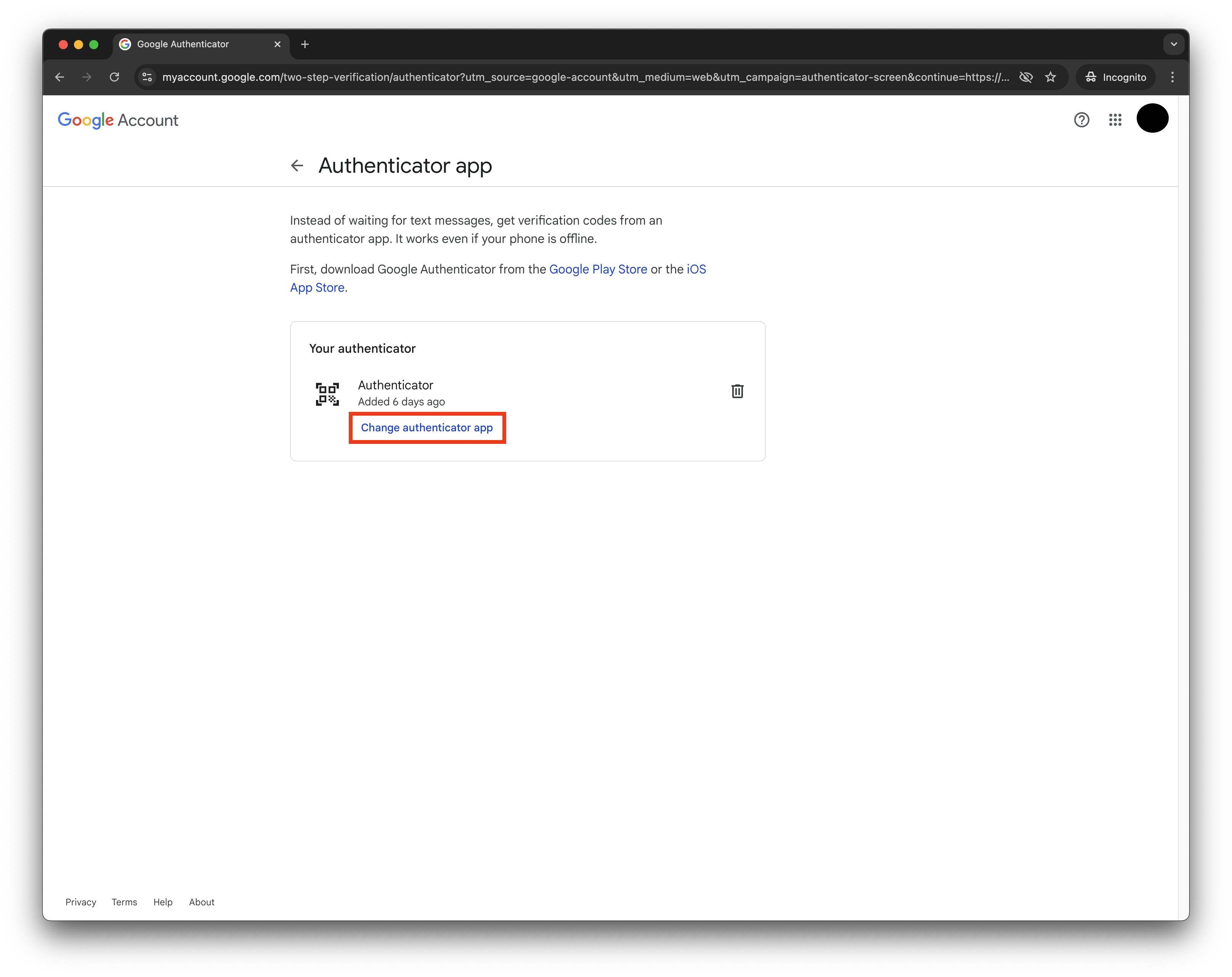
4
Click 'Add Authenticator' (or 'Change Authenticator App')
This will invalidate your previous Authenticator app setup.
5
Access OTP Secret
When the QR code pop-up appears: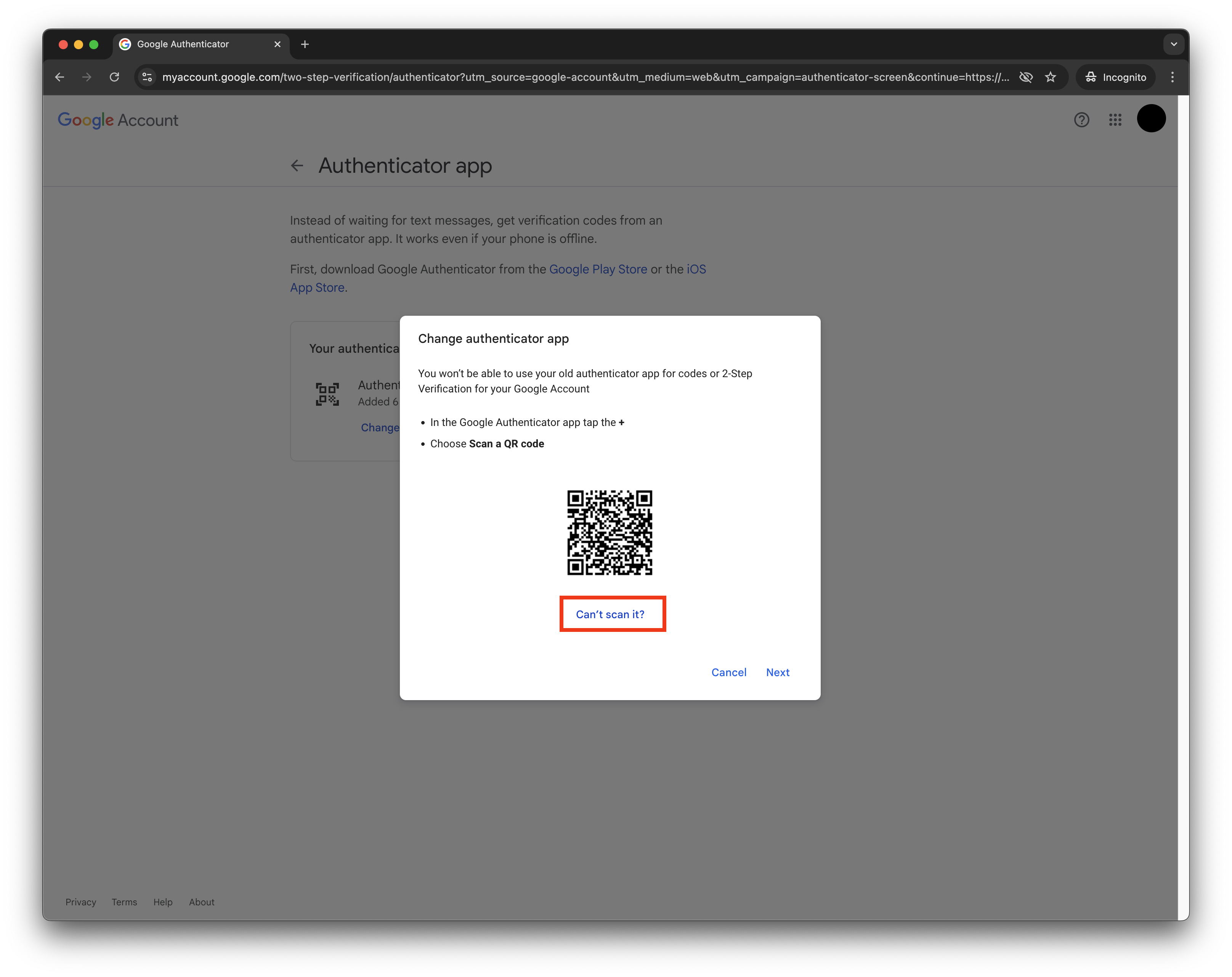
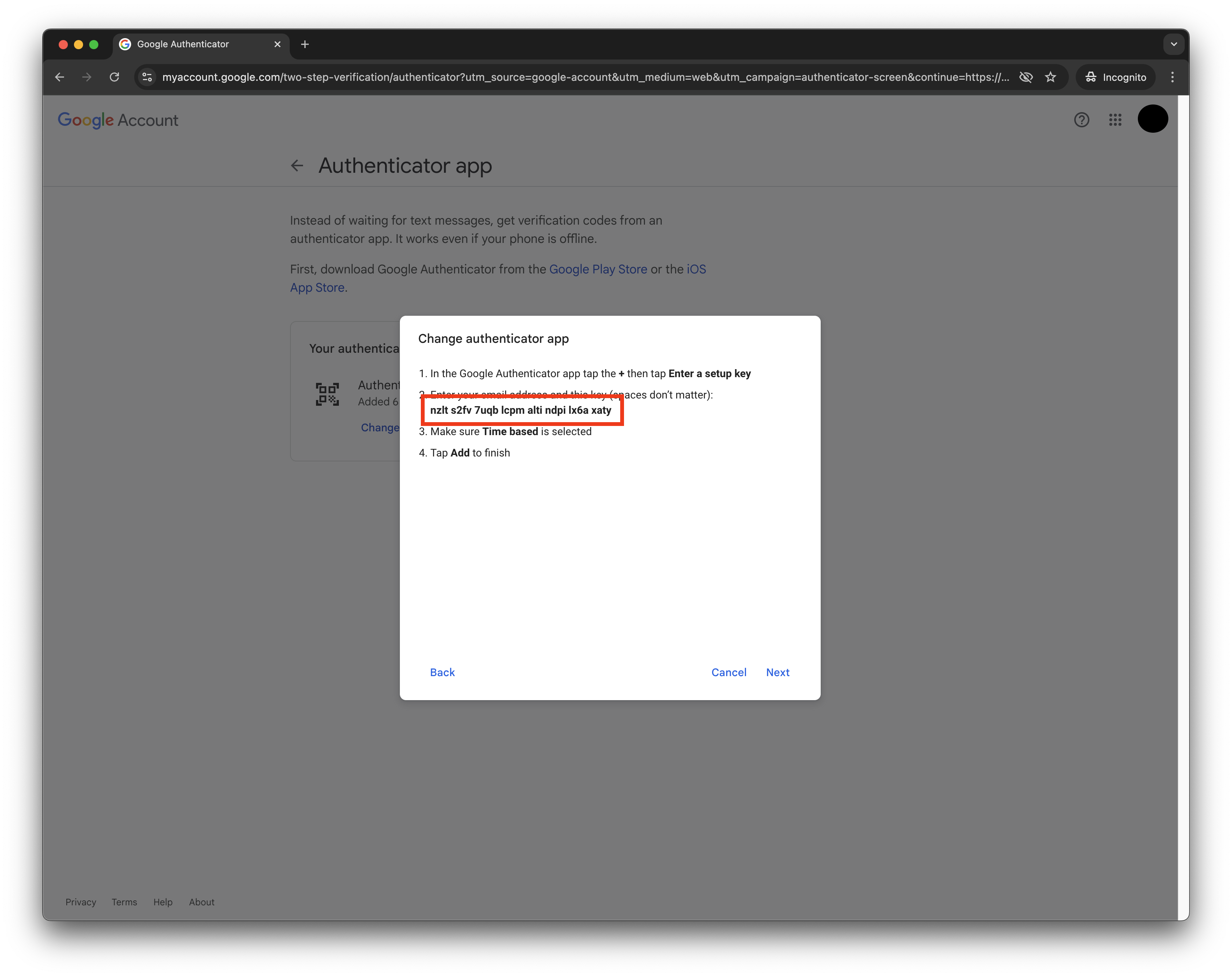
- Click ‘Can’t scan QR code’
- This will reveal the OTP secret in text format
You’ll also want to store this to use as
otpSecret with the authWithGoogle SDK method6
Verify OTP setup using Stably's Util
Open Stably’s OTP util in a new tab.
7
Paste the OTP secret into the Stably OTP Util
8
Copy the generated OTP
You’ll see an OTP with a 30-second timer. Click ‘Copy OTP’ to copy it.
9
Finish authenticator setup in Google
Go back to the Google Accounts pop-up, click ‘Next’, paste the copied OTP, and click ‘Verify’.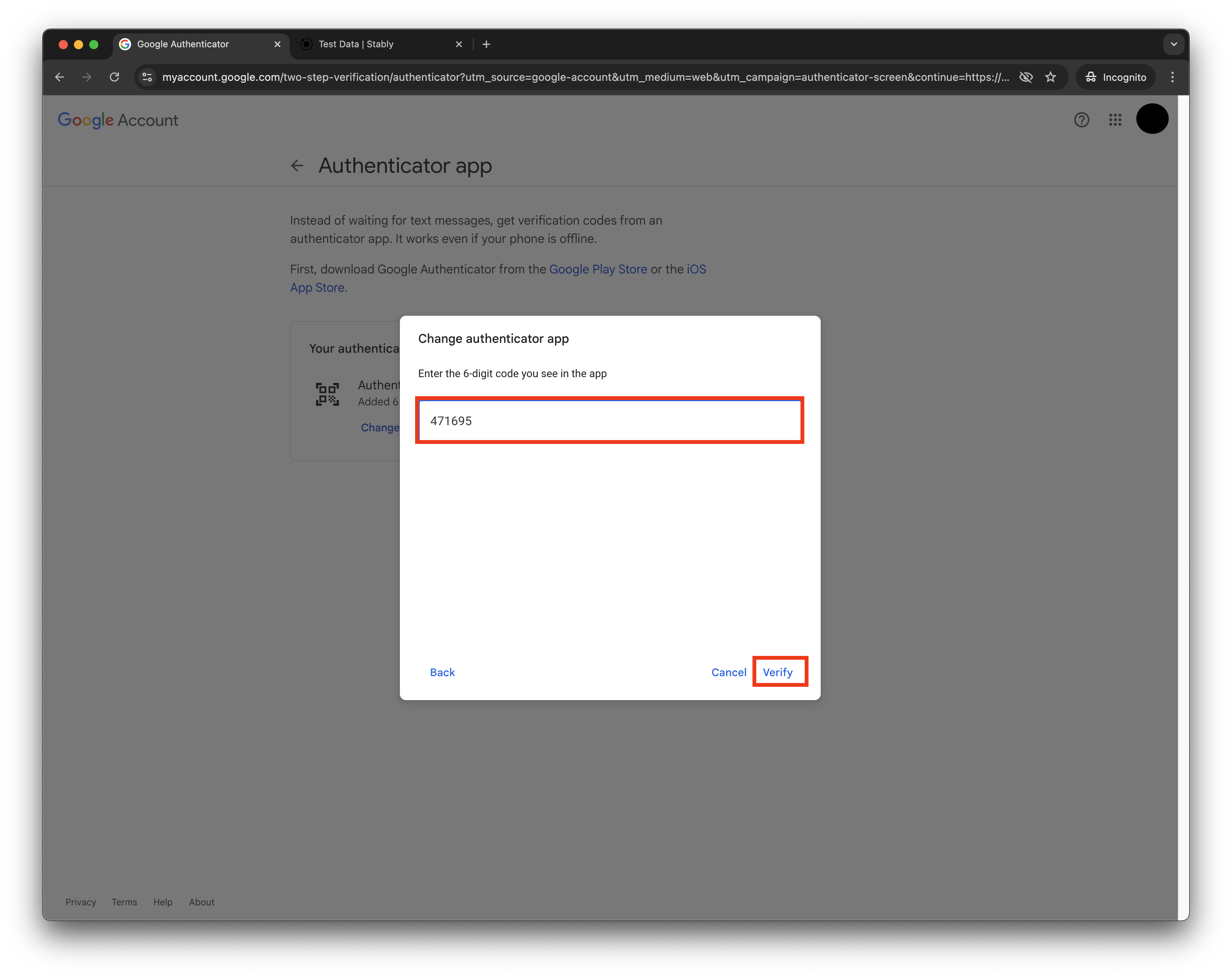
10
Enable 2FA and validate second steps
Go back to the Google Accounts page, turn on 2FA, and under ‘Second Steps’, make sure only the Authenticator is enabled (you might have to sign out of the Google Account on mobile devices).
11
Use this Google OAuth account in your tests with the generated OTP secret